

LaunchDarkly’s feature flags are a helpful tool to enable and disable application changes with a single click rather than going through an entire code deployment.
In this tutorial, we’ll use LaunchDarkly's feature flags in a JavaScript application. We’ll start with an example from my earliest days of internet building — building a fan page, which will demonstrate how feature flags work. The fan page will flip our DJ Toggle page from a 1995-style into 2000s-style site and back, depending on the state of a feature flag.
Sample Project Repository
The assets needed for this project and a completed sample are found at https://github.com/launchdarkly-labs/Risk-Management-JavaScript.
Within this repository, the assets for this tutorial can be found in the folder Feature Flag > JavaScript.
If you’re just getting started, start by creating a new directory for your project and navigating into it:
Create a LaunchDarkly Account
Head to LaunchDarkly in your web browser and create an account or log in if you already have one. If you're new, click ‘Skip setup’ after verifying your email.
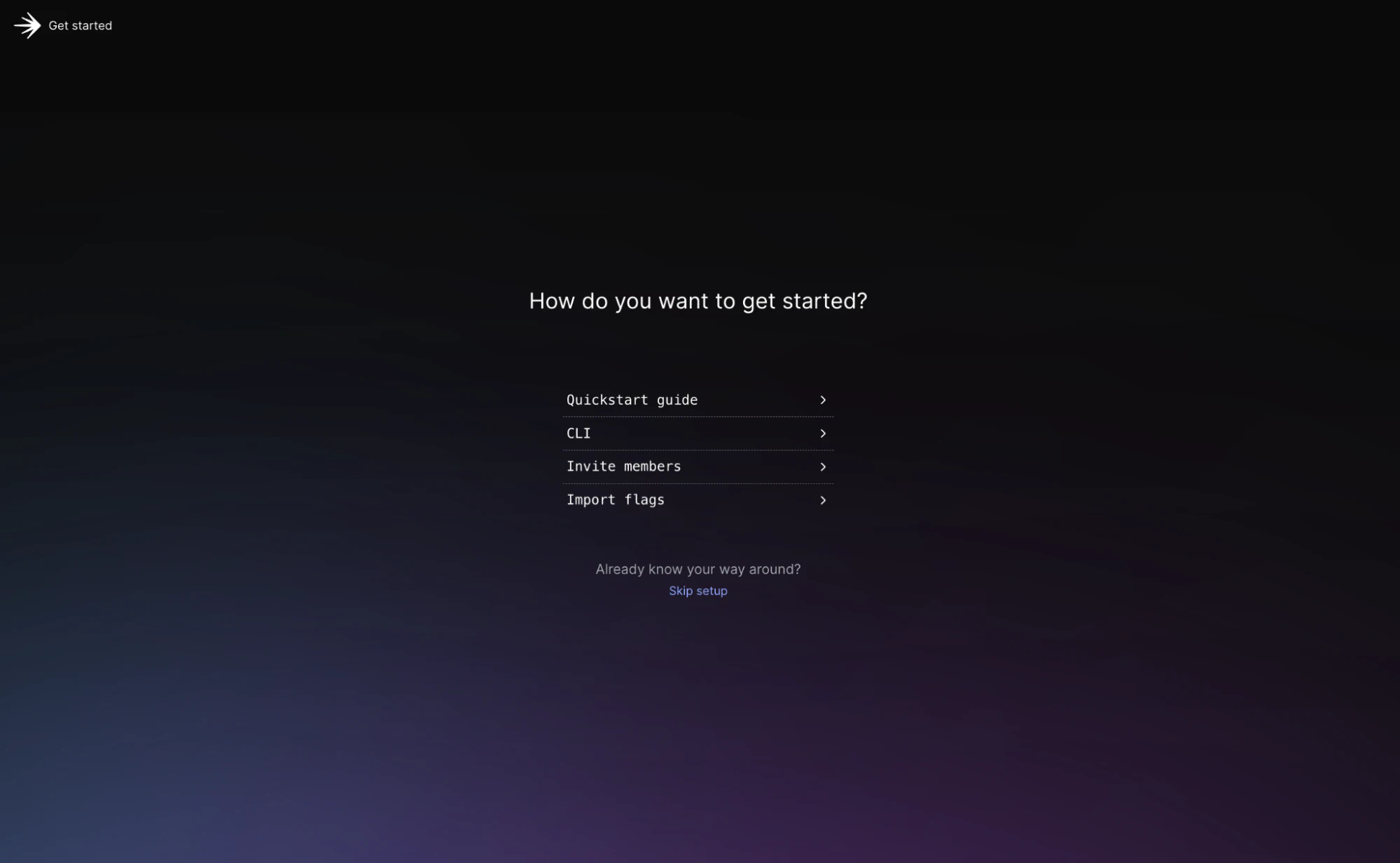
You will then be added to a default project.
To get the relevant keys for your project:
- Click on the cog icon on the lower left side of the screen.
- Navigate to "Projects" and click on your project's name.
Once you click on the project name, you’ll be brought to the project settings page.
We'll be working within our production environment. Click on the three dots next to your environment and select ‘Client-side ID’.
Create a .env file within the project folder (fan-page) by writing the following within your terminal.
Keep your secrets safe by creating a .gitignore file and adding your .env file. This will prevent any environment variables or secrets from being accidentally uploaded to GitHub.
Set up your JavaScript project
Let’s set up our JavaScript project to build our fan page and update its look and feel to the 21st century.
Initialize a new NPM project in the fan-page directory:
This command creates a package.json file with default settings, which you'll need to manage your project dependencies.
Create a Feature Flag to switch between styles
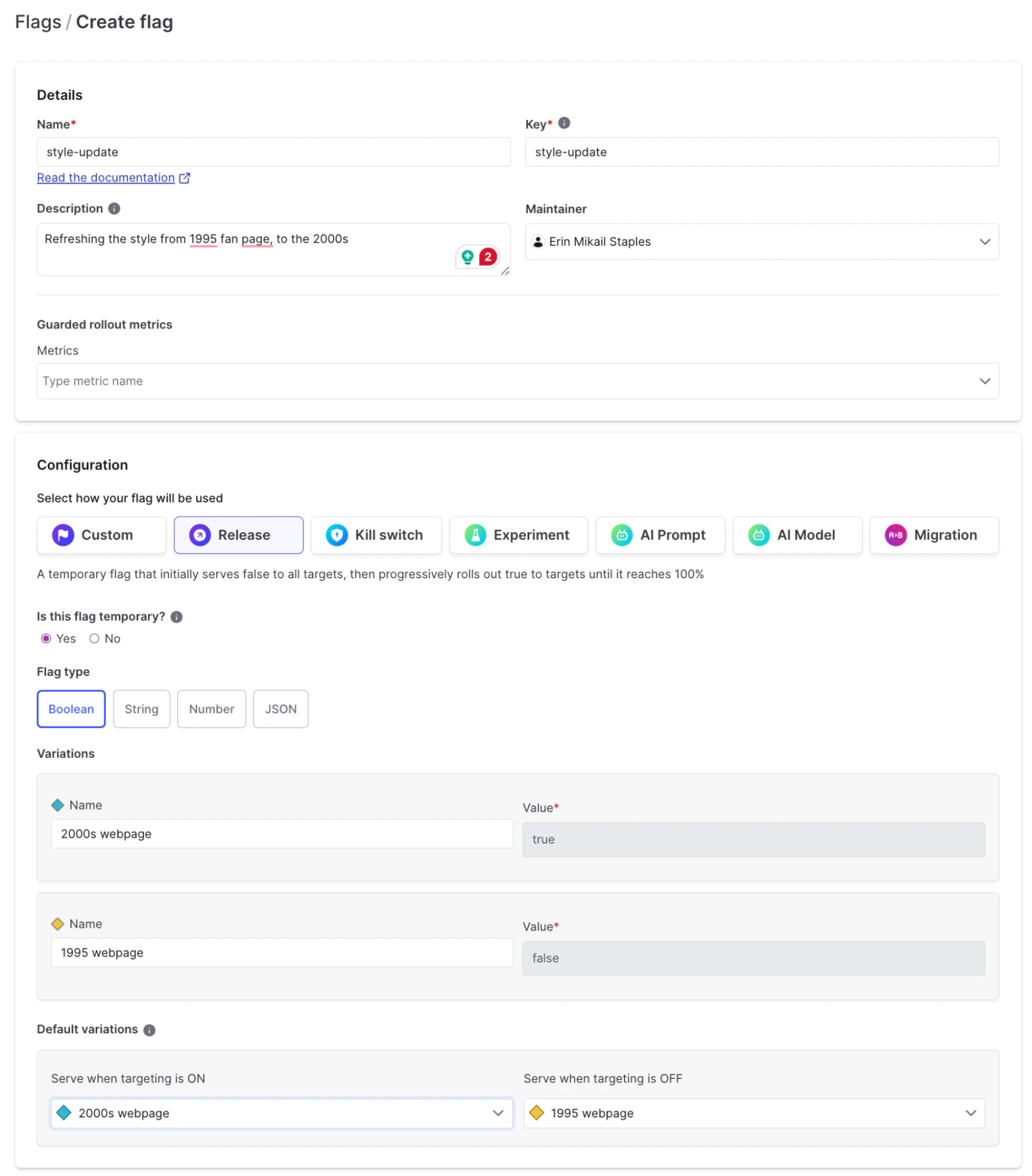
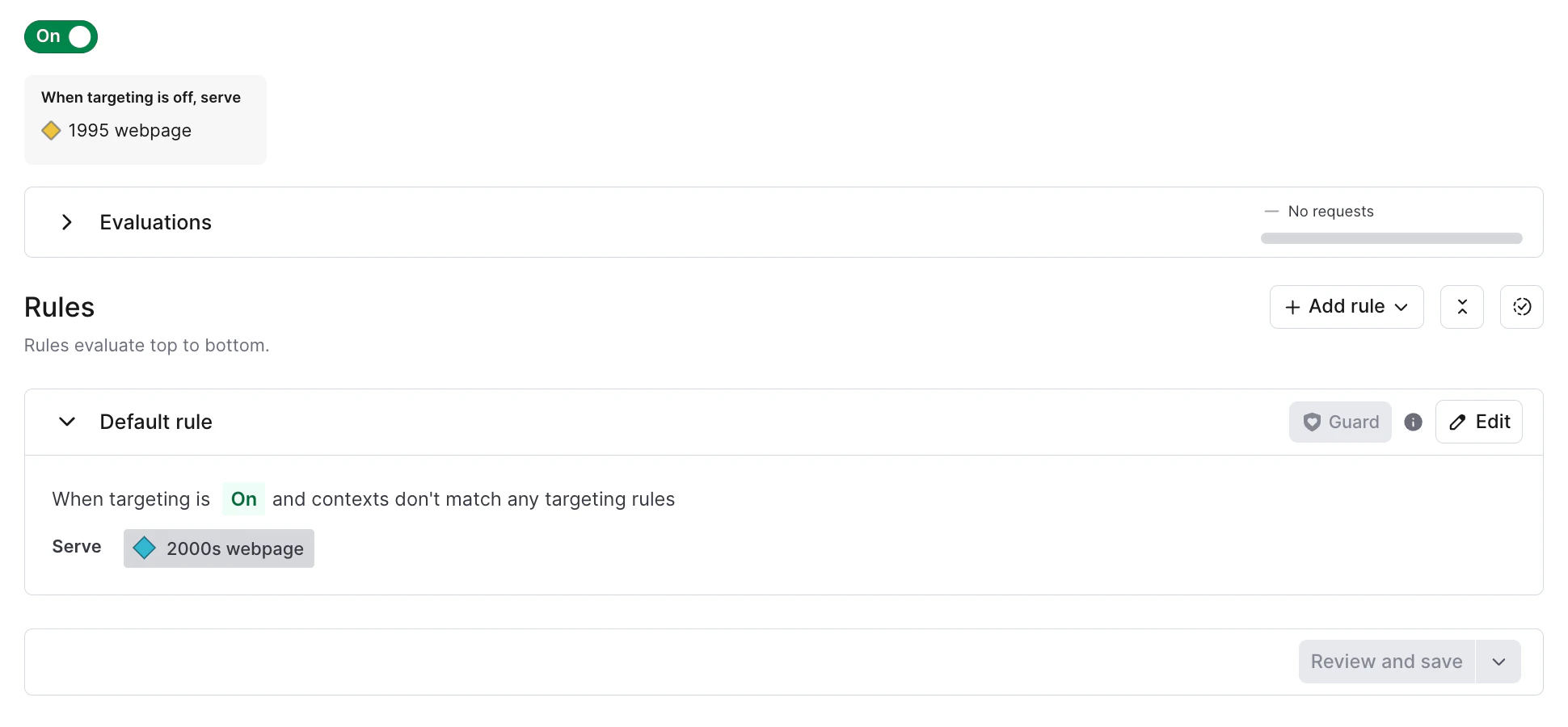
In your new project, create a feature flag named style-update. This flag will control whether your website displays the styling of the original 1995-styled or the new-and-improved 2000s-styled webpage.
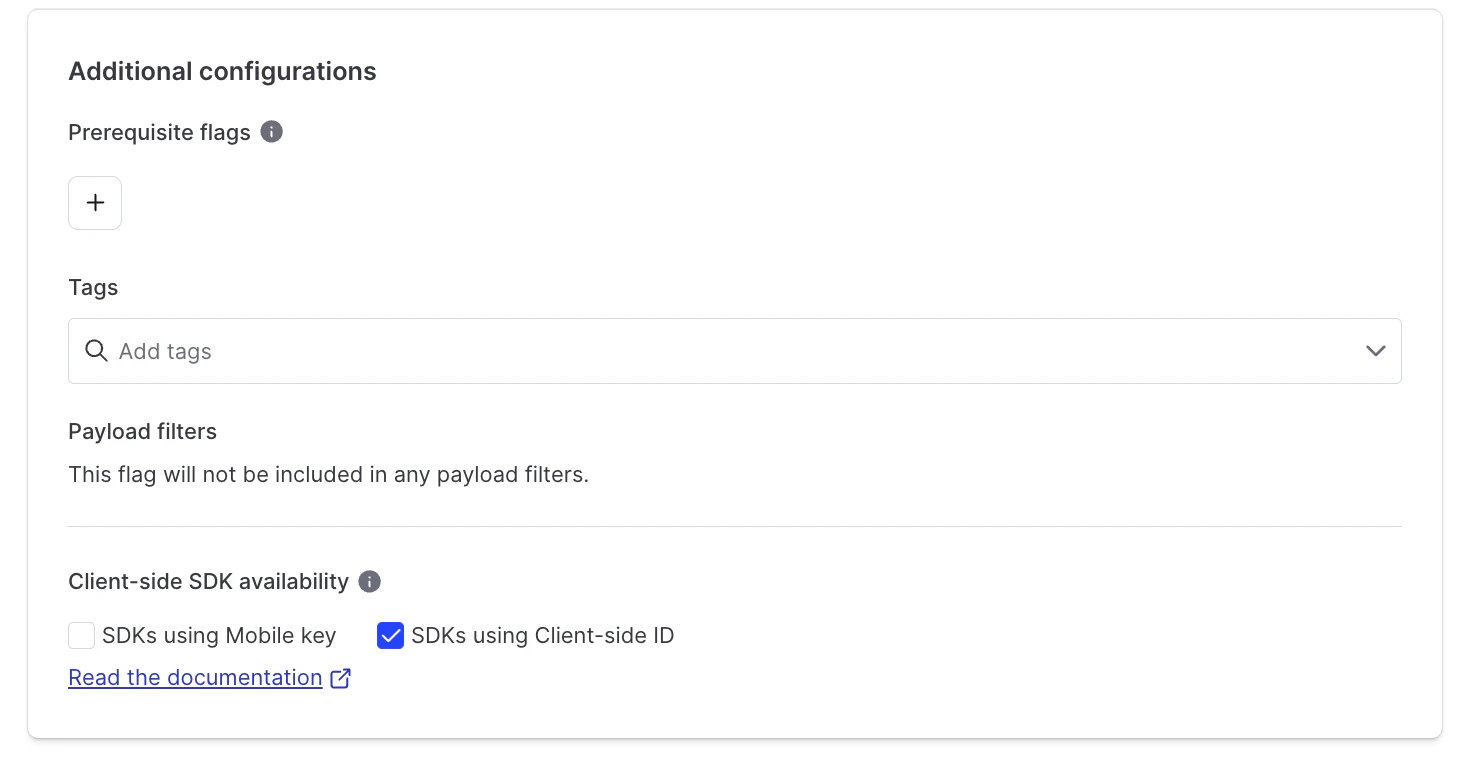
Set the flag type to Release Flag and Boolean, and check the client-side SDK checkmark. When complete, your feature flag setup should look like the below.
Next, install the necessary dependencies:
- launchdarkly-js-client-sdk: This JavaScript SDK allows your app to communicate with LaunchDarkly.
- dotenv-webpack: This package helps you manage environment variables easily.
Inside the .env file, add your LaunchDarkly Client-Side ID:
Replace your_launchdarkly_client_side_id_here with the actual client-side ID from the LaunchDarkly dashboard.
Create an index.html file in your project directory.
Open index.html in your preferred text editor and add the following HTML:
This HTML file sets up your website's basic structure, including a div to hold the content and a style tag for custom styles that will change based on the feature flag state.
Create the JavaScript file that will control the behavior of our app based on the kill switch flag.
Create a file named app.js in the same directory:
Add the following JavaScript code
Open app.js in your text editor and add the following code:
What does this JavaScript file do?
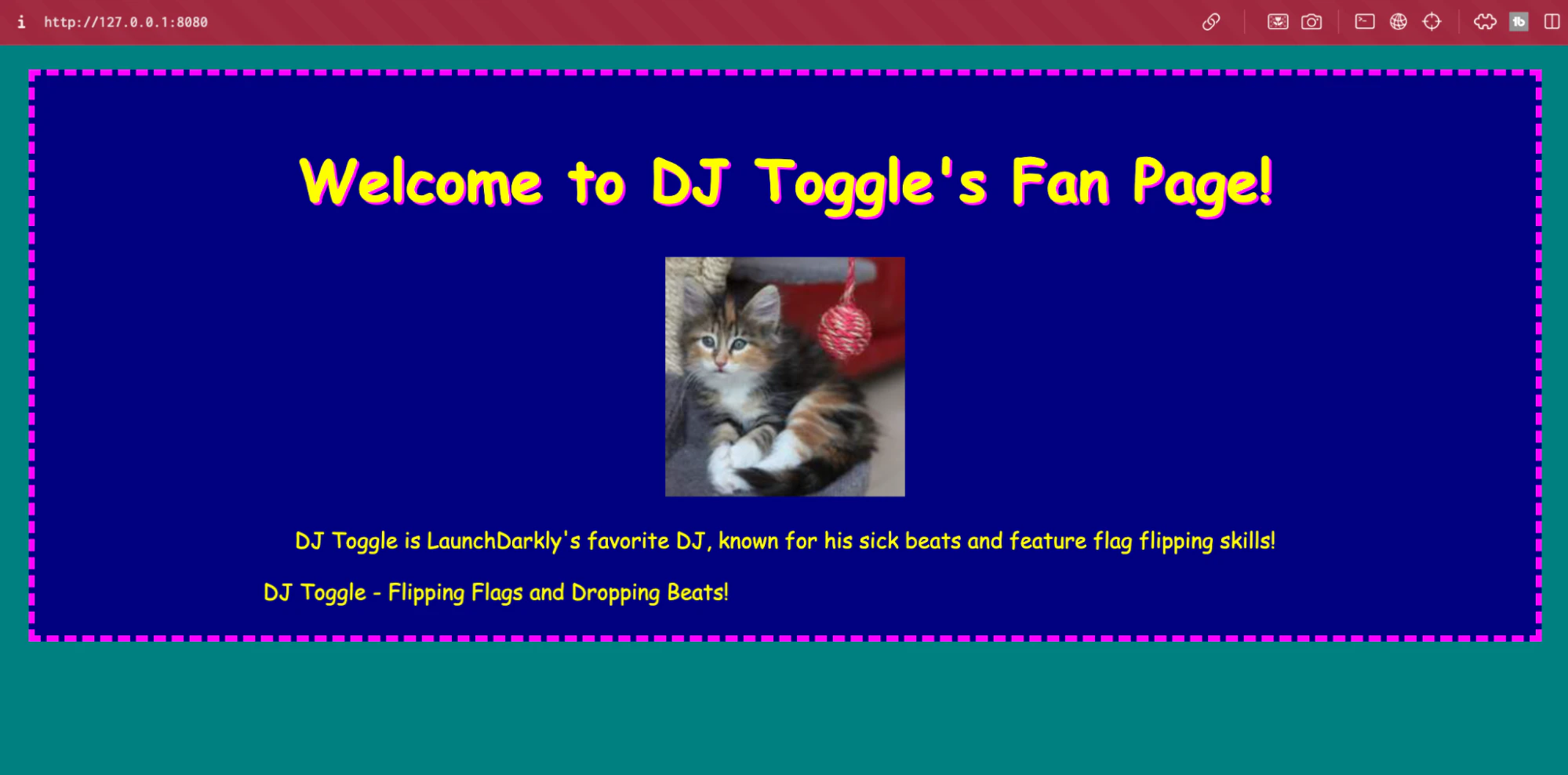
- Styles: We define two styles—one for a 1995 vibe with a Comic Sans font and a teal background and another for a 2000s look with a black background and Matrix-style green text.
- LaunchDarkly Integration: We initialize the LaunchDarkly client and check the value of the style-update flag. Depending on its state, we either display the 1995 version of the fan page or its new, refreshed look.
Run Your Website
To view your work in action, you’ll need to bundle your file and run it on a local server.
Run the following command to build your project using webpack:
This command will create a dist folder with a bundle.js file containing all your JavaScript code and dependencies.
Now, serve the HTML file using a local server. We'll use the http-server package for this:
Once installed, run the server from the root of your project directory:
By default, your files will be served at http://localhost:8080.
Opening your browser to that path, you should now see DJ Toggle's fan page in its 1995 gloriousness, yellow Comic Sans, and all.
Test the Feature Flag
Now, it’s time to test out your feature flag.
Go to your LaunchDarkly dashboard and toggle the ‘style-update' flag on. Return to the website and see how its look and feel have instantly been upgraded to the early 2000s, without having to redeploy.
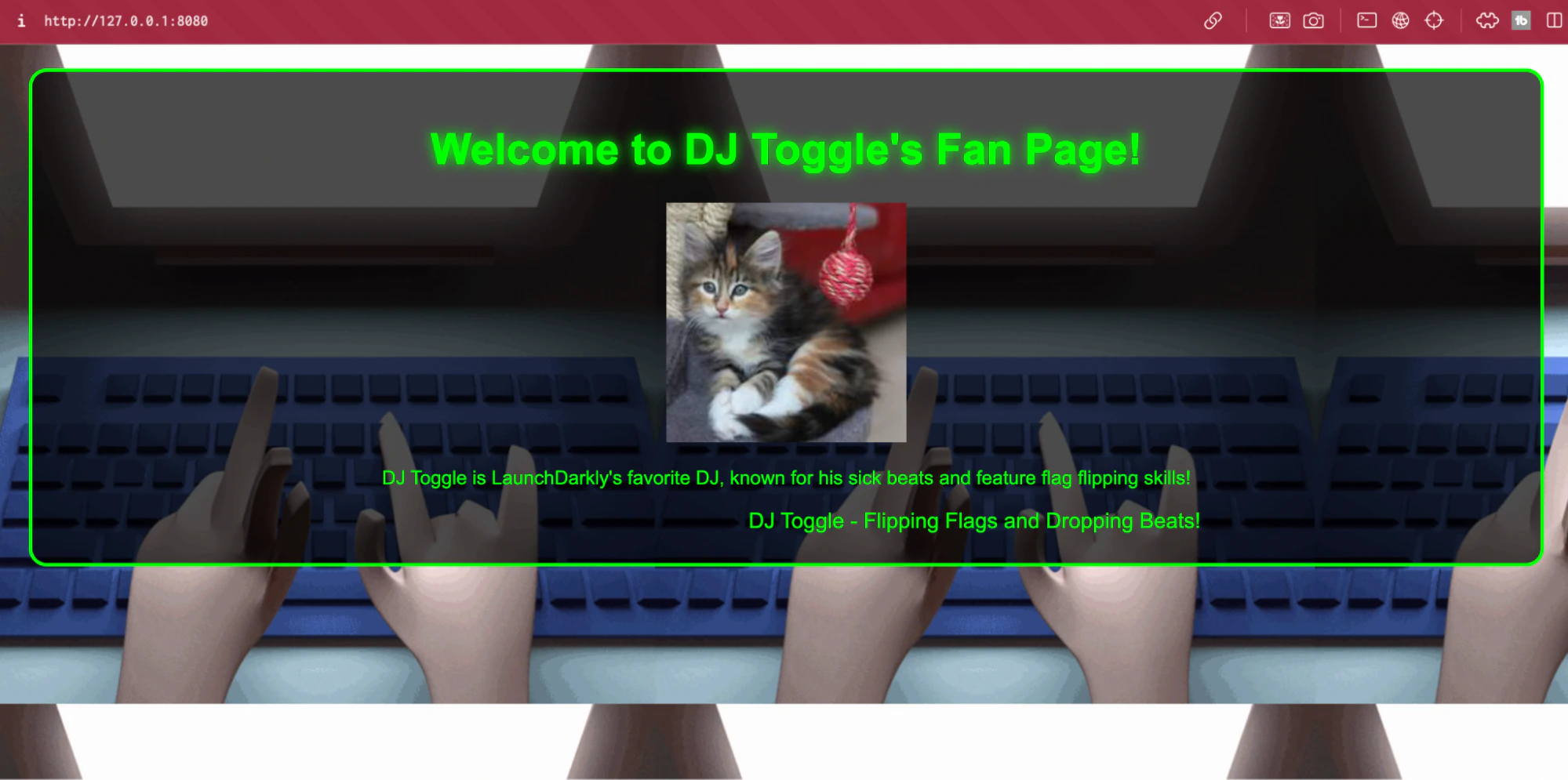
Your DJ Toggle Fan Page can instantly roll back if, heaven forbid, something were to go wrong with any feature updates that were made while updating the DJ Toggle Fan Page.
This example of using feature flags to adapt to a page’s style is just the beginning. Feature flags can be placed on different parts of your application, front or backend, allowing you to safely create your wildest dreams within your application.
When implementing new features or styles, feature flags can instantly roll back your application if something goes wrong, saving you time, money, and—let’s be honest—style points. It's like having a big, red “undo” button that you can press when things get a little too wild in production.
Conclusion
In this tutorial, you've learned how to use LaunchDarkly's feature flags to control the content and appearance of your JavaScript application. This ability to instantly roll back changes minimizes risk and keeps your users happy and your developers sane.
Check out LaunchDarkly's official documentation for more details on feature flags and other ways to mitigate risk while building to your heart's content.
Need a hand or want to geek out on how to (safely) run wild in your code? Don't hesitate to reach out— I’m always here to help. Email me at emikail@launchdarkly.com, on Twitter, LinkedIn, or join the LaunchDarkly Discord.