> ## Documentation Index
> Fetch the complete documentation index at: https://launchdarkly.com/docs/llms.txt
> Use this file to discover all available pages before exploring further.
# Delete environments
This topic explains how to delete environments in LaunchDarkly.
## Delete environments
You can delete an environment when you are no longer using it. Delete with caution, as deleting an environment is permanent.
To delete an environment:
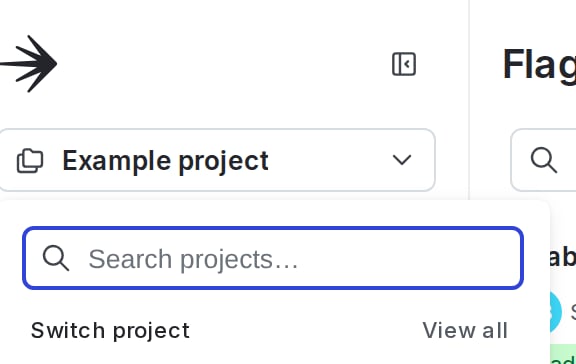
1. Click the project menu. The project menu appears:
 2. Select **Project settings**.
3. Select **Environments**. The **Environments** list appears.
4. Click the **three-dot** overflow menu for the environment.
5. Select **Delete environment**. A "Delete environment?" dialog appears.
6. Enter the name or key of your environment in the confirmation field.
7. Click **Delete**.
Your environment is now deleted.
You can also use the REST API: [Delete environment](/docs/api/environments/delete-environment)
2. Select **Project settings**.
3. Select **Environments**. The **Environments** list appears.
4. Click the **three-dot** overflow menu for the environment.
5. Select **Delete environment**. A "Delete environment?" dialog appears.
6. Enter the name or key of your environment in the confirmation field.
7. Click **Delete**.
Your environment is now deleted.
You can also use the REST API: [Delete environment](/docs/api/environments/delete-environment)