> ## Documentation Index
> Fetch the complete documentation index at: https://launchdarkly.com/docs/llms.txt
> Use this file to discover all available pages before exploring further.

# Edit environment settings

<View title="Developer" />

<View title="Federal docs" />

<View title="EU docs" />

This topic explains how to edit environment settings in LaunchDarkly.

Each environment has its own settings that control how LaunchDarkly behaves for that stage of your development lifecycle. You can configure safeguards to protect critical environments, manage SDK credentials, and set flag change approval requirements.

## Edit environment settings

To view or update environment settings:

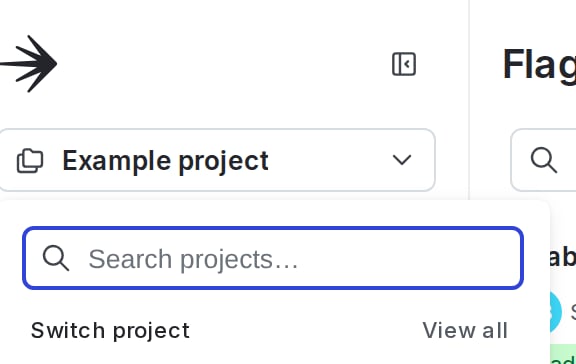
1. Click the project menu. The project menu appears:

<Frame caption="The project menu.">
  <img src="https://mintcdn.com/launchdarkly/A4UXoRTW8ATNw4yq/images/auto/project-menu-dropdown.auto.png?fit=max&auto=format&n=A4UXoRTW8ATNw4yq&q=85&s=cb54f266bfd606cf1c307999121a40cb" alt="The project menu." width="576" height="364" data-path="images/auto/project-menu-dropdown.auto.png" />
</Frame>

2. Select **Project settings**.
3. Select **Environments**. The **Environments** list appears.
4. Click the **three-dot** overflow menu next to your environment.
5. Select **Edit environment**.
6. Update settings using the **Overview**, **Approvals**, or **SDK keys** tabs.
7. Save or cancel your changes before changing tabs or leaving the page.

The **Overview** tab includes general environment settings and safeguards. For details on individual settings, read [Critical environments](/docs/home/account/environment#critical-environments), [Tags](/docs/home/account/tags), and [Secure mode](/docs/sdk/features/secure-mode). The following table describes each setting:

<table>
  <thead>
    <tr>
      <th>Setting</th>
      <th>Description</th>
      <th>Learn more</th>
    </tr>
  </thead>

  <tbody>
    <tr>
      <td>Name</td>
      <td>The environment name</td>

      <td />
    </tr>

    <tr>
      <td>Tags</td>
      <td>Customizable labels used for categorization</td>
      <td>[Tags](/docs/home/account/tags)</td>
    </tr>

    <tr>
      <td>Critical environment</td>
      <td>An environment that affects your customers or the health of your systems</td>
      <td>[Critical environments](/docs/home/account/environment#critical-environments)</td>
    </tr>

    <tr>
      <td>Require comments</td>
      <td>Whether to require a comment before saving flag or segment changes</td>
      <td>[Required comments](/docs/home/releases/comments)</td>
    </tr>

    <tr>
      <td>Require confirmation</td>
      <td>Whether to require entering the name of the environment before saving flag or segment changes</td>
      <td>[Required confirmation](/docs/home/releases/confirmation)</td>
    </tr>

    <tr>
      <td>Enable secure mode</td>
      <td>Ensures that one end user cannot inspect flag variations for another end user when you use some client-side SDKs</td>
      <td>[Secure mode](/docs/sdk/features/secure-mode)</td>
    </tr>

    <tr>
      <td>Send detailed events to Data Export destinations</td>
      <td>Whether to export evaluation events for end users that encounter the flag</td>
      <td>[Data Export](/docs/integrations/data-export)</td>
    </tr>

    <tr>
      <td>Time-to-live (TTL)</td>
      <td>Number of minutes that the PHP SDK can cache feature flag rules locally</td>
      <td>[TTL settings](#ttl-settings)</td>
    </tr>

    <tr>
      <td>Environment Color</td>
      <td>The color used to indicate this environment in the LaunchDarkly UI</td>

      <td />
    </tr>
  </tbody>
</table>

The **Approvals** tab controls flag change and segment approval requirements for the environment. To learn more, read [Configuring approvals for an environment](/docs/home/releases/approval-config).

Use the **SDK keys** tab to create and manage SDK keys and mobile keys for the environment. To learn more, read [SDK credentials](/docs/home/account/environment/keys).

## TTL settings

<Note>
  **TTL settings are only used in the PHP SDK**

  This setting controls how long the PHP SDK can cache feature flag rules locally. You only need to configure this if you are using the PHP SDK.
</Note>

The time-to-live (TTL) setting controls how long the PHP SDK caches feature flag rules locally. Because PHP's shared-nothing architecture does not support the LaunchDarkly streaming model, the PHP SDK relies on this local cache instead. To learn more about the PHP SDK, read the [PHP SDK reference](/docs/sdk/server-side/php).

For production environments, we recommend setting the TTL to at least five minutes. This reduces the number of remote requests the SDK makes, since most calls to `variation` resolve from the local cache. The tradeoff is that flag rule changes take up to five minutes to propagate. For lower-traffic sites with fewer than one request per minute, a higher TTL makes better use of the local cache.

Setting the TTL to zero disables the local cache entirely, and every call to `variation` makes a remote request to the LaunchDarkly CDN. A zero-minute TTL can be useful in testing environments where you need changes to reflect immediately, but we do not recommend it in production. For high-volume PHP environments, we strongly recommend using the Relay Proxy instead. To learn more, read [The Relay Proxy](/docs/sdk/relay-proxy).

To set the TTL:

1. Click the project menu. The project menu appears.
2. Select **Project settings**.
3. Select **Environments**. The **Environments** list appears.
4. Click the **three-dot** overflow menu next to your environment.
5. Select **Edit environment**.
6. Click the **Overview** tab if it is not already selected.
7. Enter a **TTL** value between 0 and 60 minutes.
8. Click **Save environment**.