> ## Documentation Index
> Fetch the complete documentation index at: https://launchdarkly.com/docs/llms.txt
> Use this file to discover all available pages before exploring further.
# Organization access settings
This topic explains how to enable and disable organization access settings in LaunchDarkly.
You must have a LaunchDarkly Admin organization role or Admin base role to manage organization access settings. You can disable organization access settings at any time.
## About organization access settings
You can configure organization access to allow members of your organization to find and join your LaunchDarkly accounts.
Organization access settings include the following options:
* Enable domain matching
* Enable matched seat provisioning
## Enable domain matching
Domain matching allows new members to discover your account and request access if their verified email domain matches your organization owner's email domain. Domain matching includes DNS-verified domains, which means if you have verified more than one domain, new members can discover them. You can disable domain matching at any time.
To enable domain matching:
1. Click the **gear** icon in the left sidebar to view Organization settings.
2. Click **Security** and scroll to the "Organization access settings" section.
3. Check "Enable domain matching."
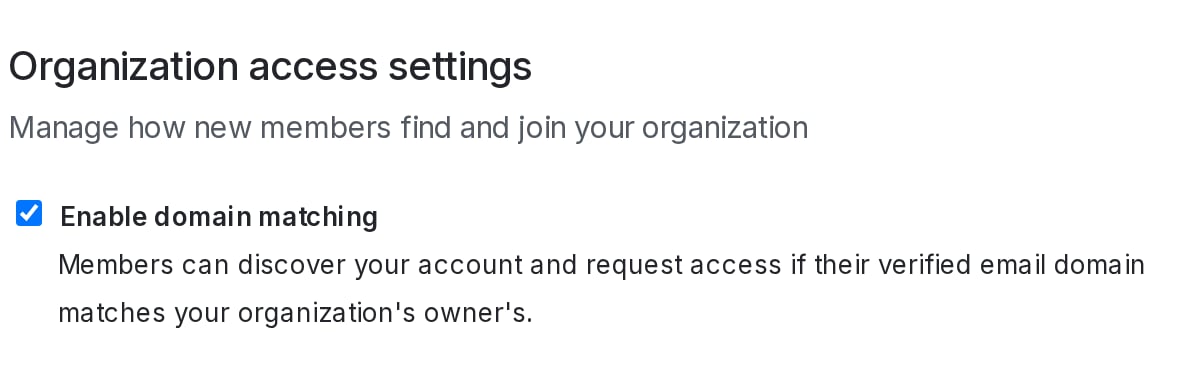 Domain matching is now enabled. New members whose verified email domains match the Owner's email domain can discover and request access to your LaunchDarkly account.
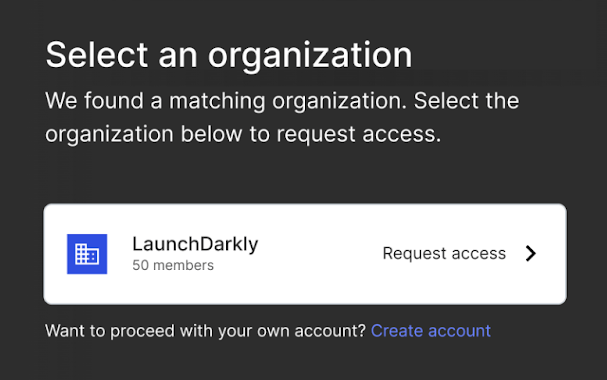 When a new member requests access to your LaunchDarkly account, the account Owner and Admins receive the request in an email, and the pending request is available for approval on the **Members** page. Owners and Admins can approve access requests. To learn more, read [Accept pending requests](/docs/home/account/members#accept-pending-requests).
## Enable matched seat provisioning
Matched seat provisioning allows new members with verified email domains that match your organization owner's domain to join your account automatically, if there are available seats. To enable matched seat provisioning you must also enable domain matching. You can disable matched seat provisioning at any time.
To enable matched seat provisioning:
1. Click the **gear** icon in the left sidebar to view Organization settings.
2. Click **Security** and scroll to the "Organization access settings" section.
3. Check "Enable matched seat provisioning."
When a new member requests access to your LaunchDarkly account, the account Owner and Admins receive the request in an email, and the pending request is available for approval on the **Members** page. Owners and Admins can approve access requests. To learn more, read [Accept pending requests](/docs/home/account/members#accept-pending-requests).
## Enable matched seat provisioning
Matched seat provisioning allows new members with verified email domains that match your organization owner's domain to join your account automatically, if there are available seats. To enable matched seat provisioning you must also enable domain matching. You can disable matched seat provisioning at any time.
To enable matched seat provisioning:
1. Click the **gear** icon in the left sidebar to view Organization settings.
2. Click **Security** and scroll to the "Organization access settings" section.
3. Check "Enable matched seat provisioning."
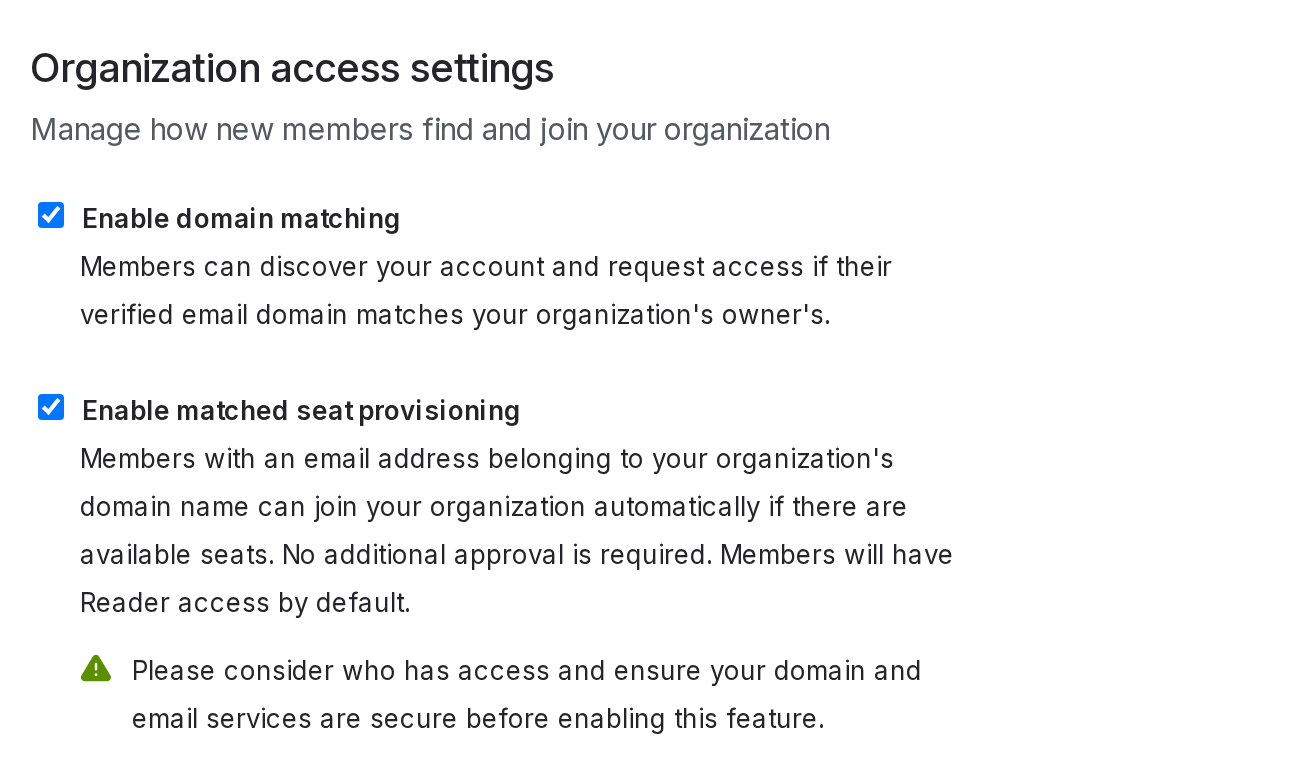 Matched seat provisioning is now enabled, and new members whose verified email domains match the Owner's email domain can automatically join your LaunchDarkly account if there are available seats.
LaunchDarkly assigns the Reader base role by default to new members who automatically join your account. To learn more, read [Organization roles](/docs/home/account/roles/organization-roles).
**Accounts with SSO enabled do not support domain matching and matched seat provisioning**
SSO requires members to log in through their identity provider. New members will be able to discover, but not join, accounts with SSO enabled.
Matched seat provisioning is now enabled, and new members whose verified email domains match the Owner's email domain can automatically join your LaunchDarkly account if there are available seats.
LaunchDarkly assigns the Reader base role by default to new members who automatically join your account. To learn more, read [Organization roles](/docs/home/account/roles/organization-roles).
**Accounts with SSO enabled do not support domain matching and matched seat provisioning**
SSO requires members to log in through their identity provider. New members will be able to discover, but not join, accounts with SSO enabled.