> ## Documentation Index
> Fetch the complete documentation index at: https://launchdarkly.com/docs/llms.txt
> Use this file to discover all available pages before exploring further.
# Managing sessions
This topic explains how session duration settings work in LaunchDarkly, and how to configure them based on your security policies. Session duration specifies how long an account member stays logged in to their account without interacting with LaunchDarkly.
LaunchDarkly offers administrators a set of controls to manage how long account members stay logged in to their account, and how often they need to re-authenticate. You can also reset sessions for everyone in your organization, forcing them to re-authenticate the next time they access LaunchDarkly.
## Configure session length
Session timeout controls are on the **Security** page, in the "Session configuration" section.
To change session length:
1. Click the **gear** icon in the left sidebar to view Organization settings.
2. Click **Security** and scroll to the "Session configuration" section:
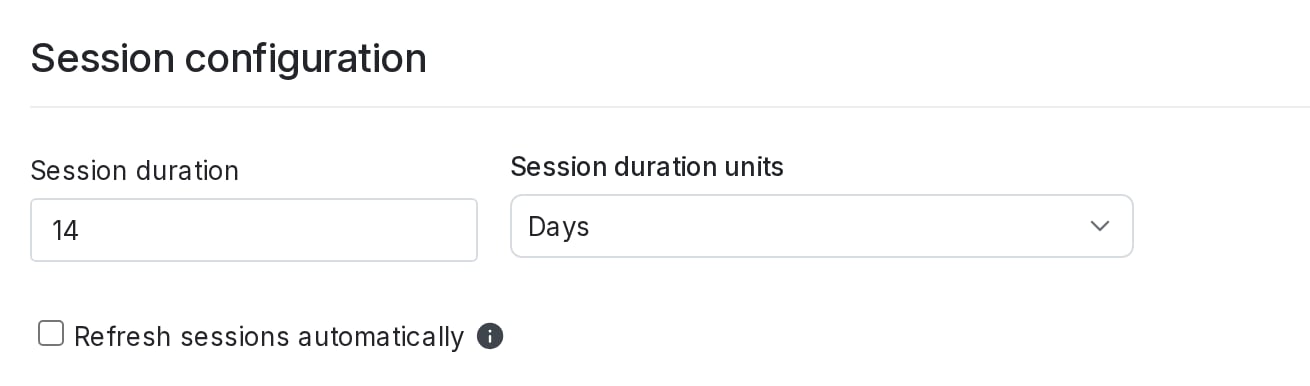 3. In the **Session duration** fields, enter a number and choose a unit for the session length.
4. (Optional) Check the **Refresh sessions automatically** checkbox to reset the session start time every time an account member accesses LaunchDarkly.
5. Click **Save**.
## Revoke all sessions
You can force all the members of an organization to re-authenticate at once from the **Security** tab.
To revoke all sessions:
1. Click the **gear** icon in the left sidebar to view Organization settings.
2. Click **Security** and scroll to the "Session configuration" section.
3. Click **Revoke all sessions**.
**Revoking all sessions also revokes yours**
If you revoke all sessions for your organization's account members, your session will also be revoked. You will log out and have to re-authenticate.
**Revoking sessions does not revoke API access tokens**
Revoking all sessions ends browser sessions only. API access tokens and service tokens continue to work, and calls made with them still succeed. Revoke tokens separately by [deleting each token](/docs/home/account/api-clone-delete), or [add an expiration date](/docs/home/account/api-reset) to retire a token on a schedule.
3. In the **Session duration** fields, enter a number and choose a unit for the session length.
4. (Optional) Check the **Refresh sessions automatically** checkbox to reset the session start time every time an account member accesses LaunchDarkly.
5. Click **Save**.
## Revoke all sessions
You can force all the members of an organization to re-authenticate at once from the **Security** tab.
To revoke all sessions:
1. Click the **gear** icon in the left sidebar to view Organization settings.
2. Click **Security** and scroll to the "Session configuration" section.
3. Click **Revoke all sessions**.
**Revoking all sessions also revokes yours**
If you revoke all sessions for your organization's account members, your session will also be revoked. You will log out and have to re-authenticate.
**Revoking sessions does not revoke API access tokens**
Revoking all sessions ends browser sessions only. API access tokens and service tokens continue to work, and calls made with them still succeed. Revoke tokens separately by [deleting each token](/docs/home/account/api-clone-delete), or [add an expiration date](/docs/home/account/api-reset) to retire a token on a schedule.