> ## Documentation Index
> Fetch the complete documentation index at: https://launchdarkly.com/docs/llms.txt
> Use this file to discover all available pages before exploring further.
# Deprecating flags
This topic explains how to deprecate flags you no longer need.
## About deprecating flags
When a flag is still being served to customers, but it is only being served in older or deprecated versions of your application, it may be time to deprecate it. Deprecating a flag hides it from the live **Flags** list without archiving or deleting it. You can restore a deprecated flag if you need it, or find it to reference or update its configuration later.
Deprecating flags can simplify your **Flags** list, especially in situations where you have a long tail of customers using older versions of your applications.
You can only deprecate flags that you use with client-side SDKs.
Deprecated flags are still evaluated, just like live flags. If you are completely done with a flag, you should archive it instead. To learn more, read [Archiving and restoring flags](/docs/home/flags/archive).
## Deprecate flags
To deprecate a flag:
1. In the left sidebar, click **Code**. The CodeControl menu appears.
2. Click **Flags**.
3. Open the flag you wish to deprecate.
4. Click the **three-dot** overflow menu in the right sidebar.
5. Select **Deprecate**. The "Deprecate flag" dialog appears.
6. The dialog shows you how the flag has been evaluated recently.
**Deprecating a flag affects every environment in your project**
All flags exist in every environment for a project, but often only a few environments matter for your organization's production processes. Deprecating a flag will remove it from the live **Flags** list for every environment in the project.
7. Click **Deprecate**.
The flag is deprecated and removed from the live **Flags** list. You can find it in the deprecated **Flags** list. To learn more, read [View and restore flags](#view-and-restore-flags).
## View and restore flags
By default, the **Flags** list shows live flags only.
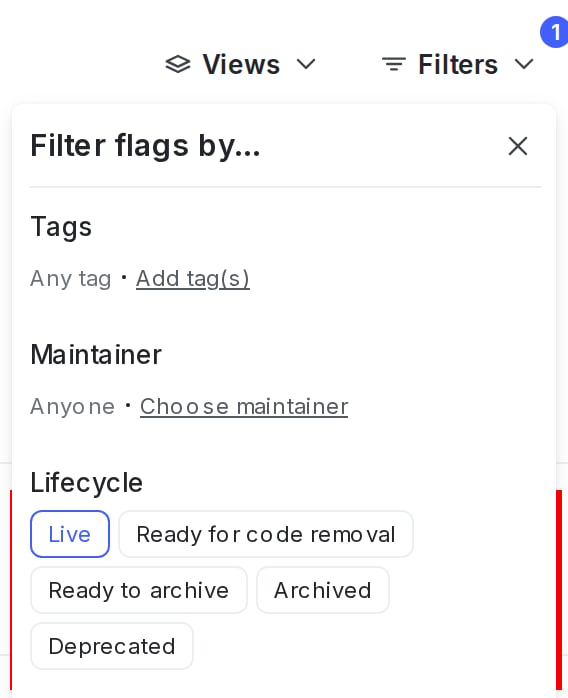
To view deprecated flags, click **Filters** from the **Flags** list and select "Deprecated" under "Lifecycle":
 To restore a deprecated flag:
1. In the left sidebar, click **Code**. The CodeControl menu appears.
2. Click **Flags**.
3. Click **Filters**. In the "Lifecycle" section, click "Deprecated." The deprecated flag list appears.
4. Click a flag name to open the flag you wish to restore.
5. Click the **three-dot** overflow menu in the right sidebar.
6. Select **Restore**. The "Restore flag" dialog appears.
7. The dialog shows you how the flag has been evaluated recently.
8. Click **Restore**. The flag appears in the live **Flags** list.
To restore a deprecated flag:
1. In the left sidebar, click **Code**. The CodeControl menu appears.
2. Click **Flags**.
3. Click **Filters**. In the "Lifecycle" section, click "Deprecated." The deprecated flag list appears.
4. Click a flag name to open the flag you wish to restore.
5. Click the **three-dot** overflow menu in the right sidebar.
6. Select **Restore**. The "Restore flag" dialog appears.
7. The dialog shows you how the flag has been evaluated recently.
8. Click **Restore**. The flag appears in the live **Flags** list.