> ## Documentation Index
> Fetch the complete documentation index at: https://launchdarkly.com/docs/llms.txt
> Use this file to discover all available pages before exploring further.
# The Flags list
This topic explains how to use the **Flags** list, which shows your feature flags and gives you options to create, modify, and manage them.
All of your feature flags within a project appear on the **Flags** list. Creating a new flag adds it to the list and all environments within your project, and archiving a feature flag removes it from the list and all environments within your project.
Here is an image of the feature **Flags** list:
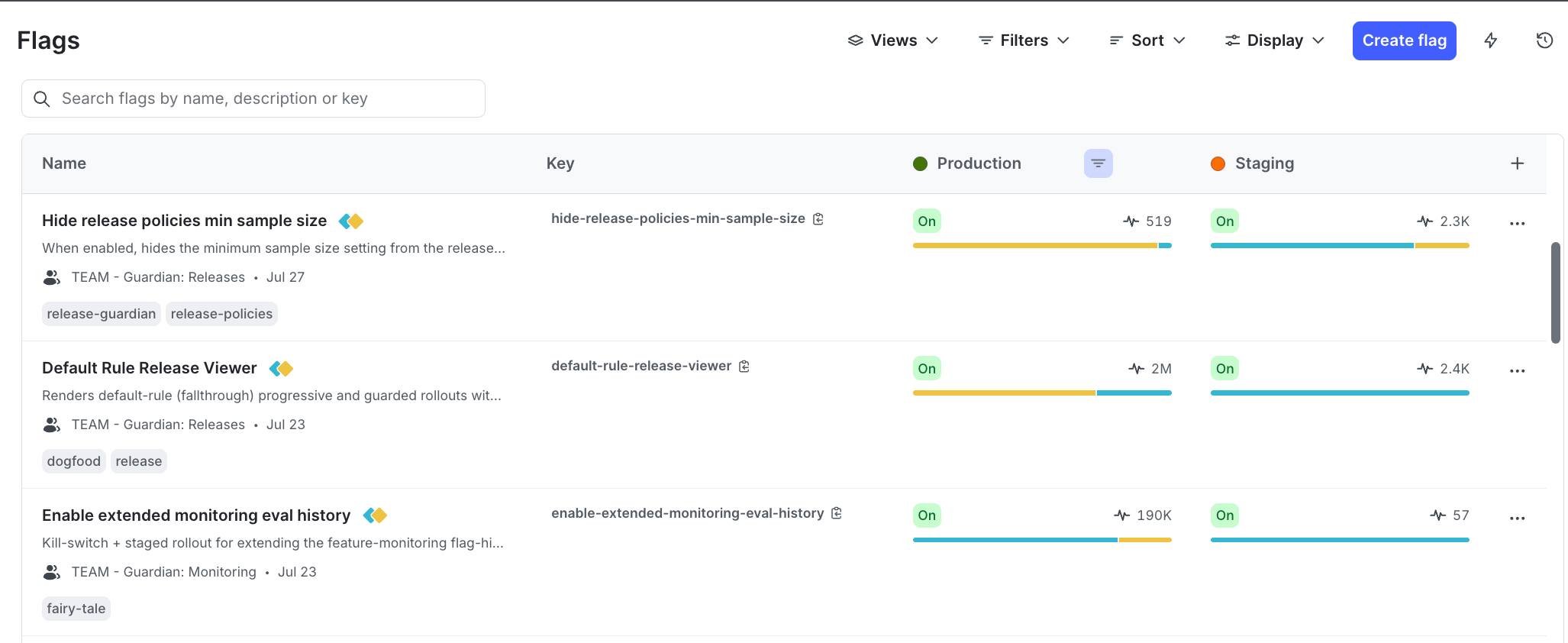 The **Flags** list shows the following information about each flag for each environment:
* The flag name.
* The flag key.
* The flag maintainer.
* The flag creation date.
* Whether the flag is **On** or **Off**.
* How many times the flag has been evaluated.
* A bar showing the proportion of contexts that have been served each variation. For boolean flags, the true ("available" or "enabled") variation is blue and the false ("unavailable" or "disabled") variation is yellow.
Hover over the information for a flag to view more details about its variations and evaluations.
You can also use the REST API: [List feature flags](/docs/api/feature-flags/list-feature-flags)
To learn how to create a new flag, read [Create a feature flag](/docs/home/flags/new#create-a-feature-flag). To learn how to archive a flag, read [Archiving and restoring flags](/docs/home/flags/archive).
## View feature flags
Use the search bar to find a flag by name, key, or description. By default, the most recently created flags appear first.
## Filter feature flags
You can filter the list of flags to view only flags that share a particular attribute.
### Project-level filters
Some flag attributes, such as tag or SDK availability, are the same across all environments in your project. To filter your flags based on project-wide attributes, use the **Filters** menu at the top of the **Flags** list:
The **Flags** list shows the following information about each flag for each environment:
* The flag name.
* The flag key.
* The flag maintainer.
* The flag creation date.
* Whether the flag is **On** or **Off**.
* How many times the flag has been evaluated.
* A bar showing the proportion of contexts that have been served each variation. For boolean flags, the true ("available" or "enabled") variation is blue and the false ("unavailable" or "disabled") variation is yellow.
Hover over the information for a flag to view more details about its variations and evaluations.
You can also use the REST API: [List feature flags](/docs/api/feature-flags/list-feature-flags)
To learn how to create a new flag, read [Create a feature flag](/docs/home/flags/new#create-a-feature-flag). To learn how to archive a flag, read [Archiving and restoring flags](/docs/home/flags/archive).
## View feature flags
Use the search bar to find a flag by name, key, or description. By default, the most recently created flags appear first.
## Filter feature flags
You can filter the list of flags to view only flags that share a particular attribute.
### Project-level filters
Some flag attributes, such as tag or SDK availability, are the same across all environments in your project. To filter your flags based on project-wide attributes, use the **Filters** menu at the top of the **Flags** list:
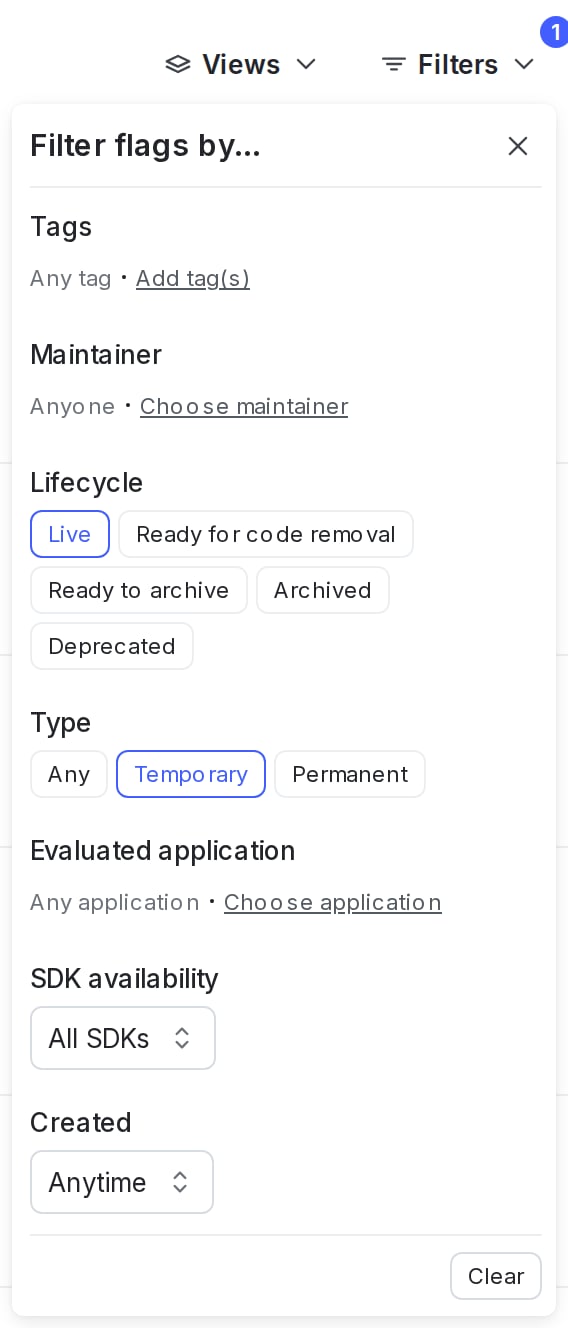
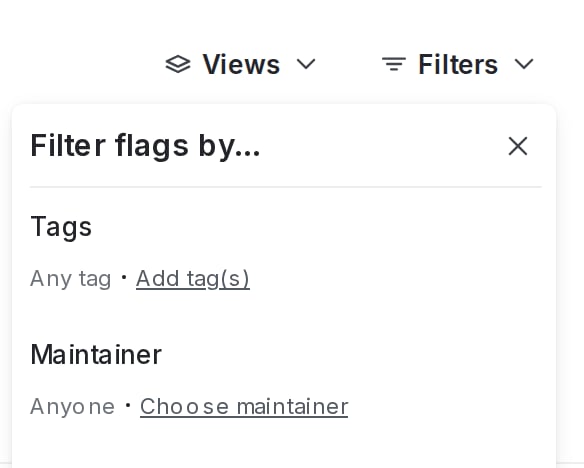 Within a project, you can filter by:
* Tags
* Maintainer
* Lifecycle: live, ready for code removal, ready to archive, archived, deprecated
* Type: temporary or permanent
* Evaluated application
* SDK availability
* Creation date
To filter your flags at the project level:
1. Click **Filters**.
2. Choose an attribute for a filtering option. The **Flags** list automatically updates.
3. (Optional) Click **Filters** again and choose an additional attribute. Repeat as many times as needed.
Within a project, you can filter by:
* Tags
* Maintainer
* Lifecycle: live, ready for code removal, ready to archive, archived, deprecated
* Type: temporary or permanent
* Evaluated application
* SDK availability
* Creation date
To filter your flags at the project level:
1. Click **Filters**.
2. Choose an attribute for a filtering option. The **Flags** list automatically updates.
3. (Optional) Click **Filters** again and choose an additional attribute. Repeat as many times as needed.
 **Filtering by maintainer includes teams**
If you filter flags by maintainer, you can choose to view flags maintained by an individual member or by a team.
### Environment-level filters
Other flag attributes, such as targeting state or status, are different for each environment. To filter your flags based on environment-specific attributes, use the **filter** icon in any of your [open environments](/docs/home/account/environment#open-environments). Hover your cursor over the environment name and select the **filter** icon to access all the available filters.
**Filtering by maintainer includes teams**
If you filter flags by maintainer, you can choose to view flags maintained by an individual member or by a team.
### Environment-level filters
Other flag attributes, such as targeting state or status, are different for each environment. To filter your flags based on environment-specific attributes, use the **filter** icon in any of your [open environments](/docs/home/account/environment#open-environments). Hover your cursor over the environment name and select the **filter** icon to access all the available filters.
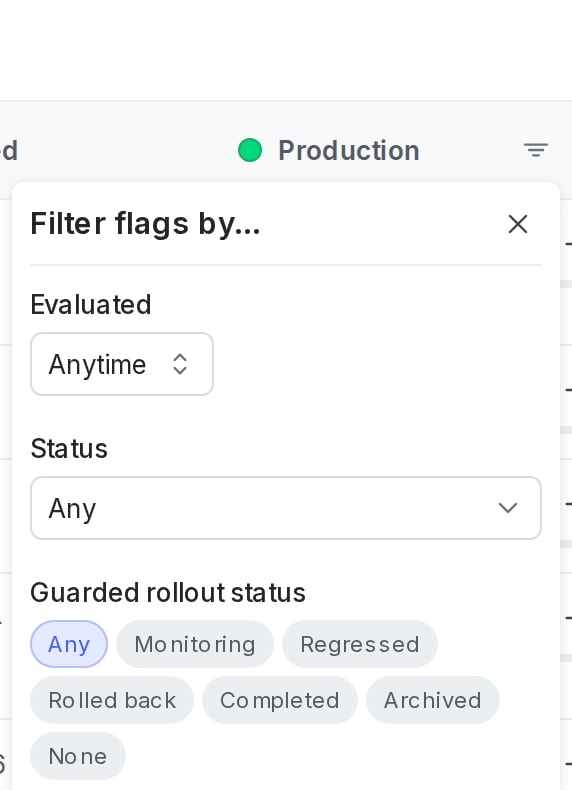 Within an environment, you can filter by:
* Last evaluated
* [Flag status](/docs/home/flags/flag-status#flag-status-definitions)
* [Guarded rollout](/docs/home/releases/guarded-rollouts) status
To filter your flags at the environment level:
1. Click the **filter** icon at the top of the environment's flag list.
2. Choose an attribute for a filtering option. The **Flags** list for that environment automatically updates.
3. (Optional) Click the **filter** icon again and choose an additional attribute. Repeat as many times as needed.
Your **Flags** list now displays only the flags that match the filters you specified.
### Remove filters
To clear project-level filters, click **Filters**, then click **Clear**.
To clear environment-level filters, click the **filter** icon at the top of the environment's flag list, then click **Clear**.
### Save shortcuts to filtered Flags lists
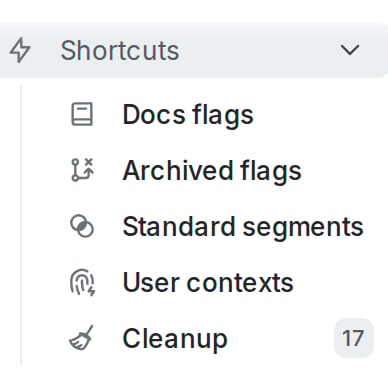
You can create shortcuts to filtered **Flags** lists, and save them in the left sidebar to return to at any time.
When you create a shortcut, it is only visible to you. To group flags within a project and have that grouping be visible for everyone in your account, we recommend using [views](/docs/home/account/views).
To create a shortcut to a filtered **Flags** list:
1. In the left sidebar, click **Code**. The CodeControl menu appears.
2. Click **Flags**.
3. Add your desired environments to the **Flags** list following the instructions in [Open environments](/docs/home/account/environment#open-environments).
4. Add any flag filters you need such as tags, maintainers, or flag statuses, following the instructions in [Filter feature flags](#filter-feature-flags).
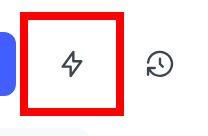
5. Click the **bolt** icon above the **Flags** list to create a shortcut:
Within an environment, you can filter by:
* Last evaluated
* [Flag status](/docs/home/flags/flag-status#flag-status-definitions)
* [Guarded rollout](/docs/home/releases/guarded-rollouts) status
To filter your flags at the environment level:
1. Click the **filter** icon at the top of the environment's flag list.
2. Choose an attribute for a filtering option. The **Flags** list for that environment automatically updates.
3. (Optional) Click the **filter** icon again and choose an additional attribute. Repeat as many times as needed.
Your **Flags** list now displays only the flags that match the filters you specified.
### Remove filters
To clear project-level filters, click **Filters**, then click **Clear**.
To clear environment-level filters, click the **filter** icon at the top of the environment's flag list, then click **Clear**.
### Save shortcuts to filtered Flags lists
You can create shortcuts to filtered **Flags** lists, and save them in the left sidebar to return to at any time.
When you create a shortcut, it is only visible to you. To group flags within a project and have that grouping be visible for everyone in your account, we recommend using [views](/docs/home/account/views).
To create a shortcut to a filtered **Flags** list:
1. In the left sidebar, click **Code**. The CodeControl menu appears.
2. Click **Flags**.
3. Add your desired environments to the **Flags** list following the instructions in [Open environments](/docs/home/account/environment#open-environments).
4. Add any flag filters you need such as tags, maintainers, or flag statuses, following the instructions in [Filter feature flags](#filter-feature-flags).
5. Click the **bolt** icon above the **Flags** list to create a shortcut:
 6. Add a **Name** for your shortcut.
7. (Optional) Choose an **Icon** to represent your shortcut in the left sidebar.
8. Click **Save**.
Your shortcut appears in the left sidebar.
6. Add a **Name** for your shortcut.
7. (Optional) Choose an **Icon** to represent your shortcut in the left sidebar.
8. Click **Save**.
Your shortcut appears in the left sidebar.
 ## Sort feature flags
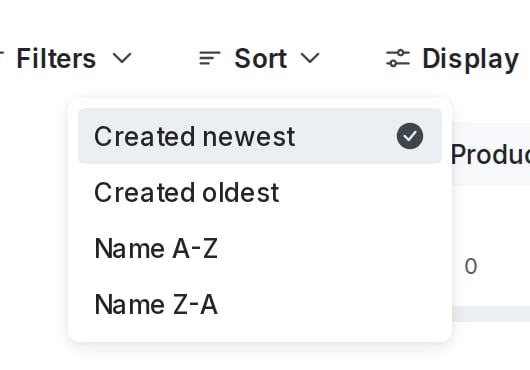
You can sort the list of visible flags by creation date, by name, or by last modified date. To sort the **Flags** list, click **Sort** and choose a sorting option:
## Sort feature flags
You can sort the list of visible flags by creation date, by name, or by last modified date. To sort the **Flags** list, click **Sort** and choose a sorting option:
 ## Edit list columns
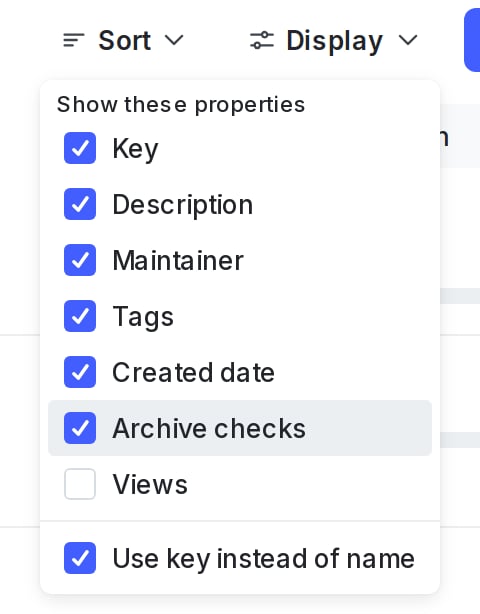
Using the **Display** menu, you can display or hide the following flag properties from the **Flags** list:
* Key
* Description
* Maintainer
* Tags
* Created date
* Archive checks
* Views
When the archive checks are selected, the list indicates whether a flag is ready for code removal or is ready to archive. To learn more, read [Flag statuses and lifecycle stages](/docs/home/flags/flag-status).
You can also check the **Use key instead of name** option in the **Display** menu to show flag keys instead of flag names in the **Flags** list:
## Edit list columns
Using the **Display** menu, you can display or hide the following flag properties from the **Flags** list:
* Key
* Description
* Maintainer
* Tags
* Created date
* Archive checks
* Views
When the archive checks are selected, the list indicates whether a flag is ready for code removal or is ready to archive. To learn more, read [Flag statuses and lifecycle stages](/docs/home/flags/flag-status).
You can also check the **Use key instead of name** option in the **Display** menu to show flag keys instead of flag names in the **Flags** list:
 ## Limit to views
Using the **View** menu, you can show only flags that are linked to selected [views](/docs/home/account/views). Views are resources to logically group flags within a project. For example, you can create "frontend" and "backend" views to organize flags within your project, and separate access to flags in those views.
## Save shortcuts to flag Targeting tabs
You can create shortcuts to a specific environment on a flag's **Targeting** tab. This lets you return to that flag's environment-specific **Targeting** tab from a shortcut in the left sidebar.
To create a shortcut to a flag's **Targeting** tab:
1. In the left sidebar, click **Code**. The CodeControl menu appears.
2. Click **Flags**.
3. Open a flag's **Targeting** tab.
4. Open your desired environment following the instructions in [Open environments](/docs/home/account/environment#open-environments).
5. Click the **bolt** icon in the right sidebar to create a shortcut.
6. Add a **Name** for your shortcut.
7. (Optional) Choose an **Icon** to represent your shortcut in the left sidebar.
8. Click **Save**.
Your shortcut appears in the left sidebar.
## Limit to views
Using the **View** menu, you can show only flags that are linked to selected [views](/docs/home/account/views). Views are resources to logically group flags within a project. For example, you can create "frontend" and "backend" views to organize flags within your project, and separate access to flags in those views.
## Save shortcuts to flag Targeting tabs
You can create shortcuts to a specific environment on a flag's **Targeting** tab. This lets you return to that flag's environment-specific **Targeting** tab from a shortcut in the left sidebar.
To create a shortcut to a flag's **Targeting** tab:
1. In the left sidebar, click **Code**. The CodeControl menu appears.
2. Click **Flags**.
3. Open a flag's **Targeting** tab.
4. Open your desired environment following the instructions in [Open environments](/docs/home/account/environment#open-environments).
5. Click the **bolt** icon in the right sidebar to create a shortcut.
6. Add a **Name** for your shortcut.
7. (Optional) Choose an **Icon** to represent your shortcut in the left sidebar.
8. Click **Save**.
Your shortcut appears in the left sidebar.