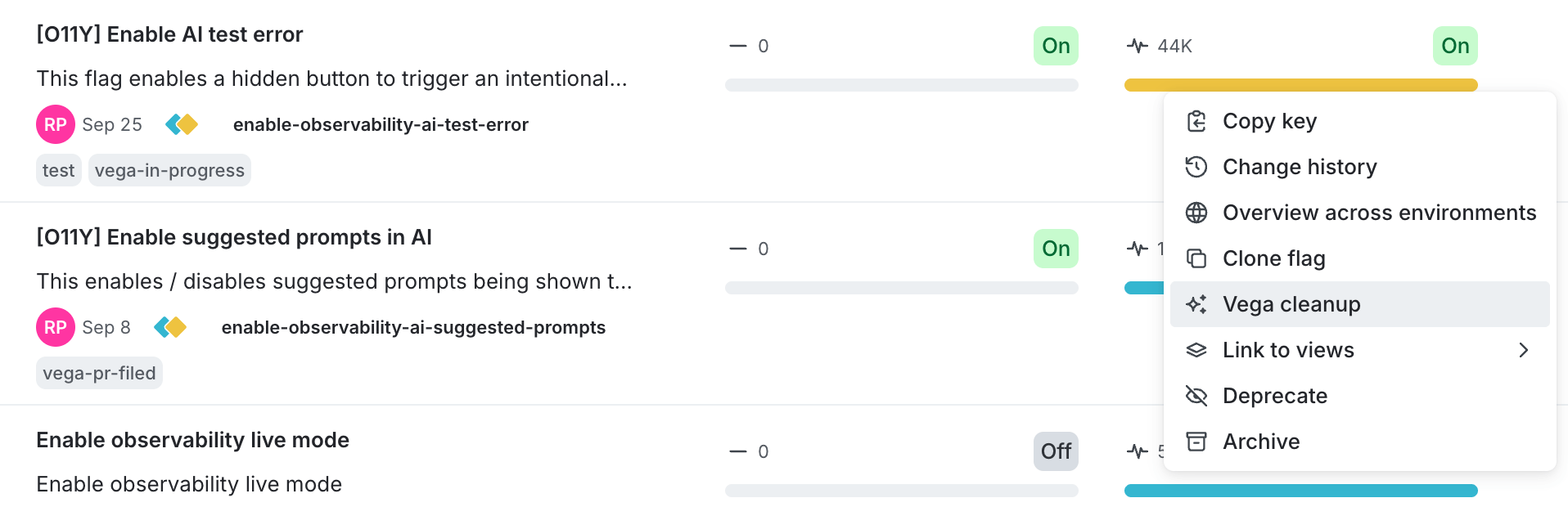
 * Or, click a flag in the **Flags** list, and then click **Start cleanup** in the **Vega Cleanup Status** section of the sidebar.
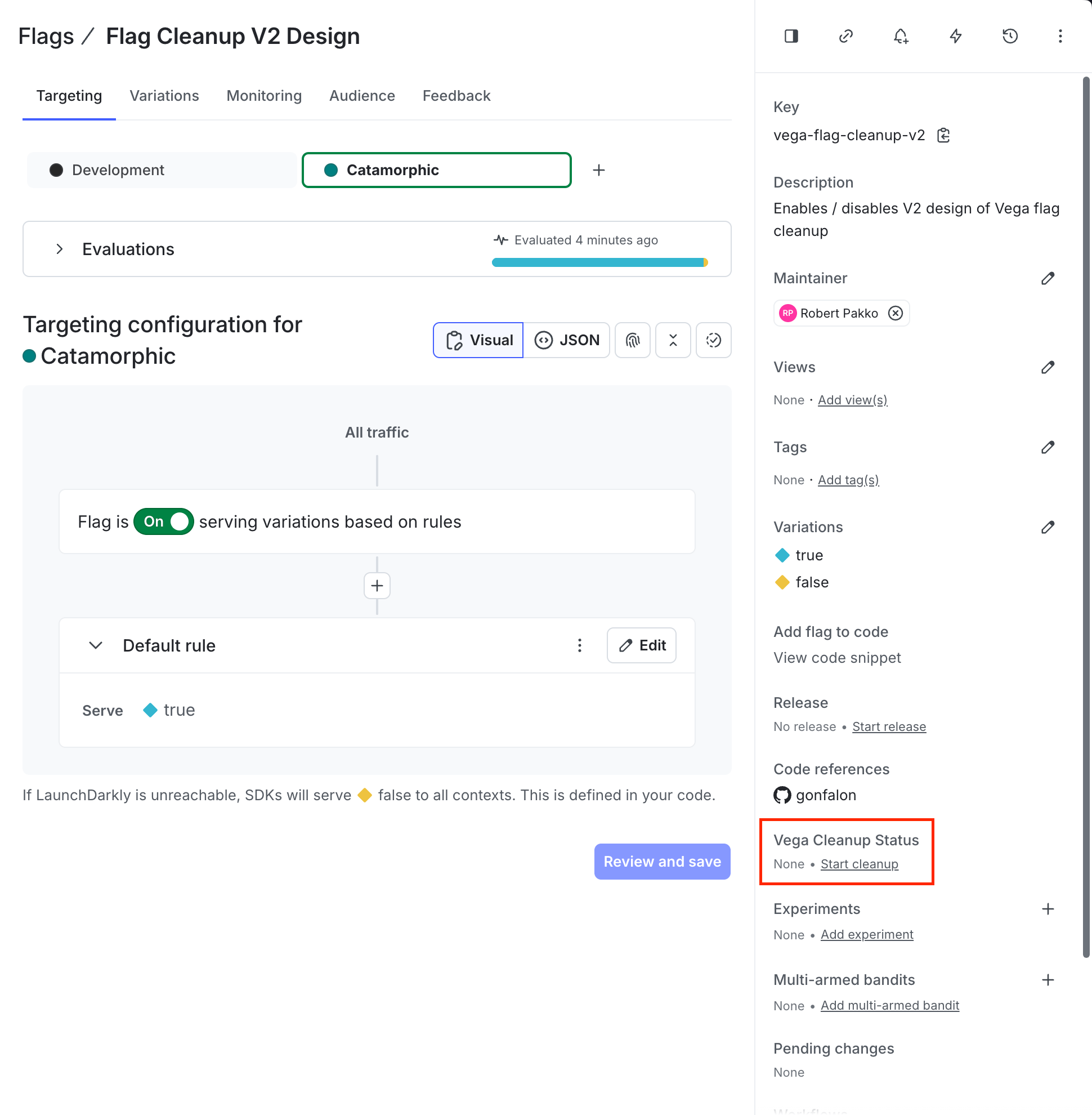 Either option opens the **Flag cleanup** modal, which shows a staleness analysis and lets you start the cleanup:
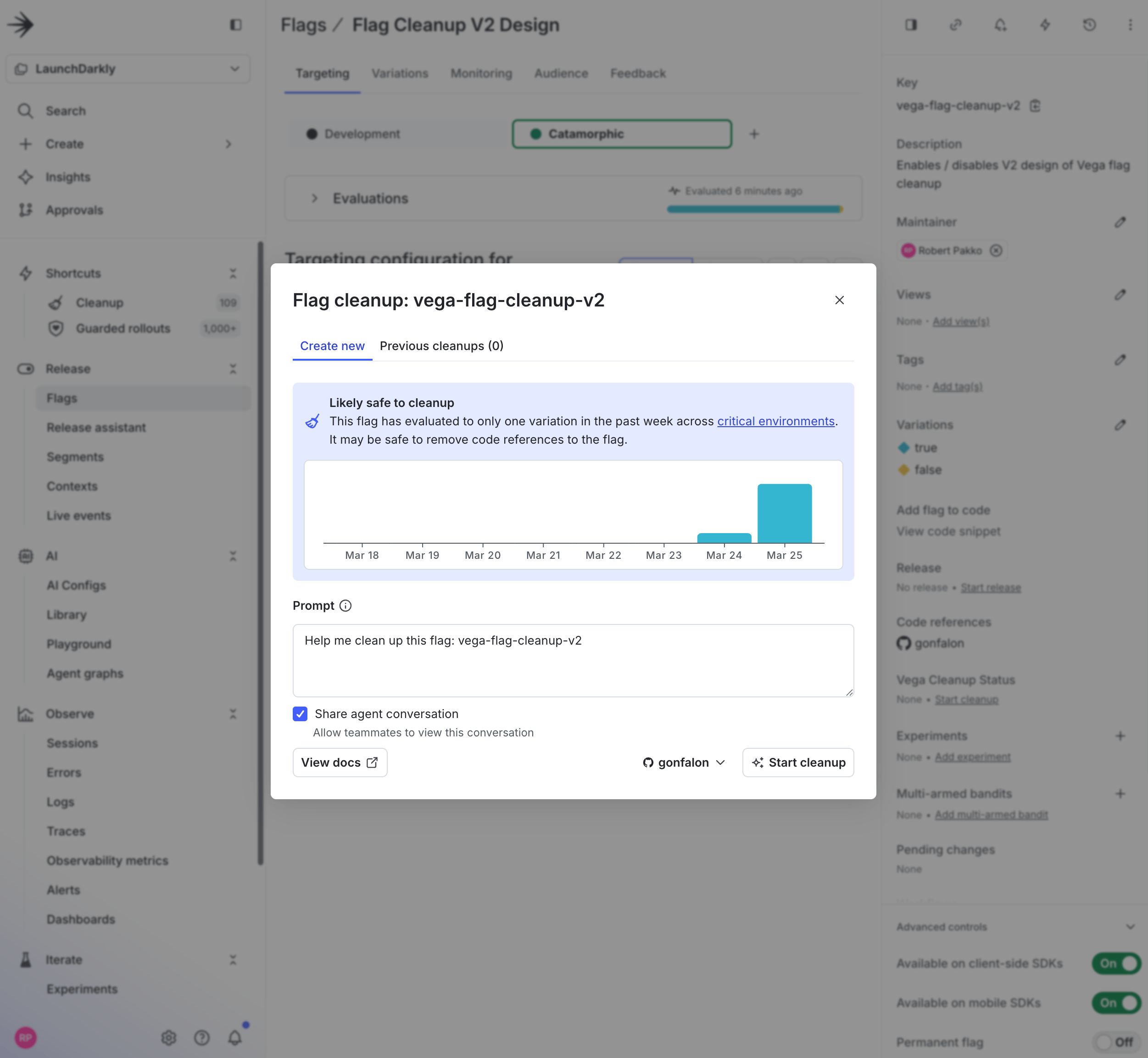 Once started:
1. The cleanup job appears under the **Flag Cleanup** tab.
2. Vega checks that the flag has only a single variation being evaluated across all [critical environments](/docs/home/account/environment#critical-environments). If multiple variations are still active, Vega won't proceed with the cleanup task.
3. If the check passes, Vega creates a GitHub pull request to remove the flag from your code.
## How Vega determines if a flag is safe to clean up
Vega follows this procedure to determine whether a flag is safe to remove:
1. **Queries your critical environments**: Vega identifies all environments marked as critical for your project.
2. **Checks flag evaluations**: Vega checks the flag's evaluations in these environments to confirm that the flag is "stale," meaning it serves the same variation across all critical environments.
3. **Takes action**:
* If the flag is stale, Vega proceeds with code cleanup and creates a pull request.
* If the flag is not stale, Vega notifies you. You can still tell Vega to clean up the flag if you'd like to proceed anyway.
## Tracking cleanup status
You can view a flag's cleanup status in the **Vega Cleanup Status** section on the flag's detail page sidebar:
Once started:
1. The cleanup job appears under the **Flag Cleanup** tab.
2. Vega checks that the flag has only a single variation being evaluated across all [critical environments](/docs/home/account/environment#critical-environments). If multiple variations are still active, Vega won't proceed with the cleanup task.
3. If the check passes, Vega creates a GitHub pull request to remove the flag from your code.
## How Vega determines if a flag is safe to clean up
Vega follows this procedure to determine whether a flag is safe to remove:
1. **Queries your critical environments**: Vega identifies all environments marked as critical for your project.
2. **Checks flag evaluations**: Vega checks the flag's evaluations in these environments to confirm that the flag is "stale," meaning it serves the same variation across all critical environments.
3. **Takes action**:
* If the flag is stale, Vega proceeds with code cleanup and creates a pull request.
* If the flag is not stale, Vega notifies you. You can still tell Vega to clean up the flag if you'd like to proceed anyway.
## Tracking cleanup status
You can view a flag's cleanup status in the **Vega Cleanup Status** section on the flag's detail page sidebar:
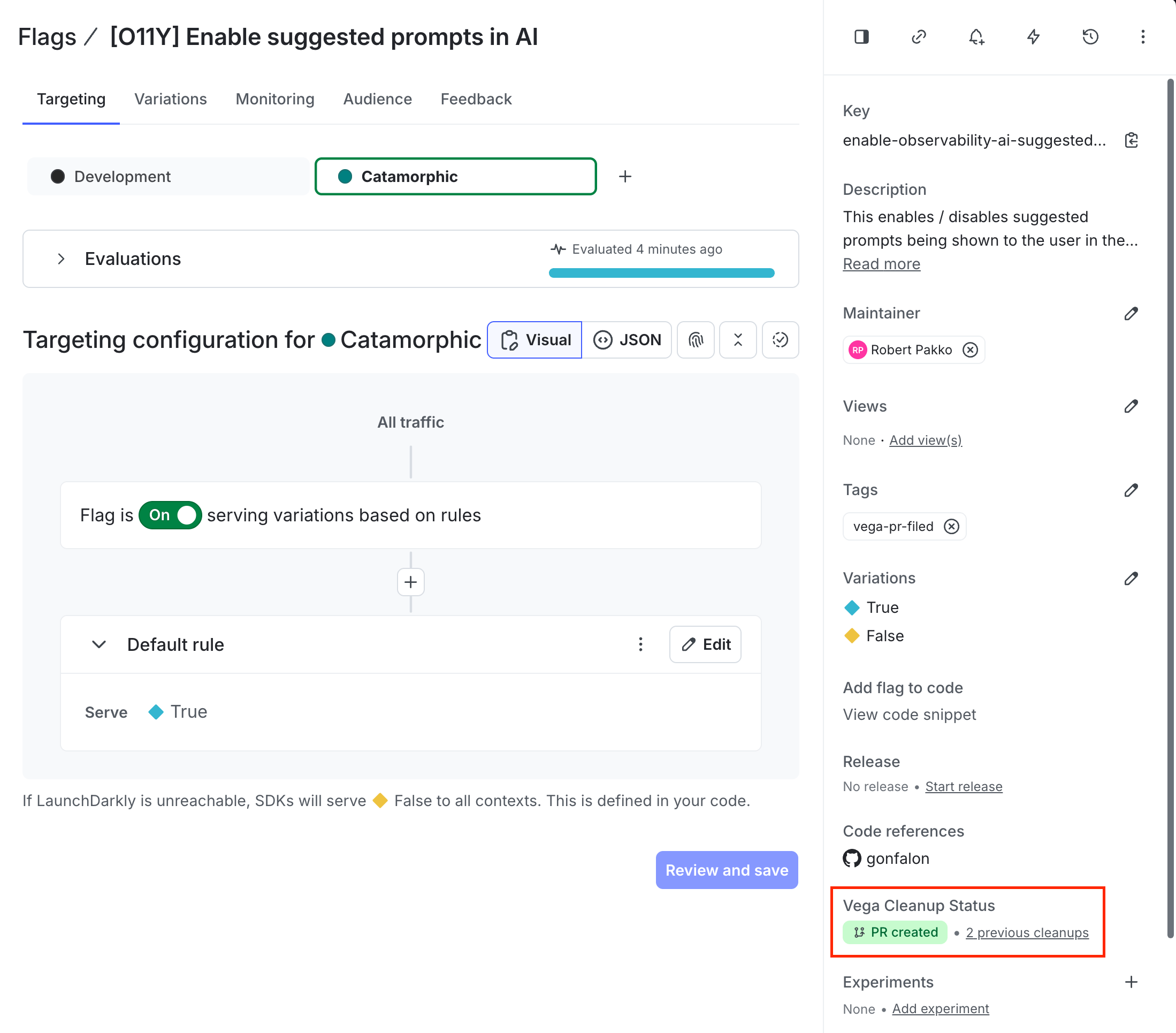 When Vega completes a cleanup, it provides a summary including staleness analysis, code changes, and a link to the pull request:
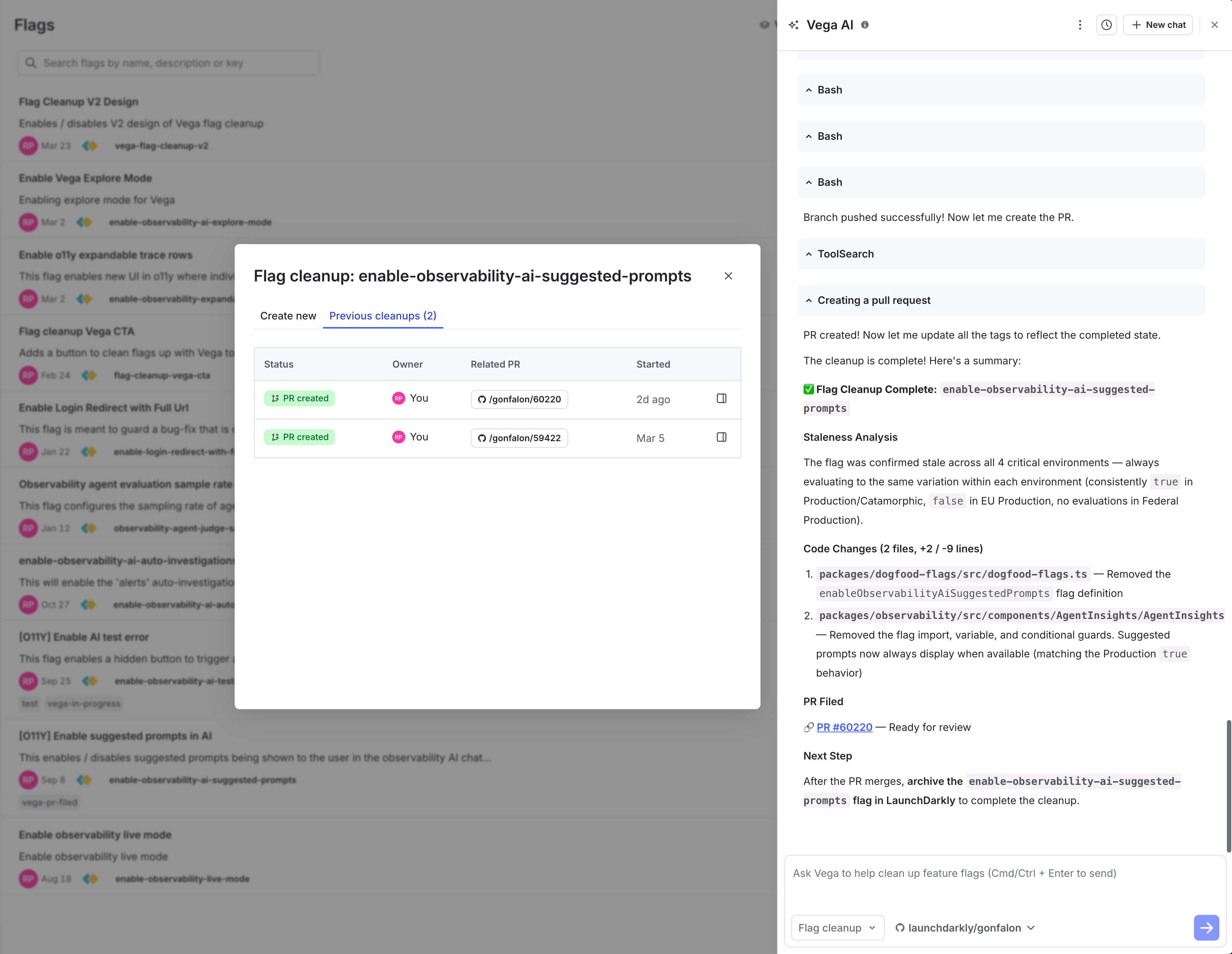 Vega tags flags during the cleanup process. You can filter by these tags in the **Flags** list to track progress:
| Tag | Meaning |
|---|---|
vega-pr-in-progress |
Cleanup is underway for this flag. |
vega-pr-filed |
A pull request has been created for this flag's cleanup. |
vega-pr-attempted |
Vega attempted cleanup but did not file a pull request. This can happen if Vega's pre-cleanup checks determine the flag isn't stale, if Vega cannot find any reference to the flag in the repositories it has access to, or due to a transient error such as a change in GitHub permissions. |
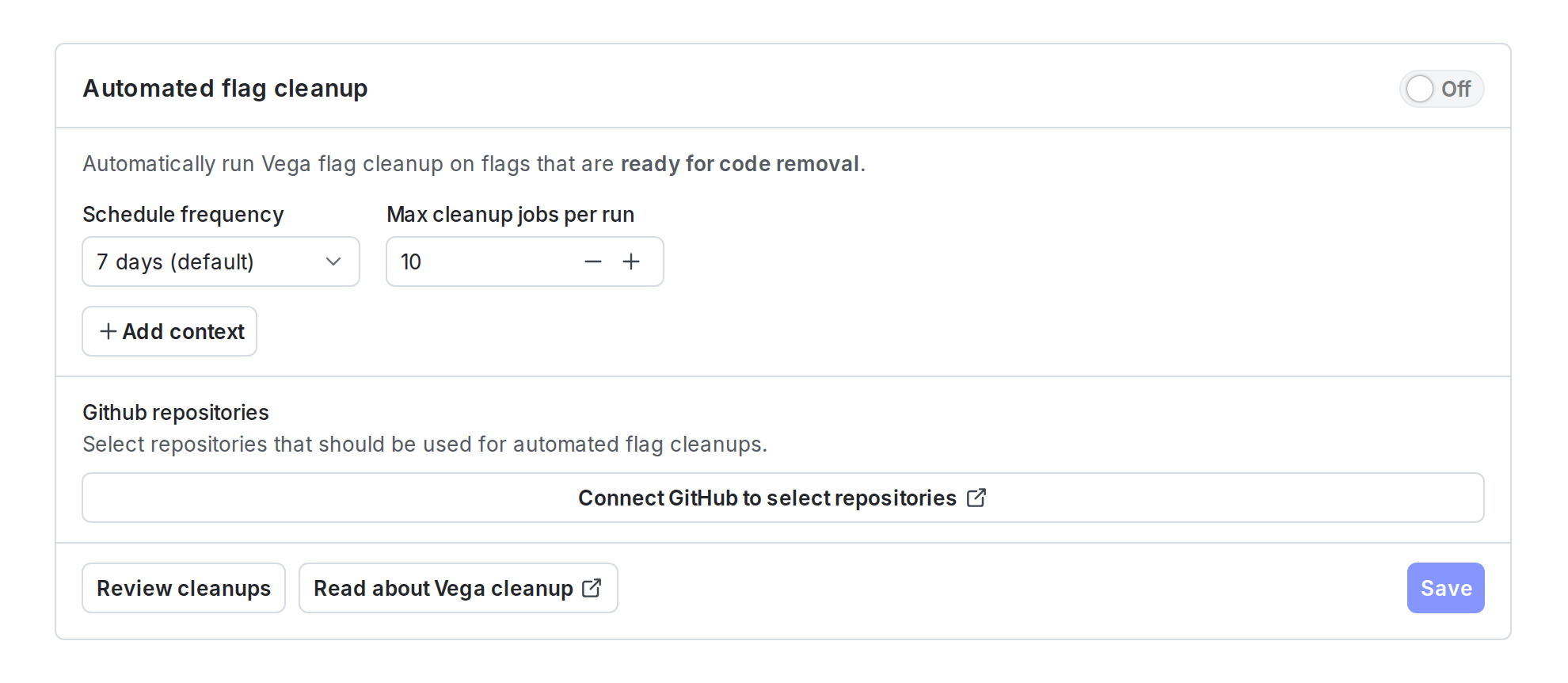 After you save, Vega runs cleanups automatically based on your schedule. Each run processes up to the configured maximum number of flags. You can track the progress of automated cleanups the same way as manual cleanups, using the `vega-pr-in-progress`, `vega-pr-filed`, and `vega-pr-attempted` tags in the **Flags** list.
The settings card shows a "Last configured by" indicator with the member who saved the current configuration. Automated cleanup jobs run using this member's permissions, so Vega can only access the repositories and flags that member has access to. If that member's permissions change or their account is deactivated, you should update the settings with a different member to ensure cleanups continue to run.
## Supported version control
Vega currently supports GitHub only for creating pull requests. To learn how to connect GitHub, read [Connecting Vega to GitHub](/docs/home/getting-started/vega-github).
## Related resources
* [Vega](/docs/home/getting-started/vega) for general information about Vega, including eligibility and pricing.
* [Customizing Vega with repository instructions](/docs/home/getting-started/vega#customizing-vega-with-repository-instructions) to improve Vega's cleanup results by adding a `CLAUDE.md` or `AGENTS.md` file to your repository.
* [Flag cleanup custom agent for GitHub Copilot](/docs/home/getting-started/github-copilot-agent) for an alternative approach that uses GitHub Copilot to clean up flags.
After you save, Vega runs cleanups automatically based on your schedule. Each run processes up to the configured maximum number of flags. You can track the progress of automated cleanups the same way as manual cleanups, using the `vega-pr-in-progress`, `vega-pr-filed`, and `vega-pr-attempted` tags in the **Flags** list.
The settings card shows a "Last configured by" indicator with the member who saved the current configuration. Automated cleanup jobs run using this member's permissions, so Vega can only access the repositories and flags that member has access to. If that member's permissions change or their account is deactivated, you should update the settings with a different member to ensure cleanups continue to run.
## Supported version control
Vega currently supports GitHub only for creating pull requests. To learn how to connect GitHub, read [Connecting Vega to GitHub](/docs/home/getting-started/vega-github).
## Related resources
* [Vega](/docs/home/getting-started/vega) for general information about Vega, including eligibility and pricing.
* [Customizing Vega with repository instructions](/docs/home/getting-started/vega#customizing-vega-with-repository-instructions) to improve Vega's cleanup results by adding a `CLAUDE.md` or `AGENTS.md` file to your repository.
* [Flag cleanup custom agent for GitHub Copilot](/docs/home/getting-started/github-copilot-agent) for an alternative approach that uses GitHub Copilot to clean up flags.