> ## Documentation Index
> Fetch the complete documentation index at: https://launchdarkly.com/docs/llms.txt
> Use this file to discover all available pages before exploring further.
# Creating holdouts
This topic explains how to create and add experiments to holdouts. Holdouts let you exclude a percentage of your audience from all experiments over a set amount of time. This can help you understand how much of an impact your experiments have on certain metrics.
Before you create a holdout, you must decide the following:
* How long to run the holdout for: We recommend anywhere from 1-3 months.
* What percentage of your customer base to include in the holdout: We recommend 1-5%.
* Whether to include all of your experiments in the holdout, or if the holdout will be specific to a certain product area.
## Create holdouts
To create a holdout:
1. Navigate to the **Holdouts** list from the left sidebar.
2. Click **Create holdout**. The "Create holdout in \[environment]" dialog appears.
3. Enter a holdout **Name**.
4. Enter a **Description** that includes information about what kinds of experiments should be in this holdout.
5. Click **Create holdout**. The holdout **Design** tab appears.
6. Select a context kind to **Randomize by**.
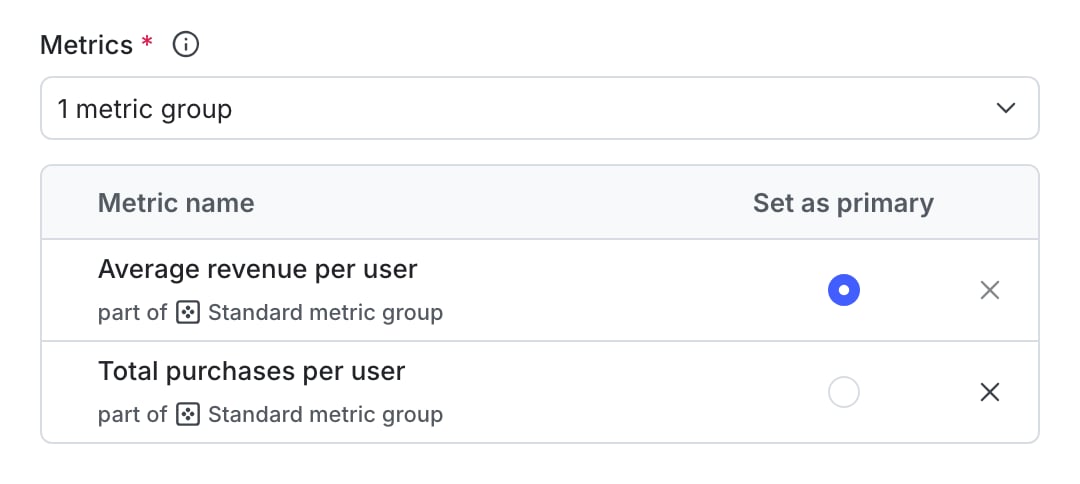
7. Select one or more **Metrics** or metric groups.
* Hover over a metric to see which environments have received events for it. If no environments received events, check that your SDKs are configured correctly.
* Click **Create** to create and use a new metric or new [standard metric group](/docs/home/metrics/metric-groups).
8. (Optional) If you have added multiple metrics and want to change the primary metric, click the metric's **Set as primary** radio button.
 .png)
9. Select the **Holdout amount**. We recommend holding out between 1-5% of your audience.
10. Select a **Statistical approach** of Bayesian or frequentist.
* If you selected a statistical approach of Bayesian, select a preset or **Custom** success threshold.
* If you selected a statistical approach of frequentist, select:
* a **Significance level**.
* a one-sided or two-sided **Direction of hypothesis test**.
You can select a statistical approach of **Bayesian** or **Frequentist**. Each approach includes one or more analysis options.
We recommend **Bayesian** when you have a small sample size of less than a thousand contexts, and we recommend **Frequentist** when you have a larger sample size of a thousand or more. Frequentist is the default statistical approach in LaunchDarkly.
The Bayesian options include:
* **Threshold**:
* **90%** probability to beat control is the standard success threshold, but you can raise the threshold to **95%** or **99%** if you want to be more confident in your experiment results.
* You can lower the threshold to less than 90% using the **Custom** option. We recommend a lower threshold only when you are experimenting on non-critical parts of your app and are less concerned with determining a clear winning variation.
The frequentist options include:
1. **Significance level**:
* **0.05** p-value is the standard significance level, but you can lower the level to **0.01** or raise the level to **0.10**, depending on whether you need to be more or less confident in your results. A lower significance level means that you can be more confident in your winning variation.
* You can raise the significance level to more than 0.10 using the **Custom** option. We recommend a higher significance level only when you are experimenting on non-critical parts of your app and are less concerned with determining a clear winning variation.
2. **Direction of hypothesis test**:
* **Two-sided**: We recommend two-sided when you're unsure about whether the difference between the control and the treatment variations will be negative or positive, and want to look for indications of statistical significance in both directions.
* **One-sided**: We recommend one-sided when you feel confident that the difference between the control and treatment variations will be either negative or positive, and want to look for indications of statistical significance only in one direction.
To learn more, read [Bayesian versus frequentist statistics](/docs/guides/experimentation/bayesian-frequentist).
11. Select up to five context **Attributes** to filter results by.
12. Scroll to the top of the page and click **Declare ready**. A dialog appears.
13. Click **Declare ready** to confirm.
After you declare a holdout ready for experiments, you cannot change its design except for its name and description. If you want to save your progress instead, click **Save** at the top of the creation screen. Your in-progress holdout is saved and appears on the **Holdouts** list. To finish building the holdout, click on the holdout's name and continue editing.
You can also use the REST API: [Create holdout](/docs/api/holdouts/create-holdout)
## Add experiments to holdouts
**Experiments cannot be in a holdout and in a layer at the same time**
Experiments can either be in a holdout, or in a layer, but not both. If an experiment is part of a holdout, you will not see the option to add it to a layer when you create it. To learn more, read [Mutually exclusive experiments](/docs/home/experimentation/mutually-exclusive).
When you create a new experiment, you can decide whether to include it in an existing holdout. To learn how, read [Creating experiments](/docs/home/experimentation/create).
When you add an experiment to a holdout, the holdout appears as a prerequisite to the flag used in the experiment:
.png)
9. Select the **Holdout amount**. We recommend holding out between 1-5% of your audience.
10. Select a **Statistical approach** of Bayesian or frequentist.
* If you selected a statistical approach of Bayesian, select a preset or **Custom** success threshold.
* If you selected a statistical approach of frequentist, select:
* a **Significance level**.
* a one-sided or two-sided **Direction of hypothesis test**.
You can select a statistical approach of **Bayesian** or **Frequentist**. Each approach includes one or more analysis options.
We recommend **Bayesian** when you have a small sample size of less than a thousand contexts, and we recommend **Frequentist** when you have a larger sample size of a thousand or more. Frequentist is the default statistical approach in LaunchDarkly.
The Bayesian options include:
* **Threshold**:
* **90%** probability to beat control is the standard success threshold, but you can raise the threshold to **95%** or **99%** if you want to be more confident in your experiment results.
* You can lower the threshold to less than 90% using the **Custom** option. We recommend a lower threshold only when you are experimenting on non-critical parts of your app and are less concerned with determining a clear winning variation.
The frequentist options include:
1. **Significance level**:
* **0.05** p-value is the standard significance level, but you can lower the level to **0.01** or raise the level to **0.10**, depending on whether you need to be more or less confident in your results. A lower significance level means that you can be more confident in your winning variation.
* You can raise the significance level to more than 0.10 using the **Custom** option. We recommend a higher significance level only when you are experimenting on non-critical parts of your app and are less concerned with determining a clear winning variation.
2. **Direction of hypothesis test**:
* **Two-sided**: We recommend two-sided when you're unsure about whether the difference between the control and the treatment variations will be negative or positive, and want to look for indications of statistical significance in both directions.
* **One-sided**: We recommend one-sided when you feel confident that the difference between the control and treatment variations will be either negative or positive, and want to look for indications of statistical significance only in one direction.
To learn more, read [Bayesian versus frequentist statistics](/docs/guides/experimentation/bayesian-frequentist).
11. Select up to five context **Attributes** to filter results by.
12. Scroll to the top of the page and click **Declare ready**. A dialog appears.
13. Click **Declare ready** to confirm.
After you declare a holdout ready for experiments, you cannot change its design except for its name and description. If you want to save your progress instead, click **Save** at the top of the creation screen. Your in-progress holdout is saved and appears on the **Holdouts** list. To finish building the holdout, click on the holdout's name and continue editing.
You can also use the REST API: [Create holdout](/docs/api/holdouts/create-holdout)
## Add experiments to holdouts
**Experiments cannot be in a holdout and in a layer at the same time**
Experiments can either be in a holdout, or in a layer, but not both. If an experiment is part of a holdout, you will not see the option to add it to a layer when you create it. To learn more, read [Mutually exclusive experiments](/docs/home/experimentation/mutually-exclusive).
When you create a new experiment, you can decide whether to include it in an existing holdout. To learn how, read [Creating experiments](/docs/home/experimentation/create).
When you add an experiment to a holdout, the holdout appears as a prerequisite to the flag used in the experiment:
 To include an experiment in a holdout, the experiment flag cannot have any other prerequisite flags.
You can also use the REST API: [Create experiment](/docs/api/experiments/create-experiment)
To include an experiment in a holdout, the experiment flag cannot have any other prerequisite flags.
You can also use the REST API: [Create experiment](/docs/api/experiments/create-experiment)