> ## Documentation Index
> Fetch the complete documentation index at: https://launchdarkly.com/docs/llms.txt
> Use this file to discover all available pages before exploring further.

# Product analytics events

<View title="Developer" />

<View title="Federal docs" />

<View title="EU docs" />

This topic describes how to use LaunchDarkly product analytics events with observability features to help you understand how system performance affects user activities in your application.

Use the JavaScript, Flutter, Android, and iOS client-side SDK observability to record the following product events as OpenTelemetry spans:

* Clicks or taps, with details about the click or tap location and URL.
* Page views (web) or screen views (mobile), including the current and previous URL or screen.
* App launches and app lifecycle changes (mobile), including the launch type and whether the app moved to the foreground or background.
* Custom metric events that your code generates using the `track()` method. The span events for `track()` calls include both the product URL and metric event key, as well as any optional numeric value provided for a numeric event.

All of the span events generated for these product analytics also include information about the LaunchDarkly context that generated the event. Use the context attributes to associate product usage events with other observability data, such as [errors](/docs/home/observability/errors) and [log messages](/docs/home/observability/logs), to better understand how overall system performance affects user activities in your application.

Web product analytics are available through the JavaScript observability plugin. Mobile product analytics, including screen views, app launches, and app lifecycle events, are available through the Android, iOS, Flutter, and React Native observability plugins. The React Native observability plugin records taps, app launches, app lifecycle events, custom metric `track` events, and an `app_reload` lifecycle event when a session continues across a JavaScript reload. It does not record screen views. To learn about mobile-specific behavior, read [Product analytics on mobile](#product-analytics-on-mobile).

## Prerequisites

To use LaunchDarkly automatic instrumentation for product analytics events, you require:

* A supported LaunchDarkly client-side SDK:
  * [JavaScript SDK](/docs/sdk/client-side/javascript), version 3.7.0 or later
  * [Android SDK](/docs/sdk/client-side/android), version 5.9.0 or later
  * [iOS SDK](/docs/sdk/client-side/ios), version 9.14.0 or later
  * [Flutter SDK](/docs/sdk/client-side/flutter), version 4.17.0 or later
  * [React Native SDK](/docs/sdk/client-side/react/react-native), version 10.10.0 or later

* The observability plugin for your client SDK:

  * The [JavaScript observability plugin](/docs/sdk/observability/javascript) supports all web product analytics events.
  * The [Android observability plugin](/docs/sdk/observability/android) supports all mobile product analytics events.
  * The [iOS observability plugin](/docs/sdk/observability/ios) supports all mobile product analytics events.
  * The [Flutter observability plugin](/docs/sdk/observability/flutter) supports all mobile product analytics events.
  * The [React Native observability plugin](/docs/sdk/observability/react-native) supports taps, app launches, app lifecycle events, custom metric `track` events, and the `app_reload` event. It does not support screen views.

  <Note>
    **The session replay plugin is optional**

    Use the session replay plugin in addition to the observability plugin for your SDK, but it is not required to generate product analytics events. The session replay plugin is required if you want to [create a heat map](/docs/home/observability/custom-dashboards#creating-a-heat-map) to display click data over a session background.
  </Note>

* For metric event analytics, your code should use the `track()` method to generate LaunchDarkly metric events. To learn more, read [Tracking custom events](/docs/sdk/features/events).

By default, the observability plugin for JavaScript automatically generates span events for clicks, page views, and custom metrics. You can choose to disable collecting all or some product analytics events by configuring the plugin options. To learn more, read [Configure product analytics event collection](/docs/sdk/observability/javascript#configure-product-analytics-event-collection).

The Android, iOS, and Flutter observability plugins generate mobile product analytics events. Support and default behavior vary by SDK. To learn more, read [Product analytics on mobile](#product-analytics-on-mobile).

## Product analytics event attributes

Each product analytics event generates an OpenTelemetry span whose name describes its type. The available span names are:

* `click`: A click (web) or tap (mobile).
* `page_view`: A page view. Web only.
* `track`: A custom metric event generated by a `track()` call.
* `screen_view`: A screen view. Mobile only.
* `app_launch`: An app launch. Mobile only.
* `app_foreground` and `app_background`: An app lifecycle change. Mobile only.
* `app_reload`: An app lifecycle change where a session continued across a JavaScript reload. React Native only.

Use the span name or other span attributes to filter product analytics events on the **Traces** page, or to create charts for observability dashboards.

All product analytics events include one or more `context.contextKeys.<context_name>` attributes that provide the context keys that generated the event. On web, all events include an `http.url` attribute that provides the full application URL that generated the event.

Some events include additional, event-specific attributes that describe characteristics of the event or user interaction:

* Click events can include multiple attributes prefixed with `event.` that describe details of the click or tap location (`event.x` and `event.y`) or the interacted element (`event.tag`, `event.text`, `event.xpath`).
* Page view events include both the URL of the page viewed and the previously-visited URL in the `page.view.url` and `page.view.previous_url` attributes.
* Track events include the metric event key in the `key` attribute, and any optional numeric value in the `value` attribute.
* Screen view events include the screen name in the `event.name` attribute, and can include additional `event.` attributes such as the previous screen (`event.previous_screen`), screen class (`event.screen_class`), screen identifier (`event.screen_id`), and a category (`event.category`).
* App launch events include the launch type in the `event.launch_type` attribute (`install`, `update`, or `relaunch`), along with version information. They also include an `app.start` span event that carries the startup type in the `start.type` attribute (`cold` or `warm`) and, when available, the startup duration in the `start.duration_ms` attribute.
* App lifecycle events include the lifecycle state in the `event.lifecycle_state` attribute (`foreground` or `background`).
* App reload events include the elapsed time since the previous activity in the `event.elapsed_ms` attribute, and the number of times the session has reloaded in the `event.reload_count` attribute.

Because product analytics events are implemented as OpenTelemetry spans, each event also includes common span attributes to indicate factors such as the span duration, whether the span includes errors, and so forth. To learn more, read [Search attributes](/docs/home/observability/traces#search-attributes).

## Product analytics on mobile

The Android, iOS, Flutter, and React Native observability plugins record product analytics events for mobile applications. In addition to taps and custom `track()` events, mobile applications record screen views, app launches, and app lifecycle changes. These events let you analyze how users navigate your app and how application startup and lifecycle behavior affects user activity.

The React Native observability plugin records taps, app launches, app lifecycle changes, custom metric `track` events, and an `app_reload` lifecycle event when a session continues across a JavaScript reload. It does not record screen views. To learn more, read [Product analytics events](/docs/sdk/observability/react-native#product-analytics-events) in the React Native SDK observability reference.

Mobile applications can record the following product analytics events:

* **Taps**: A `click` span for each user tap, with details about the tapped element and screen location. Recorded automatically.
* **Screen views**: A `screen_view` span when the app shows a screen, with the screen name and optional details such as the previous screen, screen class, screen identifier, and category. On Android and iOS, you can record screen views automatically, manually with `trackScreenView()`, or both. On Flutter, attach an `LDNavigatorObserver` to your navigator, call `trackScreenView()`, or both.
* **Track events**: A `track` span when your code calls the `track()` method to record a custom metric event.
* **App launches**: An `app_launch` span once per process launch, with the launch type (`install`, `update`, or `relaunch`) and version information. The span includes an `app.start` span event that records whether the launch was a `cold` or `warm` start and, when available, the startup duration. To learn more, read [App launch events](#app-launch-events).
* **App lifecycle changes**: An `app_foreground` or `app_background` span as the app moves between the foreground and background states. On React Native, the plugin also records an `app_reload` span when a session continues across a JavaScript reload. To learn more, read [App reload events](/docs/sdk/observability/react-native#app-reload-events).

Support and default behavior vary by SDK. The following table summarizes which events each mobile observability plugin records:

<table>
  <thead>
    <tr>
      <th>Event</th>
      <th>Android</th>
      <th>iOS</th>
      <th>Flutter</th>
      <th>React Native</th>
    </tr>
  </thead>

  <tbody>
    <tr>
      <td>Taps (`click`)</td>
      <td>Yes</td>
      <td>Yes</td>
      <td>Yes</td>
      <td>Yes</td>
    </tr>

    <tr>
      <td>Screen views (`screen_view`)</td>
      <td>Yes</td>
      <td>Yes</td>
      <td>Yes</td>
      <td>No</td>
    </tr>

    <tr>
      <td>Track events (`track`)</td>
      <td>Yes</td>
      <td>Yes</td>
      <td>Yes</td>
      <td>Yes</td>
    </tr>

    <tr>
      <td>App launches (`app_launch`)</td>
      <td>Yes</td>
      <td>Yes</td>
      <td>Yes (Android and iOS)</td>
      <td>Yes</td>
    </tr>

    <tr>
      <td>App lifecycle (`app_foreground`, `app_background`)</td>
      <td>Yes</td>
      <td>Yes</td>
      <td>Yes (Android and iOS)</td>
      <td>Yes</td>
    </tr>

    <tr>
      <td>App reloads (`app_reload`)</td>
      <td>No</td>
      <td>No</td>
      <td>No</td>
      <td>Yes</td>
    </tr>
  </tbody>
</table>

LaunchDarkly enables all mobile product analytics events by default. To enable or disable individual event types, configure the analytics options for your SDK:

* Android: [Configure product analytics event collection](/docs/sdk/observability/android#configure-product-analytics-event-collection)
* iOS: [Configure product analytics event collection](/docs/sdk/observability/ios#configure-product-analytics-event-collection).
* Flutter: [Configure product analytics event collection](/docs/sdk/observability/flutter#configure-product-analytics-event-collection).

The React Native observability plugin records taps, app launches, app lifecycle changes, `track` events, and the `app_reload` event. To learn more, read [Product analytics events](/docs/sdk/observability/react-native#product-analytics-events) in the React Native SDK observability reference.

### Screen view events

Screen view events are the mobile equivalent of web page view events. Each screen view generates a `screen_view` span that records the screen name in the `event.name` attribute, along with optional attributes such as the previous screen, screen class, screen identifier, and category.

On Android and iOS, the observability plugin can detect screen changes automatically. You can also record screen views manually by calling `trackScreenView()`, which is useful for naming screens or recording additional details. To learn how, read the recording product analytics events section for your SDK:

* Android: [Recording product analytics events](/docs/sdk/observability/android#recording-product-analytics-events)
* iOS: [Recording product analytics events](/docs/sdk/observability/ios#recording-product-analytics-events)

### App launch events

App launch events help you understand how your application starts up and how startup behavior affects user activity. The observability plugin records a single `app_launch` span once per process launch.

The `app_launch` span includes an `event.launch_type` attribute that classifies the launch:

* `install`: The first launch after the app is installed.
* `update`: The first launch after the app is updated to a new version.
* `relaunch`: A subsequent launch of the same version.

The span also includes version information, such as the app version and, on an update, the previous version. The span carries an `app.start` span event that records the startup performance dimension:

* `start.type`: Whether the launch was a `cold` start or a `warm` start. A cold start occurs when the app starts from scratch. A warm start occurs when the operating system prewarms the app before the user opens it.
* `start.duration_ms`: When available, the time from process start to when the SDK initialized, in milliseconds.

On both iOS and Android, the SDK captures process start timing as early as possible during launch, then emits the `app_launch` span after observability initializes, so the recorded duration reflects actual startup time rather than SDK initialization time. To learn more about how each SDK records app launches, read the observability reference for your SDK:

* Android: [Configure product analytics event collection](/docs/sdk/observability/android#configure-product-analytics-event-collection)
* iOS: [Configure product analytics event collection](/docs/sdk/observability/ios#configure-product-analytics-event-collection)
* Flutter: [Configure product analytics event collection](/docs/sdk/observability/flutter#configure-product-analytics-event-collection)

## Using product analytics events

LaunchDarkly product analytics let you easily visualize common product usage events alongside system-level observability measurements, such as errors, logs, and other trace spans. The primary method for associating analytics with system performance is by charting product analytics events alongside other observability sources in dashboards.

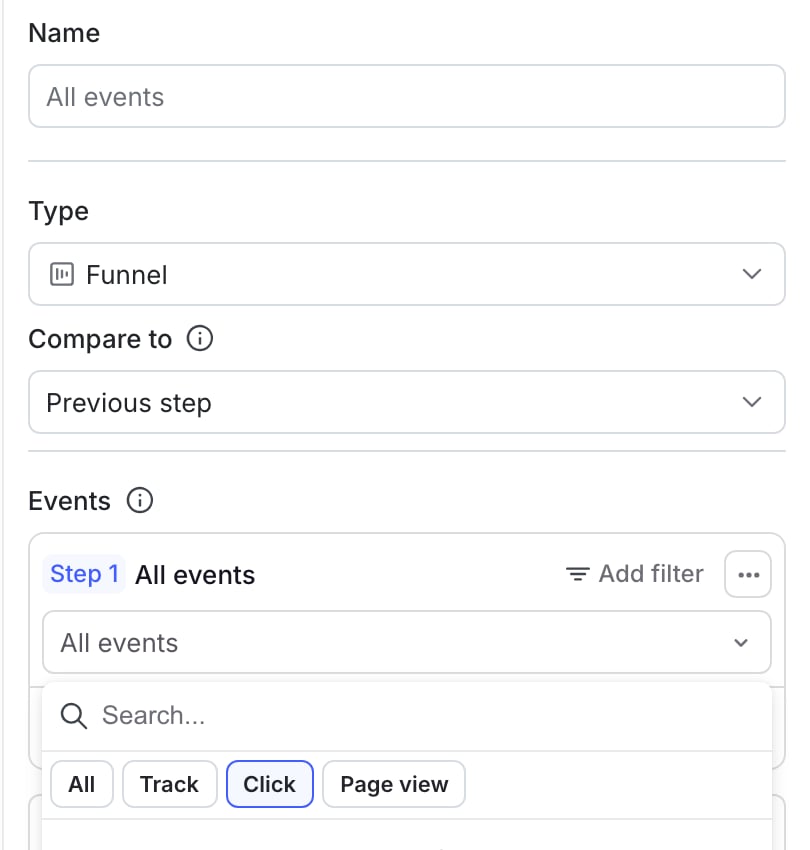
Observability funnel charts provide the ability to filter on different product analytics events during chart setup.

<Frame caption="Filtering by product analytics in a funnel graph.">
  <img src="https://mintcdn.com/launchdarkly/hutarVphEq2dY_zb/images/auto/funnel-pa-filtering.auto.png?fit=max&auto=format&n=hutarVphEq2dY_zb&q=85&s=2f0a668cc6a097c54591e821c0853279" alt="Filtering by product analytics in a funnel graph." width="810" height="850" data-path="images/auto/funnel-pa-filtering.auto.png" />
</Frame>

For other graph types, choose **Events** as the chart data source from the **Source** drop-down menu. Then, use the **Events** menu to filter for the events you want to visualize.
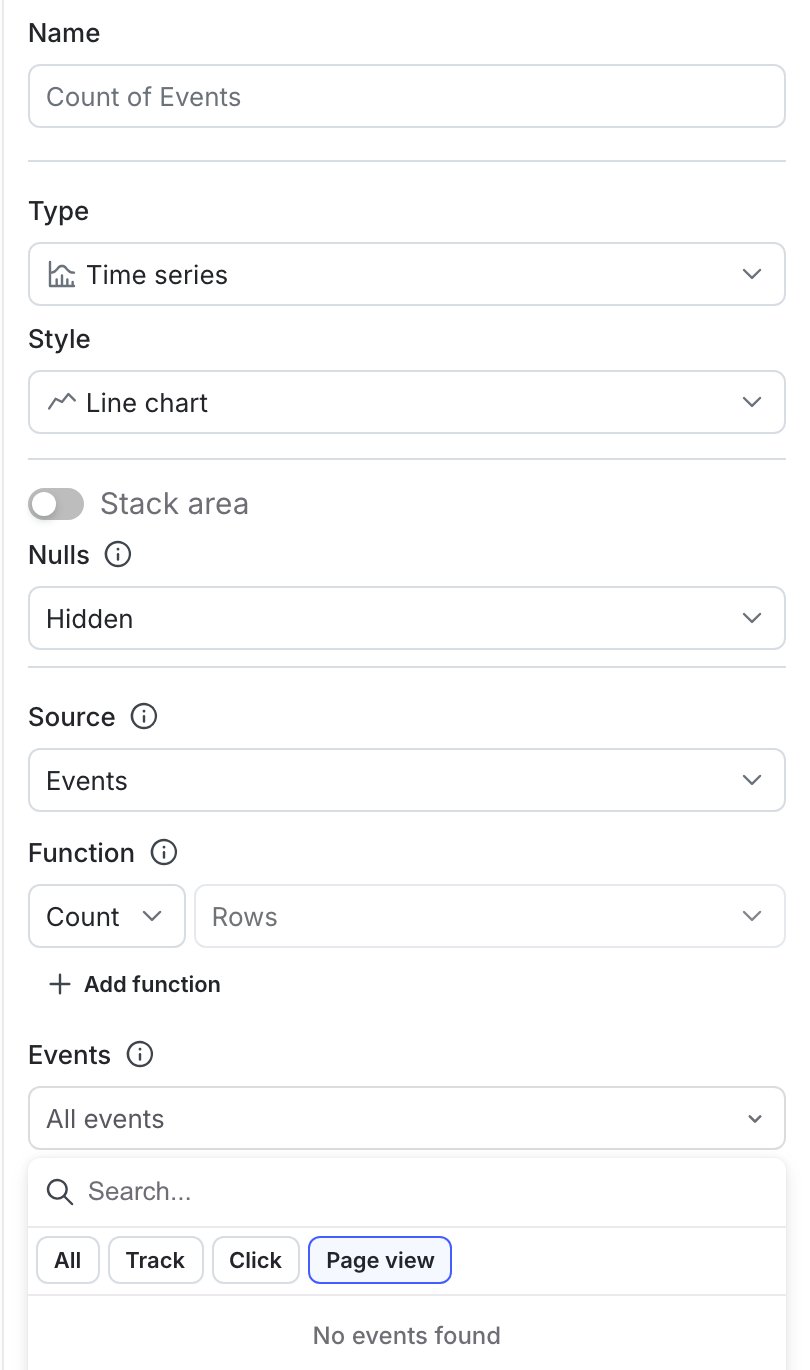
<Frame caption="Filtering by product analytics attributes in a time series graph.">
  <img src="https://mintcdn.com/launchdarkly/A4UXoRTW8ATNw4yq/images/auto/time-series-pa-filtering.auto.png?fit=max&auto=format&n=A4UXoRTW8ATNw4yq&q=85&s=db65585a6abbcbf34c95c361a6ed8ad3" alt="Filtering by product analytics attributes in a time series graph." width="810" height="1370" data-path="images/auto/time-series-pa-filtering.auto.png" />
</Frame>

To learn more, read [Custom dashboards](/docs/home/observability/custom-dashboards).