> ## Documentation Index
> Fetch the complete documentation index at: https://launchdarkly.com/docs/llms.txt
> Use this file to discover all available pages before exploring further.
# Applications in Engineering insights
**Engineering insights is not available in federal environments**
To learn more, read LaunchDarkly in federal environments.
**Engineering insights is not available in LaunchDarkly's European Union (EU) instance**
To learn more, read LaunchDarkly in the European Union (EU).
This topic explains how to work with LaunchDarkly applications in engineering insights.
Applications are a part of your codebase for which you want to track deployments. Applications often correspond to a single repository in your version control system. However, if you are using monorepos, then a single repository may contain several applications. Generally, an application is a codebase or portion of a codebase that you independently deploy.
## Create applications
Applications are created automatically when you send a deployment event to LaunchDarkly. Deployment events must include the application key and version. If the application key does not correspond to an existing application, LaunchDarkly will create a new application for you using that key.
To learn how to send a deployment event to LaunchDarkly, read [Send events from your deployment pipeline](/docs/home/releases/config-deployment#option-2-send-events-from-your-deployment-pipeline). To learn about other ways to automatically create applications, read [Applications and application versions](/docs/home/releases/apps-and-app-versions).
**Flag targeting rules and applications created by deployment events**
You may have applications that are created automatically because you have sent a deployment event to LaunchDarkly. However, you will not be able to create mobile targeting rules for those applications until you have also completed the following:
* your feature flag has its "Available on mobile SDKs" toggle set to **On**. To learn more, read [Create flags](/docs/home/flags/create).
* you have already started to collect application information. LaunchDarkly must receive an evaluation context with this information before it enables the option to create a mobile targeting rule. To learn more, read [Automatic environment attributes](/docs/sdk/features/environment-attributes).
To learn more, read [Mobile targeting](/docs/home/flags/mobile-targeting).
## Edit applications
You can change the display name or description for an application. The application key cannot be edited.
To navigate to the Applications page, click on your **display picture** in the top toolbar and select "Manage applications":
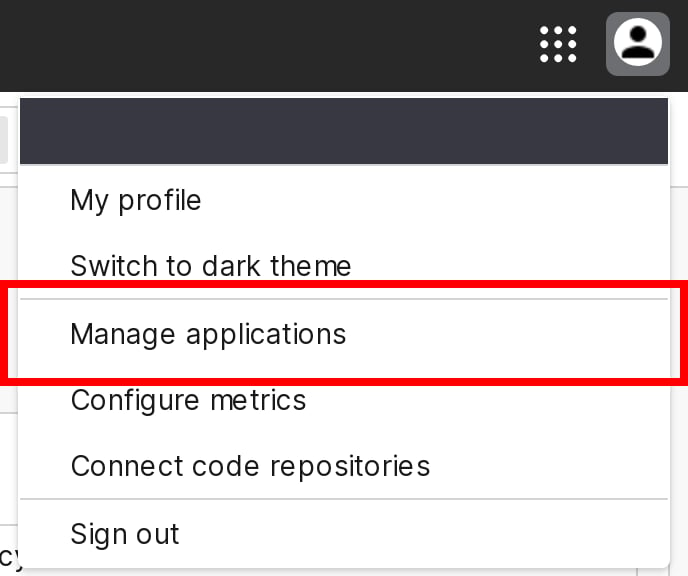 You are directed to the Applications page. To edit an application, follow the instructions at [Edit applications](/docs/home/releases/applications#edit-applications).