> ## Documentation Index
> Fetch the complete documentation index at: https://launchdarkly.com/docs/llms.txt
> Use this file to discover all available pages before exploring further.
# Project overview
**Engineering insights is not available in federal environments**
To learn more, read LaunchDarkly in federal environments.
**Engineering insights is not available in LaunchDarkly's European Union (EU) instance**
To learn more, read LaunchDarkly in the European Union (EU).
**Engineering insights is available to customers on select plans**
Engineering insights is only available to customers on select plans. To learn more, [read about our pricing](https://launchdarkly.com/pricing/). To upgrade your plan, [contact Sales](https://launchdarkly.com/contact-sales/).
This topic explains how to use the engineering insights **Overview** page to evaluate LaunchDarkly project health at a high level. The **Overview** page displays a quick view of all of your projects and their project health.
To view the **Overview** page, click **Overview** in the project summary header:
 On the **Overview** page, you can search for a project by name, or filter projects by tier by clicking on the **Excellent**, **Good**, **Fair**, or **Needs attention** filters.
Projects are rated on a scale from 1-100, using the following categories:
* Excellent: 90-100
* Good: 70-89
* Fair: 40-69
* Needs attention: 0-39
Hover over a project to view the individual velocity, risk, and efficiency scores for the project:
On the **Overview** page, you can search for a project by name, or filter projects by tier by clicking on the **Excellent**, **Good**, **Fair**, or **Needs attention** filters.
Projects are rated on a scale from 1-100, using the following categories:
* Excellent: 90-100
* Good: 70-89
* Fair: 40-69
* Needs attention: 0-39
Hover over a project to view the individual velocity, risk, and efficiency scores for the project:
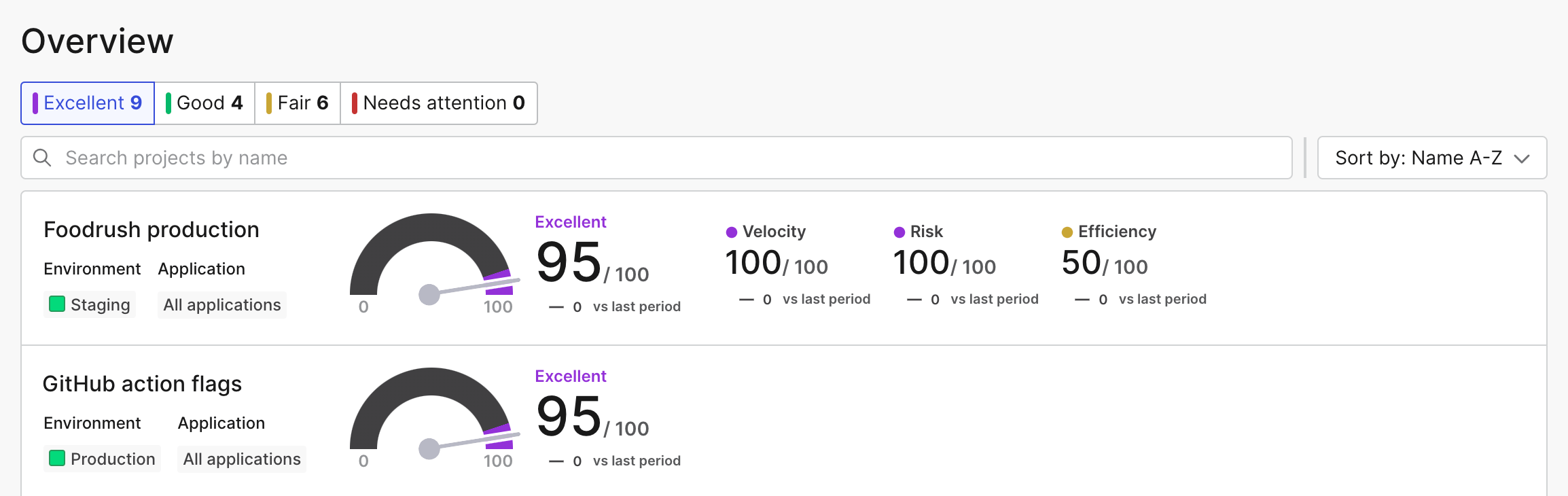 LaunchDarkly determines these scores based on the following criteria:
* Velocity: calculated using your project's [deployment frequency](/docs/home/releases/deployments) and [lead time](/docs/home/releases/lead-time)
* Risk: calculated using your project's [failure rate](/docs/home/releases/deployments#deployments-list) and [change impact size](/docs/home/releases/releases#flag-changes)
* Efficiency: calculated using your project's [flag health](/docs/home/releases/flag-health) and [Experimentation rate](/docs/home/releases/exp-rate), if applicable
Clicking on a project row opens the project metrics summary with your chosen project selected. To learn more, read [Project metrics](/docs/home/releases/project-metrics).
## Custom insights
Custom insights let you quickly view and compare insights for selected projects, environments, and applications. After you create a custom insight, you can compare it to other insights from the Overview page. This helps simplify the comparison of projects or teams across your organization.
For example, if you have multiple teams working on a project, you can create two different custom insights with a specific set of applications for the front-end team, and a different set of applications for the back-end team.
To create a custom insight:
1. Navigate to the Overview page.
2. Click **+ Add insights**. A "Create new insight" dialog appears.
3. Enter a unique, human-readable **Name**.
4. Enter a **Key**.
5. Select a **Project**.
6. Select an **Environment**.
7. Select one or more **Applications**.
8. Click **Save**.
The insight appears at the top of the Insights list:
LaunchDarkly determines these scores based on the following criteria:
* Velocity: calculated using your project's [deployment frequency](/docs/home/releases/deployments) and [lead time](/docs/home/releases/lead-time)
* Risk: calculated using your project's [failure rate](/docs/home/releases/deployments#deployments-list) and [change impact size](/docs/home/releases/releases#flag-changes)
* Efficiency: calculated using your project's [flag health](/docs/home/releases/flag-health) and [Experimentation rate](/docs/home/releases/exp-rate), if applicable
Clicking on a project row opens the project metrics summary with your chosen project selected. To learn more, read [Project metrics](/docs/home/releases/project-metrics).
## Custom insights
Custom insights let you quickly view and compare insights for selected projects, environments, and applications. After you create a custom insight, you can compare it to other insights from the Overview page. This helps simplify the comparison of projects or teams across your organization.
For example, if you have multiple teams working on a project, you can create two different custom insights with a specific set of applications for the front-end team, and a different set of applications for the back-end team.
To create a custom insight:
1. Navigate to the Overview page.
2. Click **+ Add insights**. A "Create new insight" dialog appears.
3. Enter a unique, human-readable **Name**.
4. Enter a **Key**.
5. Select a **Project**.
6. Select an **Environment**.
7. Select one or more **Applications**.
8. Click **Save**.
The insight appears at the top of the Insights list:
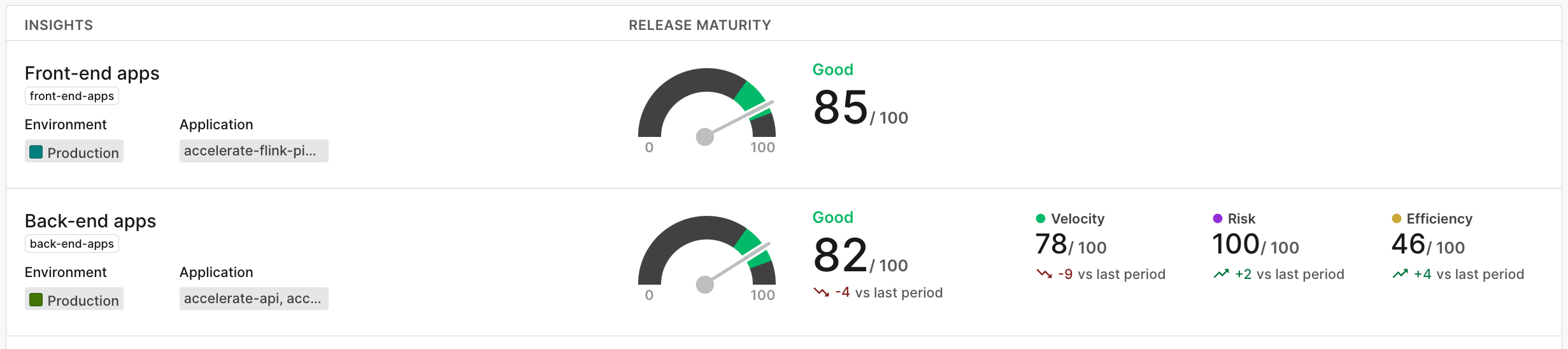 You can sort the Insights list by name or creation date.
To delete a custom insight, click the **overflow menu** for the insight and select "Delete."
You can sort the Insights list by name or creation date.
To delete a custom insight, click the **overflow menu** for the insight and select "Delete."