> ## Documentation Index
> Fetch the complete documentation index at: https://launchdarkly.com/docs/llms.txt
> Use this file to discover all available pages before exploring further.
# Collecting user feedback
**User feedback is not available in federal environments**
To learn more, read LaunchDarkly in federal environments.
This topic explains how to configure your application to send qualitative user feedback to LaunchDarkly. Each piece of user feedback is associated with a specific flag variation, creating a direct connection between user sentiment and feature performance. This lets you quickly identify which features resonate with users, understand pain points in real-time, and adjust flag configurations based on actual user feedback, rather than assumptions.
 ## Prerequisites
Collecting qualitative user feedback is available in the JavaScript SDK.
Setting up user feedback requires two steps:
* Configuring the JavaScript SDK
* Creating a feedback widget
To learn how to configure these, read [User feedback](/docs/sdk/features/user-feedback).
## View user feedback
After your users begin providing qualitative feedback, you can view their feedback on a flag's **Feedback** tab.
The AI summary provides an overview of which variation got more positive feedback and summaries of users' written feedback.
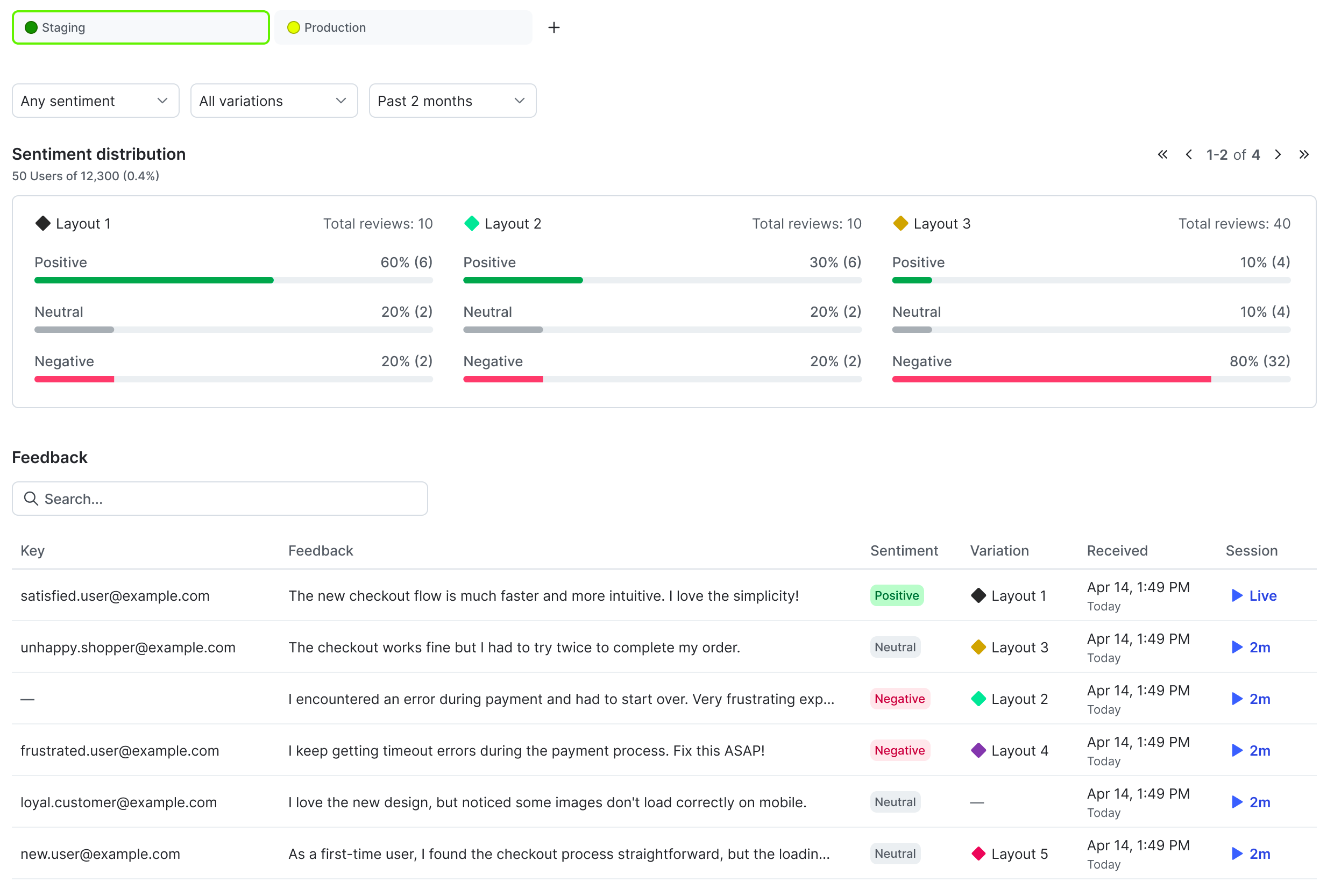
The sentiment distribution section displays the total number of reviews for each variation, and how many of the reviews were positive, neutral, or negative.
### Subscribe Slack channels to feedback updates
If you have the [LaunchDarkly Slack app](/docs/integrations/slack) configured, you can subscribe up to ten Slack channels per flag and environment to user feedback.
To subscribe Slack channels to user feedback, you must have a LaunchDarkly base role of Admin, Owner, or Writer, or a custom role with the `createNotificationSubscription` and `deleteNotificationSubscription` permissions for the [notification-subscription](/docs/home/account/roles/role-actions#notification-subscription-actions) resource.
To subscribe a Slack channel:
1. From the **Feedback** tab, click **Subscribe**.
2. Select the Slack channels you want to send feedback notifications to.
User feedback now appears in your selected Slack channels.
### The feedback list
The feedback list allows you to view comprehensive details about all user feedback you have received for the flag, including the user email address, their written feedback, the sentiment of their written feedback, which variation they received, and the date they provided the feedback. You can narrow the list by sentiment kind, variant, or date range.
If you use [LaunchDarkly observability features](/docs/home/observability), you can use [session replay](/docs/home/observability/session-replay) to view what the user was doing in your app when they left their feedback. Click **Replay** to view what the user was doing in your application before they submitted the feedback.
**Session replay is not available in the LaunchDarkly European Union (EU) instance**
To learn more, read LaunchDarkly in the European Union (EU).
## Prerequisites
Collecting qualitative user feedback is available in the JavaScript SDK.
Setting up user feedback requires two steps:
* Configuring the JavaScript SDK
* Creating a feedback widget
To learn how to configure these, read [User feedback](/docs/sdk/features/user-feedback).
## View user feedback
After your users begin providing qualitative feedback, you can view their feedback on a flag's **Feedback** tab.
The AI summary provides an overview of which variation got more positive feedback and summaries of users' written feedback.
The sentiment distribution section displays the total number of reviews for each variation, and how many of the reviews were positive, neutral, or negative.
### Subscribe Slack channels to feedback updates
If you have the [LaunchDarkly Slack app](/docs/integrations/slack) configured, you can subscribe up to ten Slack channels per flag and environment to user feedback.
To subscribe Slack channels to user feedback, you must have a LaunchDarkly base role of Admin, Owner, or Writer, or a custom role with the `createNotificationSubscription` and `deleteNotificationSubscription` permissions for the [notification-subscription](/docs/home/account/roles/role-actions#notification-subscription-actions) resource.
To subscribe a Slack channel:
1. From the **Feedback** tab, click **Subscribe**.
2. Select the Slack channels you want to send feedback notifications to.
User feedback now appears in your selected Slack channels.
### The feedback list
The feedback list allows you to view comprehensive details about all user feedback you have received for the flag, including the user email address, their written feedback, the sentiment of their written feedback, which variation they received, and the date they provided the feedback. You can narrow the list by sentiment kind, variant, or date range.
If you use [LaunchDarkly observability features](/docs/home/observability), you can use [session replay](/docs/home/observability/session-replay) to view what the user was doing in your app when they left their feedback. Click **Replay** to view what the user was doing in your application before they submitted the feedback.
**Session replay is not available in the LaunchDarkly European Union (EU) instance**
To learn more, read LaunchDarkly in the European Union (EU).