> ## Documentation Index
> Fetch the complete documentation index at: https://launchdarkly.com/docs/llms.txt
> Use this file to discover all available pages before exploring further.
# Toggling flag targeting on and off
**This feature is not available on LaunchDarkly's federal instance**
To learn more, read LaunchDarkly in federal environments.
This topic explains how to toggle feature flags with the LaunchDarkly Slack app.
## Toggle flags on and off from Slack
You can turn flag targeting on or off from within Slack.
To turn a flag's targeting on or off:
1. Click the **View details** button on a flag change notification, or paste a link to the flag in Slack.
2. Click the **three-dot** overflow menu item in the flag details message.
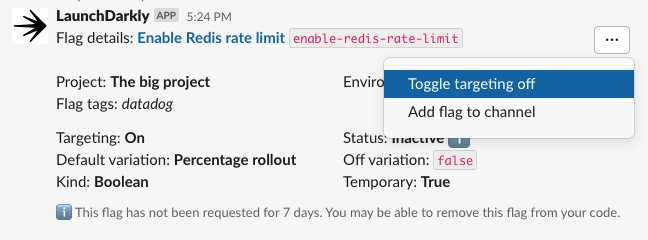 3. Select **Toggle targeting off** or **Toggle targeting on**.
After you confirm changes, you will receive a notification stating that the flag targeting has changed.
3. Select **Toggle targeting off** or **Toggle targeting on**.
After you confirm changes, you will receive a notification stating that the flag targeting has changed.