> ## Documentation Index
> Fetch the complete documentation index at: https://launchdarkly.com/docs/llms.txt
> Use this file to discover all available pages before exploring further.
# Sleuth
**This integration is not available in federal environments**
To learn more, read LaunchDarkly in federal environments.
**This integration is not available in LaunchDarkly's European Union (EU) instance**
To learn more, read LaunchDarkly in the European Union (EU).
**The Sleuth integration is available to customers on select plans**
The Sleuth integration is only available to customers on select plans. To learn more, [read about our pricing](https://launchdarkly.com/pricing/). To upgrade your plan, [contact Sales](https://launchdarkly.com/contact-sales/).
This topic explains how to use the LaunchDarkly Sleuth integration.
**The Sleuth integration is managed by Sleuth**
The Sleuth integration was built by and is managed by Sleuth. For questions about the integration or for technical support, [contact Sleuth](https://www.sleuth.io/).
The LaunchDarkly Sleuth integration tracks feature flags as a source of change in your DevOps tools. Sleuth captures the full state of your LaunchDarkly feature flags at deployment time. This helps you keep track of the affected code deploys, what environment the change occurred in, who changed the flag, and flag descriptions and values before and after code deploys.
## Prerequisites
To connect Sleuth to LaunchDarkly, you must meet the following prerequisites:
* You must have access to your LaunchDarkly credentials and
* A LaunchDarkly account with a Writer, Admin, or Owner base role.
The integration is initiated from your Sleuth account. After you connect it, you do not need to take further action. There are no Sleuth settings or preferences to configure in LaunchDarkly.
**Make sure your role in LaunchDarkly allows you to modify integrations**
If you get a notification that the integration is connected, but cannot access deploy data in Sleuth, confirm that your LaunchDarkly role allows you to enable external apps. If you have a Reader base role, or have another role that restricts these permissions, the integration may not work.
## Set up the Sleuth integration
To connect the Sleuth integration with LaunchDarkly:
1. Log into your [Sleuth Dashboard](https://app.sleuth.io/accounts/login/).
2. In the left sidebar, click **Integrations**.
3. Click **enable** in the LaunchDarkly section of the **Flags** tab.
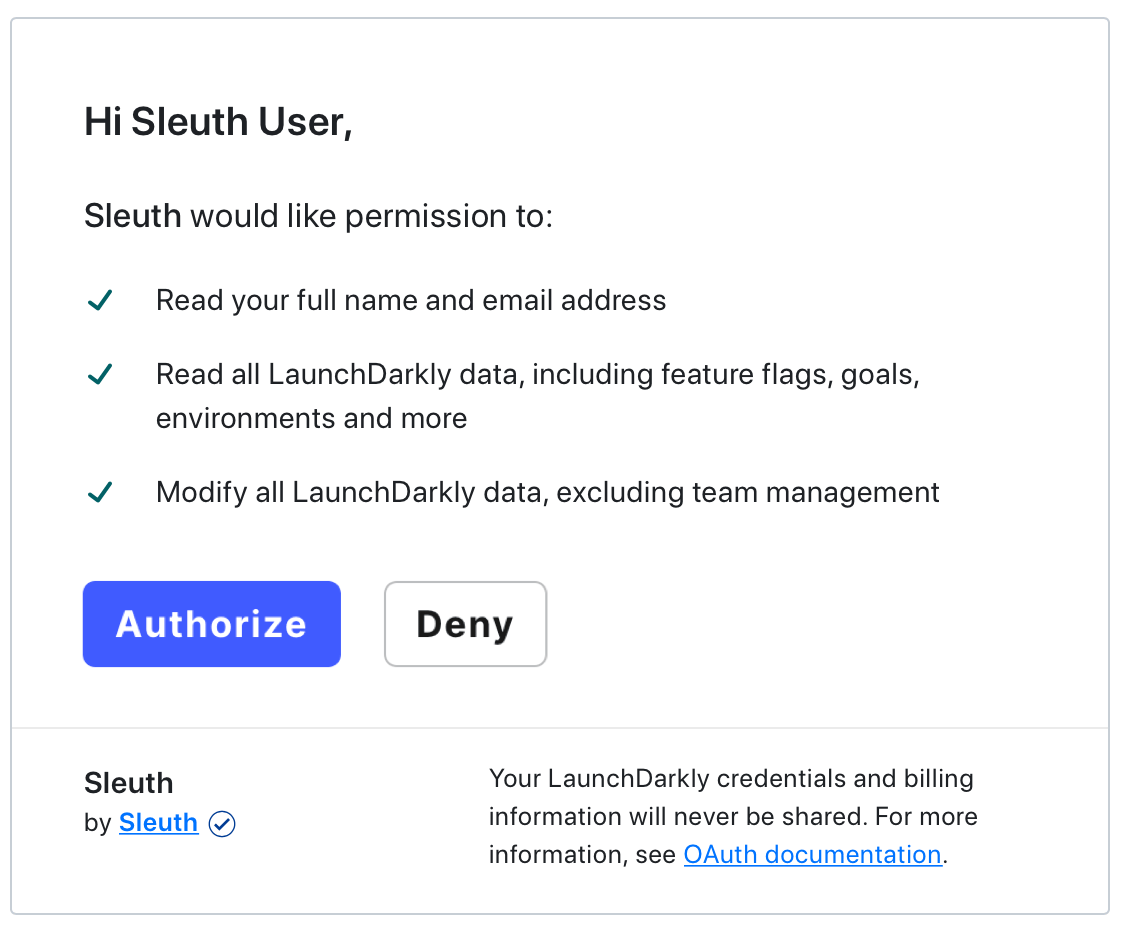
4. Click **Authorize**. This allows Sleuth to read and modify your LaunchDarkly data.
**You must authorize Sleuth for the integration to work**
If you click **Deny**, the integration cannot access your flag data.
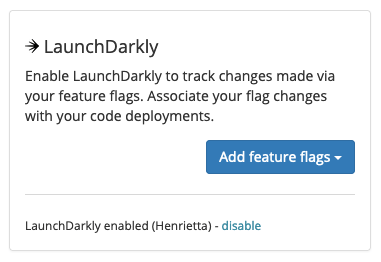
 5. Confirm that the integration has connected LaunchDarkly and Sleuth when "LaunchDarkly enabled (Connected as user)" is displayed in the LaunchDarkly integration card.
 ## Configure the Sleuth integration
Now that you've set up the Sleuth LaunchDarkly integration, you must configure Sleuth to know which feature flags it should track.
To select a LaunchDarkly project and environment to track:
1. Navigate to the **Integrations** page in Sleuth and find the LaunchDarkly integration section in the **Flags** tab.
2. Click **Add feature flags**.
3. Select the **Feature Flag Project** and **Environment** you want to track.
## Configure the Sleuth integration
Now that you've set up the Sleuth LaunchDarkly integration, you must configure Sleuth to know which feature flags it should track.
To select a LaunchDarkly project and environment to track:
1. Navigate to the **Integrations** page in Sleuth and find the LaunchDarkly integration section in the **Flags** tab.
2. Click **Add feature flags**.
3. Select the **Feature Flag Project** and **Environment** you want to track.
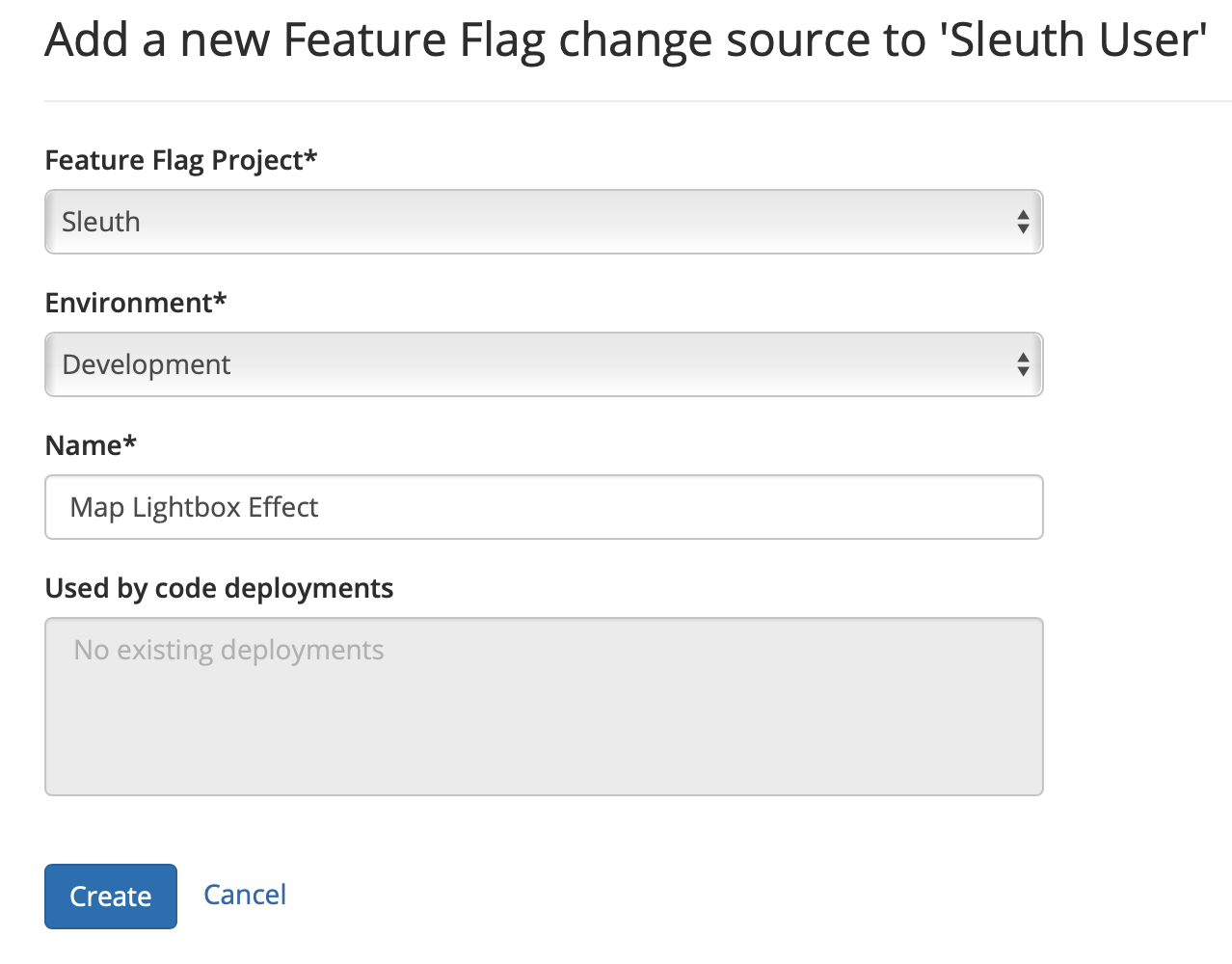 4. Give the integration a **Name**.
5. Click **Create**.
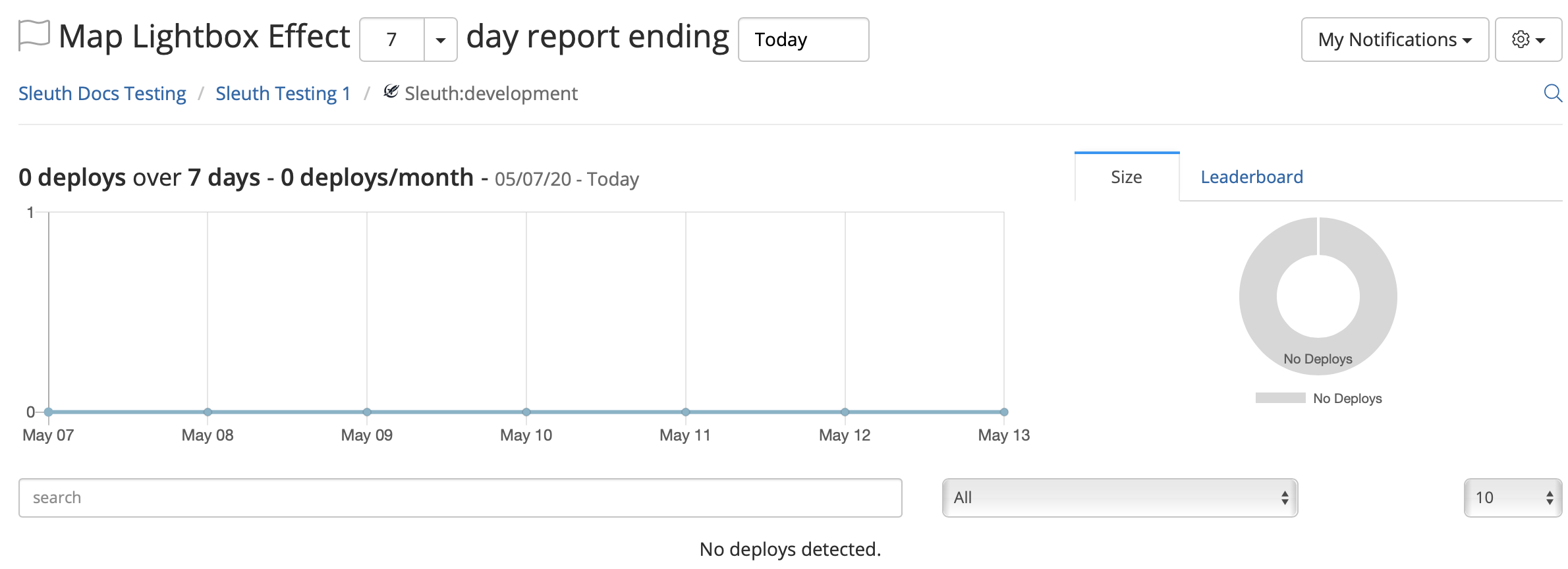
After the connection is established, the Sleuth trend graph appears. This graph monitors how your feature flags impact your code over time.
4. Give the integration a **Name**.
5. Click **Create**.
After the connection is established, the Sleuth trend graph appears. This graph monitors how your feature flags impact your code over time.
 **Tracking multiple projects and environments**
To track multiple LaunchDarkly projects and environments in Sleuth, create a new Sleuth project and attach each LaunchDarkly project or environment to Sleuth individually. You can create as many Sleuth projects as you need to track any number of feature flag project and environment combinations.
To learn more, read [Sleuth's documentation](https://help.sleuth.io/projects#creating-a-project).
## Remove the Sleuth integration
To remove the Sleuth integration:
1. Log in to your Sleuth account.
2. In the left sidebar, click **Integrations**.
3. Click **disable** in the LaunchDarkly section in the **Change Sources** tab.
4. Confirm that the integration has been removed when **LaunchDarkly disabled - enable** is displayed in the LaunchDarkly integration card.
**Tracking multiple projects and environments**
To track multiple LaunchDarkly projects and environments in Sleuth, create a new Sleuth project and attach each LaunchDarkly project or environment to Sleuth individually. You can create as many Sleuth projects as you need to track any number of feature flag project and environment combinations.
To learn more, read [Sleuth's documentation](https://help.sleuth.io/projects#creating-a-project).
## Remove the Sleuth integration
To remove the Sleuth integration:
1. Log in to your Sleuth account.
2. In the left sidebar, click **Integrations**.
3. Click **disable** in the LaunchDarkly section in the **Change Sources** tab.
4. Confirm that the integration has been removed when **LaunchDarkly disabled - enable** is displayed in the LaunchDarkly integration card.
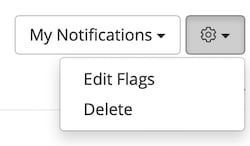 This removes the LaunchDarkly integration.
## Getting Slack notifications from Sleuth
With the Slack integration in Sleuth, you can notify your entire team, or just the commit author or PR initiator, of a code change. This includes feature flag changes.
To learn more, read [Sleuth's documentation](https://help.sleuth.io/integrations-1/slack).
The Sleuth Slack integration works independently from the LaunchDarkly Slack integration. If you use both, you may receive notifications from both Sleuth and LaunchDarkly about flag activity.
To learn more about the LaunchDarkly Slack integration, read [Slack](/docs/integrations/slack).
This removes the LaunchDarkly integration.
## Getting Slack notifications from Sleuth
With the Slack integration in Sleuth, you can notify your entire team, or just the commit author or PR initiator, of a code change. This includes feature flag changes.
To learn more, read [Sleuth's documentation](https://help.sleuth.io/integrations-1/slack).
The Sleuth Slack integration works independently from the LaunchDarkly Slack integration. If you use both, you may receive notifications from both Sleuth and LaunchDarkly about flag activity.
To learn more about the LaunchDarkly Slack integration, read [Slack](/docs/integrations/slack).