> ## Documentation Index
> Fetch the complete documentation index at: https://launchdarkly.com/docs/llms.txt
> Use this file to discover all available pages before exploring further.
# Trello
**This integration is not available in federal environments**
To learn more, read LaunchDarkly in federal environments.
**This integration is not available in LaunchDarkly's European Union (EU) instance**
To learn more, read LaunchDarkly in the European Union (EU).
This topic explains how to use LaunchDarkly's Trello integration to link your feature flags to Trello boards. You can browse and attach feature flags, and, if you have flag edit permissions in LaunchDarkly, toggle flags on and off from within your Trello boards. This helps you minimize disruptions to your workflow processes.
**Additional Atlassian integrations are also available**
If you use Trello, you may use other Atlassian products. You can also set up integrations for those. To learn more, read about the LaunchDarkly integrations with [Compass](/docs/integrations/compass), [Confluence](/docs/integrations/confluence), and [Jira Cloud](/docs/integrations/jira).
## Prerequisites
To connect LaunchDarkly to Trello, you must have the following prerequisites:
* A Trello account with at least one board.
* A LaunchDarkly account with permission to view flags. To be able to toggle flags on and off from within Trello, you must also have permission to edit flags.
The integration is initiated from your Trello account. After you connect it, you do not need to take further action in LaunchDarkly.
## Set up the Trello integration
To set up the Trello integration, you first must connect a Trello board to LaunchDarkly, then authorize your boards to access LaunchDarkly.
To connect a Trello board to LaunchDarkly:
1. Log in to your [Trello account](https://trello.com/login).
2. Navigate to the ["Power-Ups" screen](https://trello.com/power-ups).
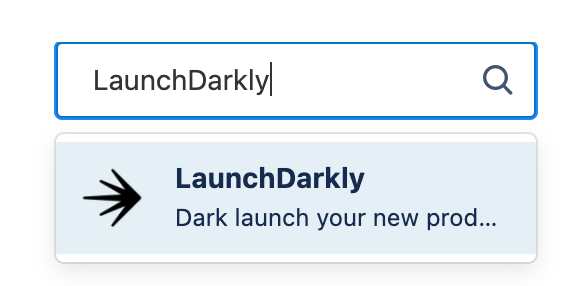
3. Search for "LaunchDarkly" in the **Find Power-Ups** search box. The "LaunchDarkly" integration appears as a search result:
 4. Click **LaunchDarkly**. The LaunchDarkly Power-Up screen appears.
5. Click **Add Power-Up**.
6. Select the board you want to connect your LaunchDarkly account to:
4. Click **LaunchDarkly**. The LaunchDarkly Power-Up screen appears.
5. Click **Add Power-Up**.
6. Select the board you want to connect your LaunchDarkly account to:
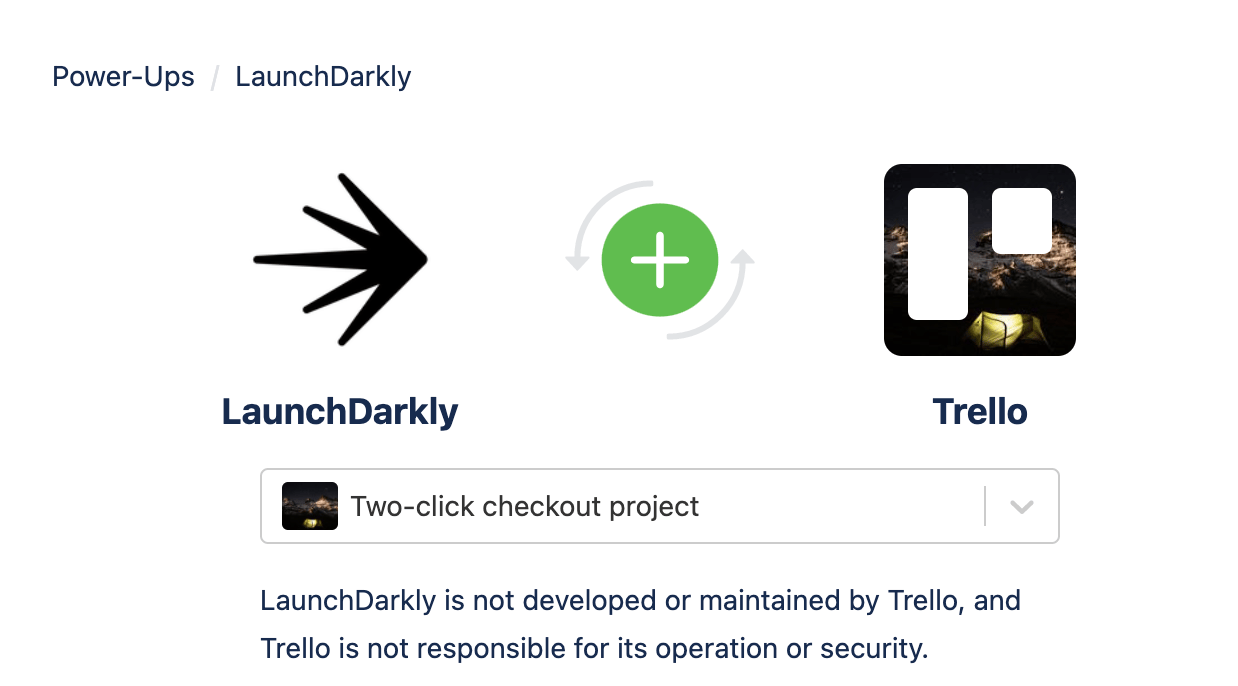 7. Click **Add**. A success screen appears.
8. Click **Go to board**. You are returned to your Trello board.
Your Trello board is now connected to LaunchDarkly. Repeat this process for each additional board you want to connect.
Next, you must authorize your boards to access LaunchDarkly. Authorizing access to LaunchDarkly in one board authorizes it for every board you have connected.
To authorize your boards to access LaunchDarkly:
1. Navigate to a Trello board connected to LaunchDarkly.
2. Click **Power-Ups**. The "Power-Ups" screen appears.
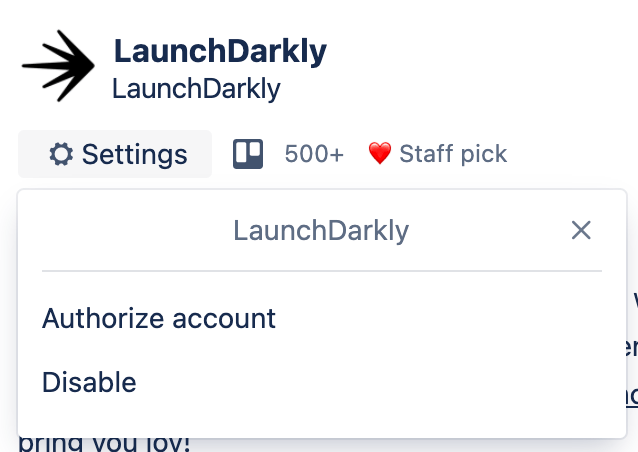
3. Under LaunchDarkly, click **Settings**. The "LaunchDarkly" dialog appears.
4. Click **Authorize account**:
7. Click **Add**. A success screen appears.
8. Click **Go to board**. You are returned to your Trello board.
Your Trello board is now connected to LaunchDarkly. Repeat this process for each additional board you want to connect.
Next, you must authorize your boards to access LaunchDarkly. Authorizing access to LaunchDarkly in one board authorizes it for every board you have connected.
To authorize your boards to access LaunchDarkly:
1. Navigate to a Trello board connected to LaunchDarkly.
2. Click **Power-Ups**. The "Power-Ups" screen appears.
3. Under LaunchDarkly, click **Settings**. The "LaunchDarkly" dialog appears.
4. Click **Authorize account**:
 5. Click **Authorize Access To LaunchDarkly**. An authorization dialog appears.
6. Click **Authorize**. You are returned to your Trello board.
All of your connected Trello boards are now authorized to access LaunchDarkly.
## Add feature flags to Trello cards
You can add feature flags to Trello cards within your board, which displays the status of the flag. You can also toggle the flag's targeting on or off if you have flag edit permission in LaunchDarkly.
There are two ways to add flags to Trello cards:
* you can attach the URL of flags to cards, or
* you can add flags using the Trello card menu.
To attach the URL of a flag to a card:
1. In LaunchDarkly, open a feature flag. Copy the URL from your browser address bar.
2. On your Trello card, click **Attachment**. An "Attach from..." menu appears.
3. Paste the URL from step 1 into the **Attach a link** field.
4. Click **Attach**.
Your flag is now attached to the card. You can also drag and drop the flag URL directly from your browser window onto your Trello card.
To add a flag to a card using the Trello card menu:
1. Open the card you want to add a flag to.
2. Click **LaunchDarkly** in the "Power-Ups" section. A list of LaunchDarkly projects appears.
3. Choose the project containing the flag you want to add. A list of flags within that project appears.
4. Choose the flag you want to add to your card. The flag appears in your card for each environment within the project:
5. Click **Authorize Access To LaunchDarkly**. An authorization dialog appears.
6. Click **Authorize**. You are returned to your Trello board.
All of your connected Trello boards are now authorized to access LaunchDarkly.
## Add feature flags to Trello cards
You can add feature flags to Trello cards within your board, which displays the status of the flag. You can also toggle the flag's targeting on or off if you have flag edit permission in LaunchDarkly.
There are two ways to add flags to Trello cards:
* you can attach the URL of flags to cards, or
* you can add flags using the Trello card menu.
To attach the URL of a flag to a card:
1. In LaunchDarkly, open a feature flag. Copy the URL from your browser address bar.
2. On your Trello card, click **Attachment**. An "Attach from..." menu appears.
3. Paste the URL from step 1 into the **Attach a link** field.
4. Click **Attach**.
Your flag is now attached to the card. You can also drag and drop the flag URL directly from your browser window onto your Trello card.
To add a flag to a card using the Trello card menu:
1. Open the card you want to add a flag to.
2. Click **LaunchDarkly** in the "Power-Ups" section. A list of LaunchDarkly projects appears.
3. Choose the project containing the flag you want to add. A list of flags within that project appears.
4. Choose the flag you want to add to your card. The flag appears in your card for each environment within the project:
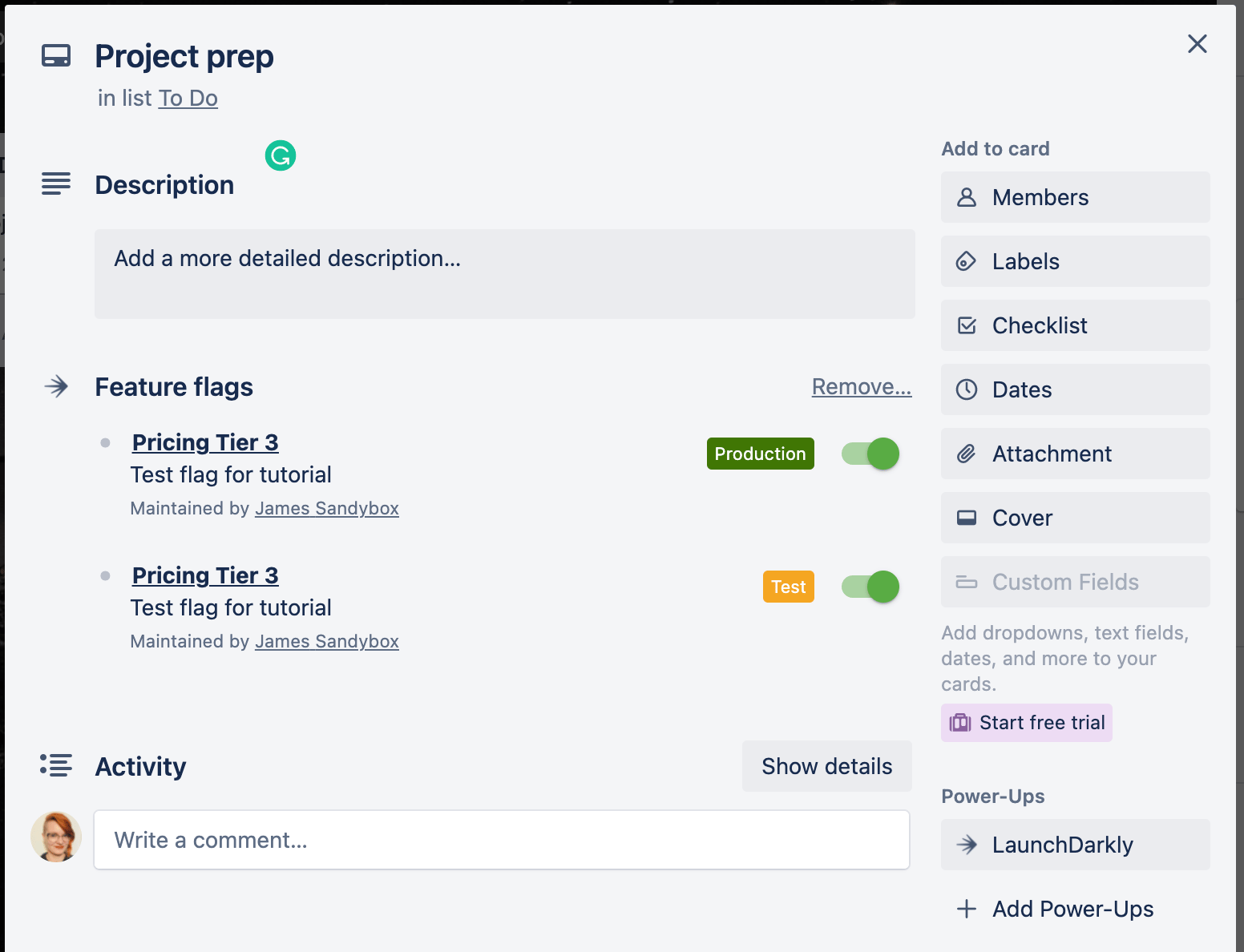 You can now view flags from your Trello card. If you have flag edit permissions in LaunchDarkly, you can also toggle flags on and off.