
Twilio Segment for Data Export
This topic explains how to create and test a Twilio Segment destination for Data Export.
Prerequisites
There are two prerequisites to configure the Twilio Segment integration:
- You must add the LaunchDarkly Source in Twilio Segment
- You must find the Write Key for your Twilio Segment account
First, add the LaunchDarkly Source in Twilio Segment. To add the source, read Twilio’s documentation.
Next, configure the Twilio Segment integration in LaunchDarkly. To do this, you need the Write Key from your Twilio Segment account.
To find the write key:
- Log into Twilio Segment and navigate to your project.
- Navigate to Sources and select your LaunchDarkly source.
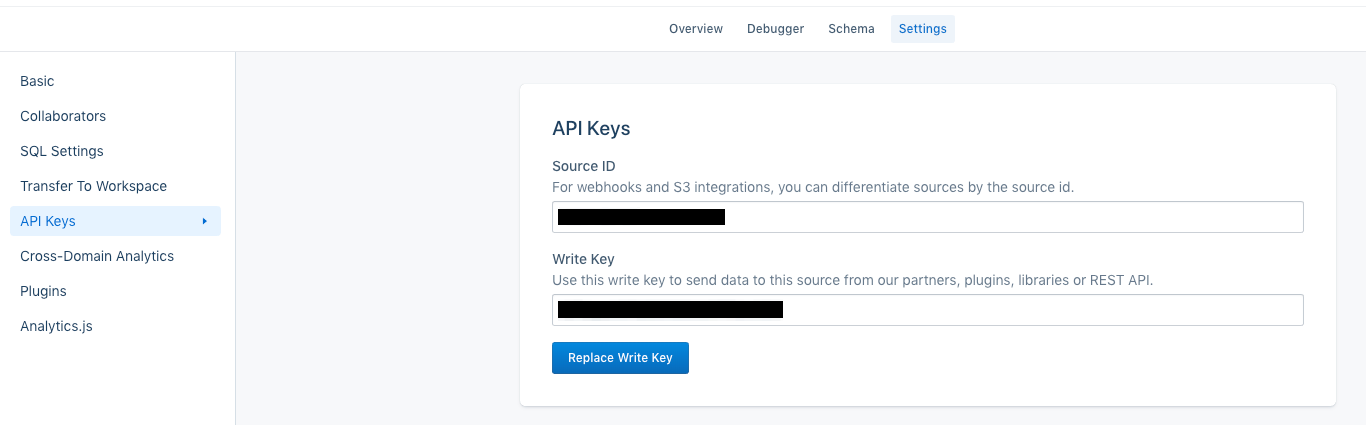
- Select API Keys on the Source integration’s menu bar.
- Copy the Write Key as shown in the text box:
You can configure only one Data Export destination per LaunchDarkly environment, regardless of destination kind. If you need more than one Data Export destination for the same data, configure them in different environments.
Create a Twilio Segment destination in LaunchDarkly
To create the Twilio Segment destination:
- In LaunchDarkly, click the gear icon in the left sidebar to view Organization settings.
- Click Integrations and find “Twilio Segment.”
- Click Add integration. The “Create a destination” panel appears.
- (Optional) Give your integration a human-readable Name.
- Choose an Environment for this integration to apply to.
- Enter the Twilio Segment Write key.
- Click Save destination. The new integration appears in the list of integrations.
Test a Twilio Segment destination
After you save the destination, send a test event to confirm that the destination is configured properly.
To send a test event:
- Navigate to the Integrations page and find “Twilio Segment.”
- Click the down arrow next to “Add integration” to display a list of existing destinations.
- Click the pencil icon next to the destination you want to test. The “Edit destination” panel appears.
- In the “Send a test event” section, click Send event.
- Verify the event appears in the Twilio Segment Debugger.
Example events
These example events display the structure of the events LaunchDarkly sends to Twilio Segment.
LaunchDarkly sends events in the following formats:
Enable Data Export for flags and environments
After you create a Data Export destination, you must start sending flag or environment event data to it. You can enable Data Export for individual flags, or for all the flags in an environment.
To learn more, read Export event data for flags and environments.
Delete a Twilio Segment destination
You can delete a Data Export destination from the Integrations screen.
To delete a destination:
- Navigate to the Integrations page and find “Segment.”
- Click into the “Segment” section to display a list of destinations.
- Click the pencil icon next to the destination you wish to delete. The “Edit destination” panel appears.
- Click Delete destination.