

The Splunk integration is available to customers on select plansThe Splunk integration is only available to customers on select plans. To learn more, read about our pricing. To upgrade your plan, contact Sales.
This integration is for Splunk Enterprise and Splunk Cloud (self-service and managed)Based on which type of Splunk account you have, endpoint hostnames, ports, and paths may differ from what’s depicted in this topic. We indicate these differences when they occur in the text below.
Prerequisites
To configure the integration, you must have the following prerequisites:- A Splunk HTTP Event Collector (HEC). To learn more, read Set up an HTTP Event Collector in Splunk Web
- An HEC token, which is generated during HEC setup.
Set up an HTTP Event Collector in Splunk Web
To add LaunchDarkly events to Splunk, you must configure and enable Splunk’s HTTP Event Collector (HEC) in Splunk Web. The steps to enable HEC vary based on your Splunk instance. To enable HEC, read Splunk’s documentation.Configure LaunchDarkly to work with Splunk
To configure LaunchDarkly to start sending events to Splunk:- Click the gear icon in the left sidebar to view Organization settings.
- Click Integrations and find “Splunk.”
- Click Add integration. The “Create Splunk configuration” panel appears.
- (Optional) Give the integration a human-readable Name.
- Paste the HTTP event collector URL into the HTTP event collector base URL. This URL varies based on which version of Splunk you have. To learn more about which URL format to use, read Splunk’s documentation.
- Paste your HEC token in the Token field.
- If you’re using Splunk Cloud, you will probably need to check the Skip certificate verification checkbox. Splunk Cloud instances are deployed with self-signed SSL certificates which prevents LaunchDarkly’s integration service from reaching Splunk Cloud’s HEC service.
- (Optional) Configure a custom policy to control which event information LaunchDarkly sends to Splunk. To learn more about this option, read Add policies to the Splunk integration.
- After reading the Integration Terms and Conditions, check the I have read and agree to the Integration Terms and Conditions checkbox.
- Click Save configuration.
Add policies to the Splunk integration
By default, the Splunk integration sends production flag change events to Splunk. You can customize those events with the policy editor, using the same language and construction as when you create policy statements for a role. To learn more, read Roles. You can customize the events LaunchDarkly sends to Splunk by using the policy editor in the Splunk configuration panel: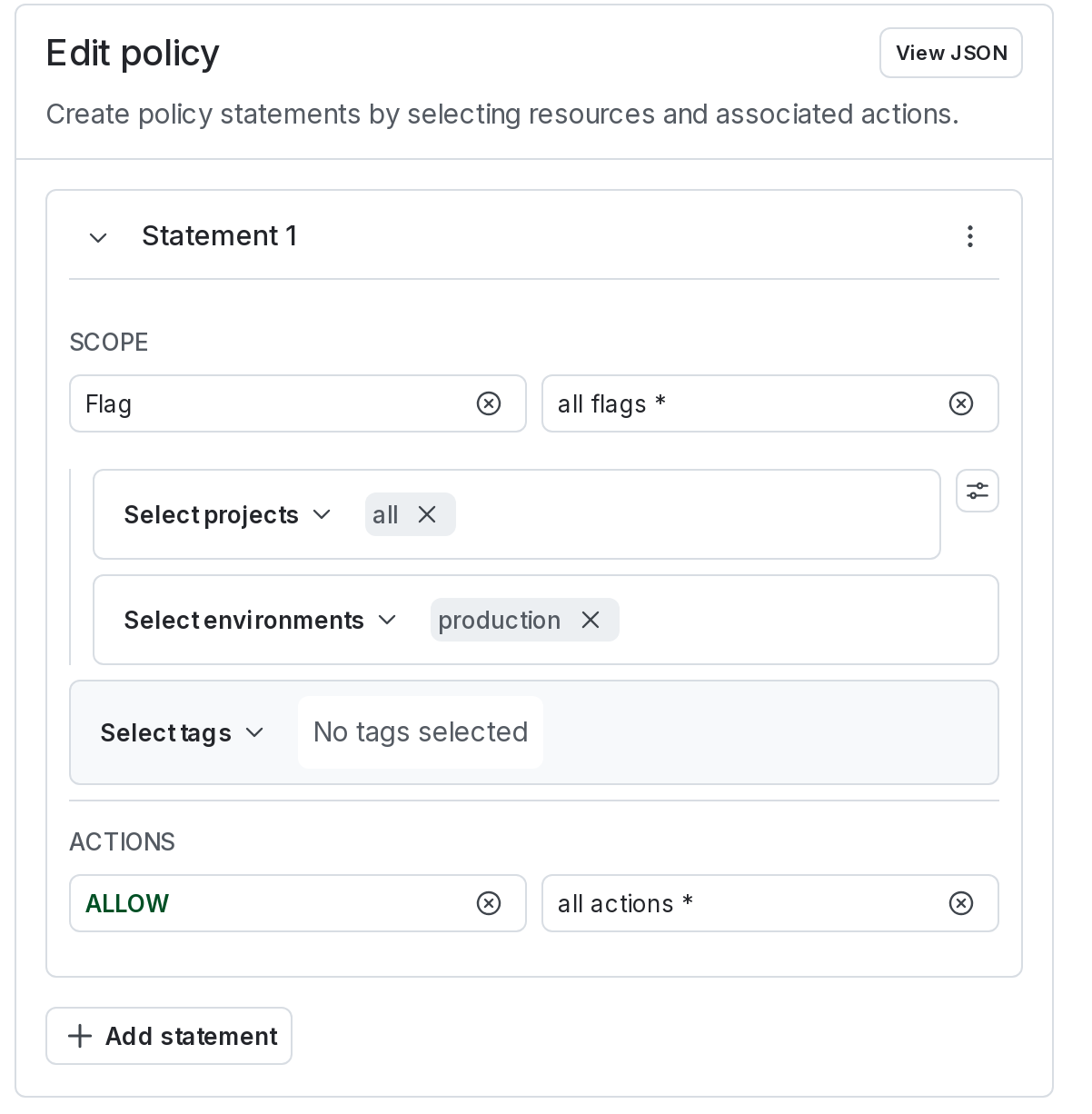
The policy editor.
Access LaunchDarkly events in Splunk
Now that your integration is configured, you can view LaunchDarkly events in Splunk. Access those events with the following Splunk search query: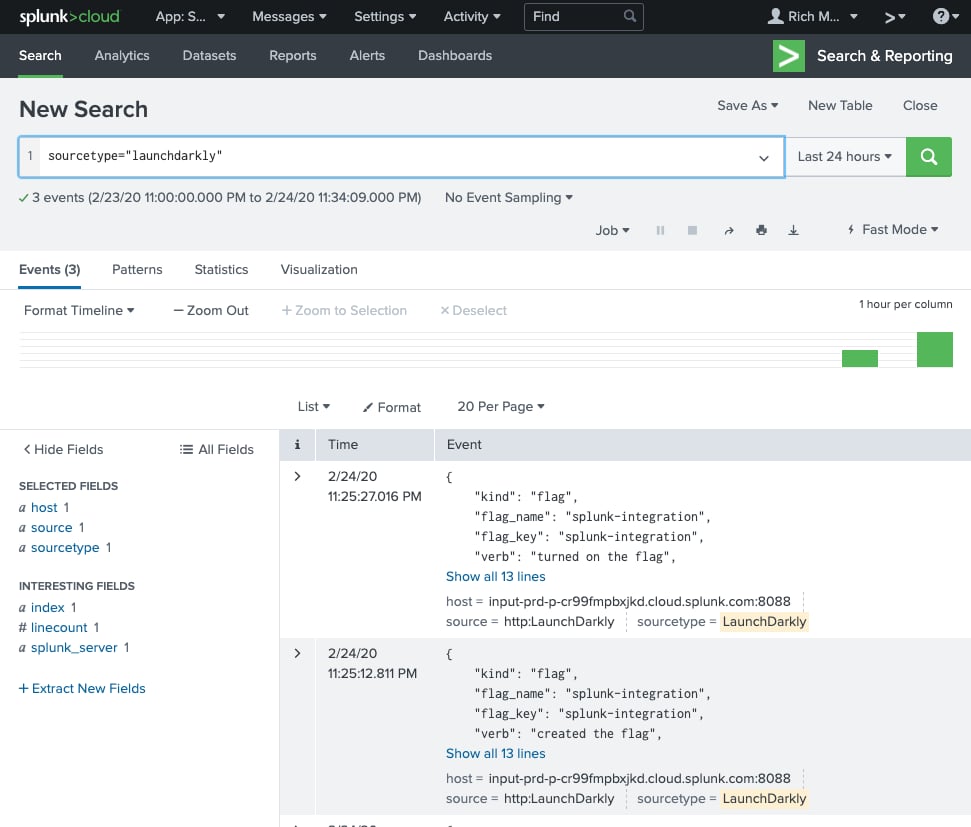
LaunchDarkly events in Splunk
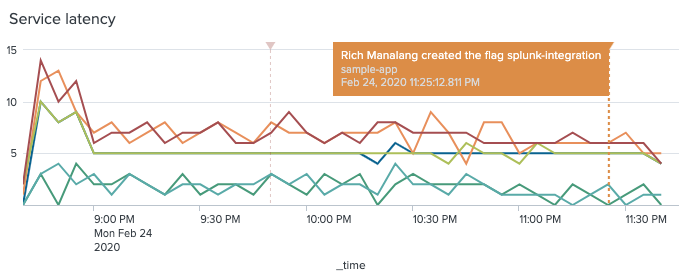
LaunchDarkly events as annotations in Splunk charts
Troubleshooting
If LaunchDarkly events don’t appear in Splunk, confirm that incoming traffic is allowed. You can also send a single LaunchDarkly test event and verify that Splunk receives it.Configure Splunk IP allow lists
Some Splunk customers may need to configure their Splunk IP allow lists to permit incoming traffic from LaunchDarkly. To do this, follow Splunk’s Configure IP allow lists using Splunk Web documentation to configure the HEC access for ingestion allow list. Add theoutboundAddresses from LaunchDarkly’s Public IP list when configuring the IP allow list in Splunk.
Recreate the LaunchDarkly events collector in Splunk
If you configure the LaunchDarkly integration and events in Splunk do not appear, recreate the LaunchDarkly request with acurl.
Use this command to recreate the request:
- Splunk Enterprise URLs format:
<protocol>://<host>:<port>/<endpoint>. - Self-service Splunk Cloud URLs format:
<protocol>://input-<host>:<port>/<endpoint>. - Managed Splunk Cloud URLs format:
<protocol>://http-inputs-<host>:<port>/<endpoint>.
sourcetype="launchdarkly", set a custom sourcetype on your HEC token.
Set the Source Type as launchdarkly, set Index to main and set Status to Enabled.
An example token is below:
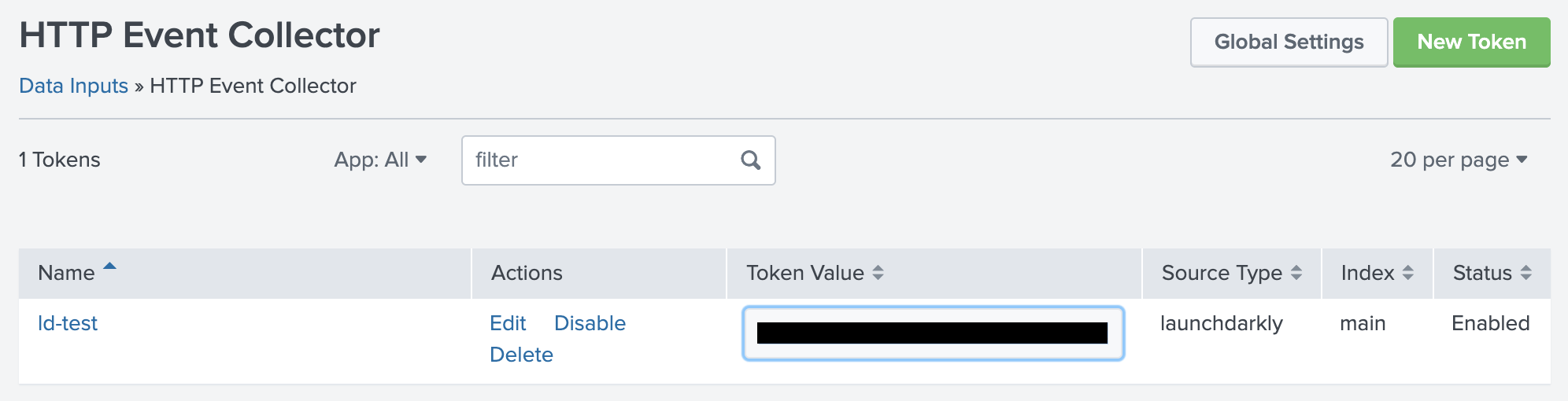
Example HEC configuration.