

New Slack app is now availableLaunchDarkly has developed a new Slack app which is more powerful and easier to use than the Slack webhooks integration.
Create a Slack incoming hook
First, create an incoming hook in Slack. To do this:- Navigate to the Incoming Webhooks page in Slack.
- Select a Slack channel.
- Click Add Incoming WebHooks integration:
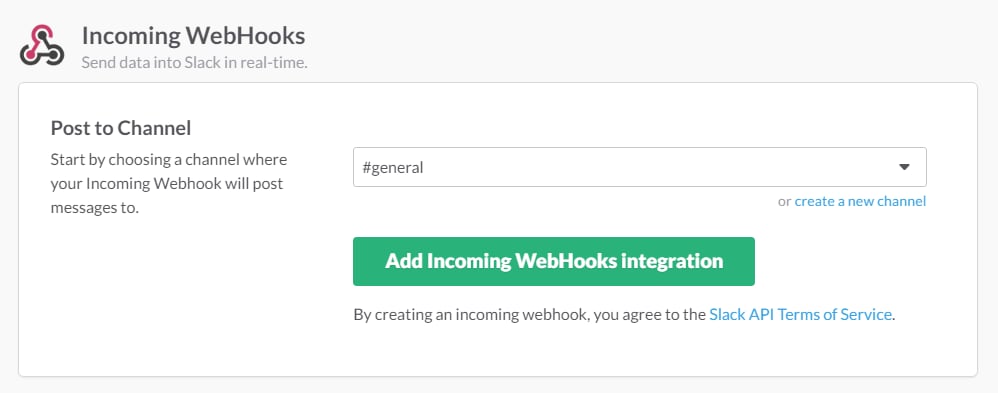
The Incoming Webhooks page.
- Copy and save the Webhook URL.
- In LaunchDarkly, click the gear icon in the left sidebar to view Organization settings.
- Click Integrations and find the “Slack incoming webhooks” integration.
- Click Add integration.
- Enter a Name for the webhook.
- In the URL field, enter the webhook URL you saved from step 4 in the previous procedure.
- (Optional) Click + Add statement to add a policy filter, or click Advanced editor.
- Click Save incoming webhook.
Add a policy filter
LaunchDarkly sends all flag change events in the production environment to a webhook by default. To customize the events LaunchDarkly sends to your Slack channel, use the policy editor in the webhook creation panel. To learn more about creating a policy, read Example roles and policies. For example, if you want to receive an event only when a change is made to one of your production feature flags, you can add the following policy to the webhook integration:Disable a Slack incoming webhook
To temporarily disable a Slack incoming webhook:- Navigate to the Integrations page and find “Slack incoming webhooks.”
- Click the expand arrow to display all of the configured webhooks.

The expand arrow for an integration.
- Click the pencil icon next to the webhook you want to disable. The “Edit Slack incoming webhook” panel appears.
- Toggle the switch Off.