

- Decide on and create a metric
- Create the holdout
- Decide which experiments to add to the holdout
- Read your results
Prerequisites
To complete this tutorial, you must have the following prerequisites:- A LaunchDarkly account with Experimentation enabled
- An Admin or Owner base role, or a custom role with flag permissions, experiment permissions, and holdout permissions
- Familiarity with LaunchDarkly’s Experimentation feature
- A basic understanding of your business’s needs or key performance indicators (KPIs)
Concepts
To complete this guide, you should understand the following concepts:Decide on and create a metric
First, decide what metric you want to measure. Choose a metric that aligns with the same KPIs or goals you want to experiment on, such as average revenue per customer, or percentage of customers that sign up for your service. In this example, you’re in charge of your organization’s growth program. You might be using a variety of metrics to measure things like total sign-ups, revenue per customer, or revenue per cart. Here, your main metric measuring the success of your organization’s Experimentation program will be new, completed account sign-ups. To create your metric:- Open the Data section and navigate to the Metrics list.
- Click Create metric. The “Create metric” dialog appears.
- Leave the “Data warehouse” selection on LaunchDarkly hosted.
- Select an event kind of Custom.
- Enter “completed-sign-ups” for the Event key.
- Choose a metric definition of Occurrence (Percent) of User units that sent the event where higher is better.
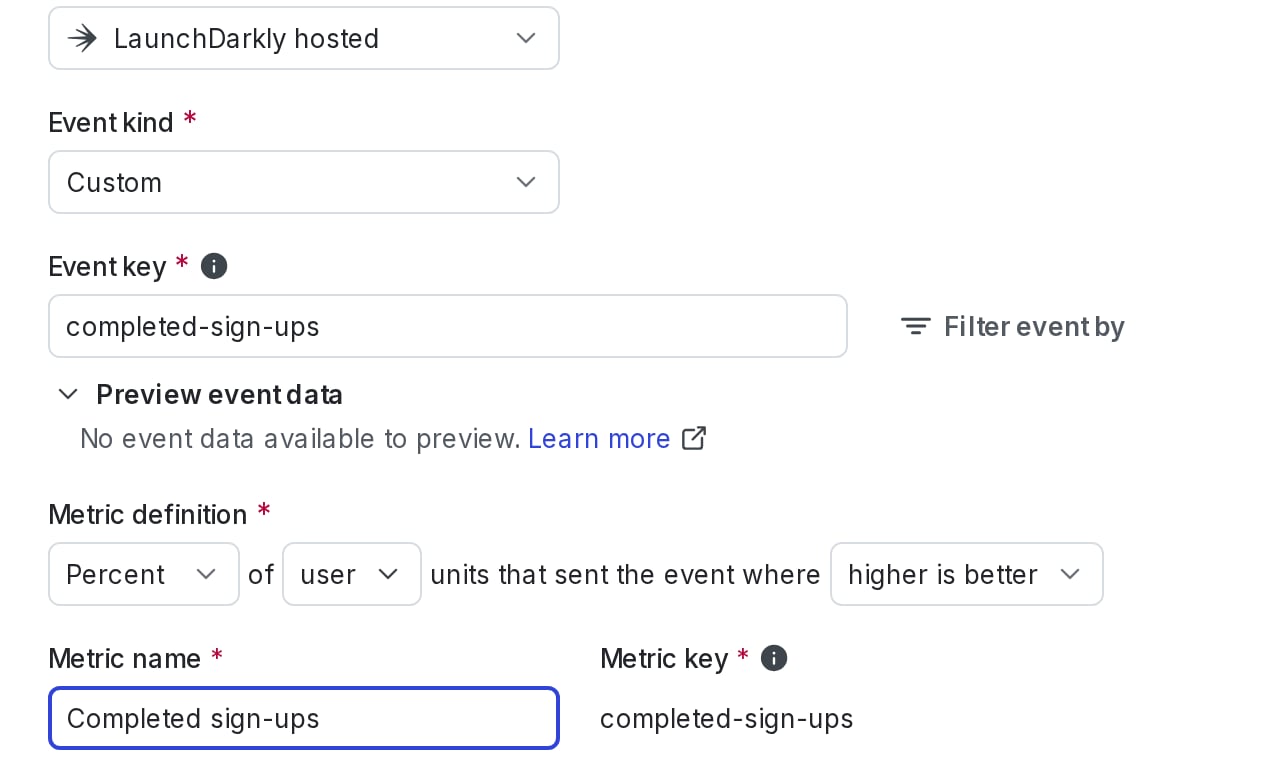
The "Create metric" dialog for a new custom conversion binary metric.
- Enter “Completed sign-ups” as the metric Name.
- (Optional) Add a Description.
- (Optional) Add any Tags.
- (Optional) Update the Maintainer.
- Click Create.
Event keys and metric keys are differentSending custom events to LaunchDarkly requires a unique event key. Set the event key to anything you want. Adding this event key to your codebase lets your SDK track actions customers take in your app as events. To learn more, read Tracking custom events.LaunchDarkly also automatically generates a metric key when you create a metric. You only use the metric key to identify the metric in API calls. To learn more, read Creating and managing metrics.
Create a holdout
Before you create a holdout, you must decide the following:- How long to run the holdout for: in this example, you are running the holdout for a full quarter. You must create the holdout before you create any of the experiments you want to include within it, so be sure to create the holdout in advance of the time period you want to run it for.
- What percentage of your customer base to include in the holdout: in this example, you are holding out 1% of your audience.
- Navigate to the Holdouts list from the left sidebar.
- Click Create holdout. The “Create holdout” dialog appears.
- Enter a Name such as “Growth-related experiments.”
- Enter a Description such as “Includes experiments related to our marketing campaigns and account sign-up process.”
- Click Create holdout. The Design tab appears.
- Select
userto Randomize by. - Select your “Completed sign-ups” metric.
- Select a Holdout amount. For this example you are holding out 1% of your audience.
- Select a Statistical approach of Bayesian or frequentist.
- If you selected a statistical approach of Bayesian, select a preset or Custom success threshold.
- If you selected a statistical approach of frequentist, select:
- a Significance level.
- a one-sided or two-sided Direction of hypothesis test.
- Scroll to the top of the page and click Save.
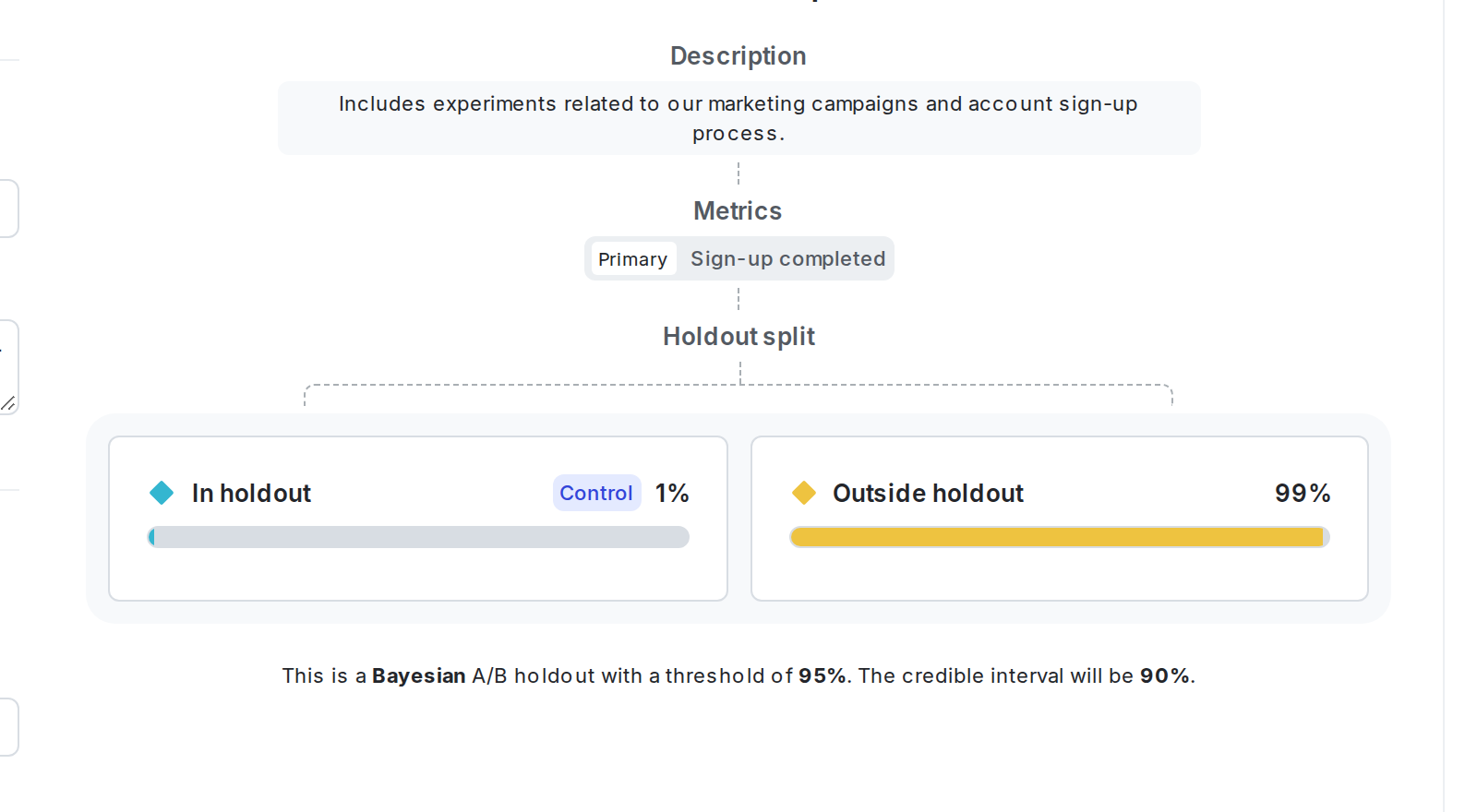
The details page for a holdout with no experiments added yet.
Decide which experiments to add to the holdout
You can add experiments to your holdout when you create them. When deciding which experiments to add to a holdout, think about whether you want to measure the effectiveness of your Experimentation program as a whole, or only for a subset of your business. In this example, you are adding only experiments related to front-end changes in your app such as pop-ups, different versions of copy, or different sign-up flows. You are not including experiments related to back-end changes that don’t have a direct affect on how customers interact with your app. To learn how to add experiments to your holdout when you create them, read Creating experiments.Read the results
At the end of the quarter, you can analyze your holdout experiments to understand how much of an impact your Experimentation program is having on your chosen metrics. On the holdout details page, the “Results” section displays the results of the metric for two variations:- “In holdout” includes the contexts that were excluded from experiments within the holdout.
- “Not in holdout” includes any contexts included in an experiment within the holdout.

A holdout including experiments that are still running.
- If the “Not in holdout” variation is performing better, then this means your experiments are overall having a positive impact on the metric.
- If the “In holdout” variation is performing better, then this means your experiments are overall having a negative impact on the metric, and you may want to examine the experiments you’re running and the variations you’re testing to figure out how you can build better or more effective experiments.
Conclusion
In this guide you learned how to create a holdout experiment using a prerequisite flag to measure the overall impact of your Experimentation program. By assessing the impact of your experiments as a whole, you can fine-tune your audiences and the metrics you’re measuring, and ensure you’re getting the most value out of LaunchDarkly Experimentation.Want to know more? Start a trial.Your 14-day trial begins as soon as you sign up. Get started in minutes using the in-app Quickstart. You’ll discover how easy it is to release, monitor, and optimize your software.
Want to try it out? Start a trial.
Want to try it out? Start a trial.