

Configure session length
Session timeout controls are on the Security page, in the “Session configuration” section. To change session length:- Click the gear icon in the left sidebar to view Organization settings.
- Click Security and scroll to the “Session configuration” section:
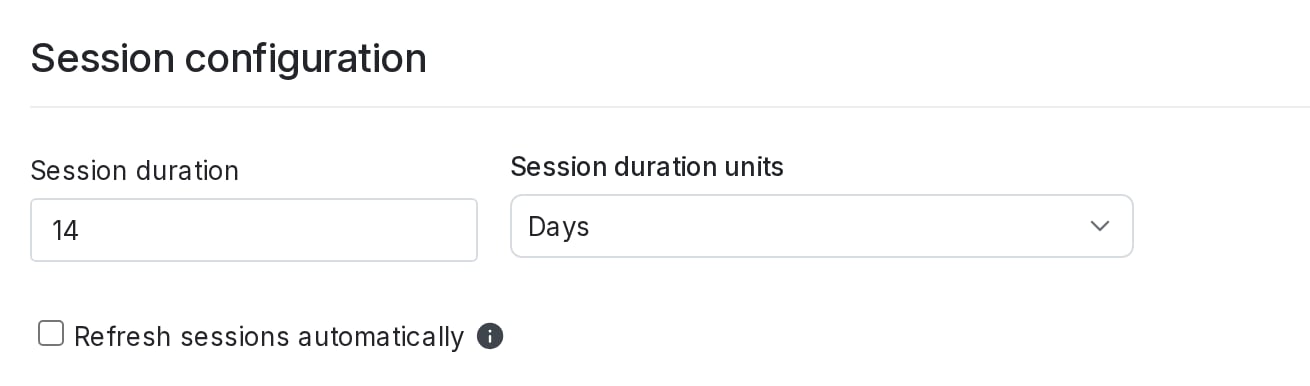
Session configuration options.
- In the Session duration fields, enter a number and choose a unit for the session length.
- (Optional) Check the Refresh sessions automatically checkbox to reset the session start time every time an account member accesses LaunchDarkly.
- Click Save.
Revoke all sessions
You can force all the members of an organization to re-authenticate at once from the Security tab. To revoke all sessions:- Click the gear icon in the left sidebar to view Organization settings.
- Click Security and scroll to the “Session configuration” section.
- Click Revoke all sessions.
Revoking all sessions also revokes yoursIf you revoke all sessions for your organization’s account members, your session will also be revoked. You will log out and have to re-authenticate.