

Create a view
To create a new view:- Click the gear icon in the left sidebar. The settings page opens.
- Click Views. The views list appears.
-
Click Create view. The “Create view” dialog appears:
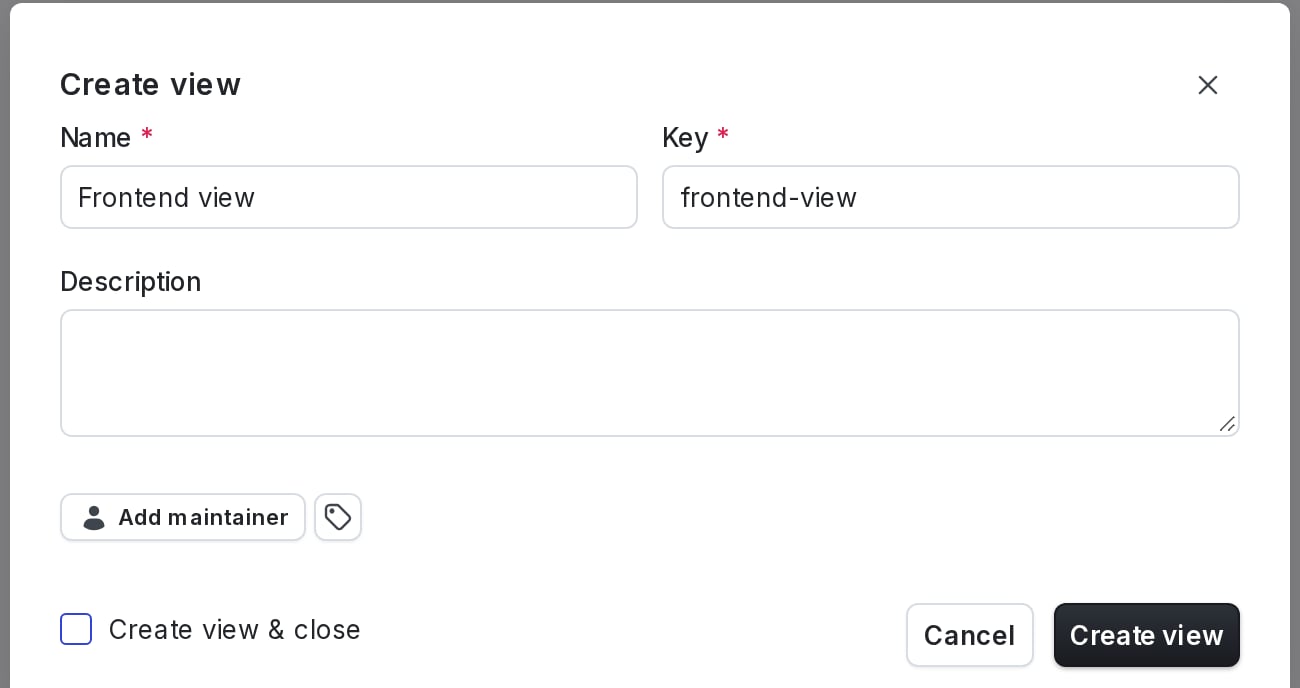
The "Create view" dialog.
- Enter a unique, human-readable Name for the view.
- (Optional) Update the view Key. A suggested key auto-populates from the name you enter, but you can customize it if you wish.
- (Optional) Enter a Description.
- (Optional) Click the tag icon. Enter a tag name to search for an existing tag or create a new one with that name.
- (Optional) Click Add maintainer to set the maintainer of the view. The maintainer defaults to the view’s creator if you do not set one.
- Click Create view. The “Add flags to [view]” dialog appears.
- Check the flags that you want to include in the view. You can add AgentControl configs and segments after creating the view.
- Click Add flags.
Link resources to a view
You can link flags, AgentControl configs, or segments to an existing view when you create the resource. You can also link them to existing views at any time, from the resource, the Flags list, or the view itself. To compare a view’s flags with the flags an application evaluates, link the application to the view. To learn more, read Link applications to views.Link to a view from the resource
To link a flag, AgentControl config, or segment to a view from the resource details page:- From the detail page, find “Views” in the right sidebar.
- Click add view.
- Check the checkbox next to the views that you want to link the flag or segment to.
Link a flag to a view from the Flags list
To link a flag to a view from the Flags list:- In the left sidebar, click Code. The CodeControl menu appears.
- Click Flags.
- Find the flag, then click its three-dot overflow menu.
- Select Link to views and choose one or more views for the flag.
Link resources to a view
To link flags, AgentControl configs, or segments from the view’s page:- Click the gear icon in the left sidebar. The settings page opens.
- Click Views. The views list appears.
- Click the view you want to link resources to. The view opens.
- Click Link resources and select Flags, Segments, or Configs. The “Link [resources] to [view name]” dialog appears.
- (Optional) Use the search field or the “Filters” menu to limit the number of resources displayed.
- Check the resources that you want to include in the view.
- Click Link [resources].