

optimize_from_config method to perform the run. optimize_from_config pulls an optimization configuration from LaunchDarkly and uses the parameters you specify to run the optimization.
Consider doing this if:
- You have large amounts of data that is cumbersome to represent in code.
- You want to use the LaunchDarkly UI to capture metrics, outputs, and intermediate state.
Create an optimization config
You can create an optimization config from the LaunchDarkly UI. Here’s how:- In the left sidebar, click Agents. The AgentControl menu appears.
- Click Agent optimization, then Create optimization. The “New optimization” page opens.
- Choose an agent to optimize from the Agents dropdown.
- Choose a mode to use to improve the agent.
- After you choose a mode, you can configure your inputs for the optimization. Each mode has different input options. To learn more, read Exploratory and expected output modes.
- Upload your own CSV or JSONL, or click Download sample to download a sample CV you can fill out to re-upload. LaunchDarkly inserts the data into the UI up to a max of 25 rows.
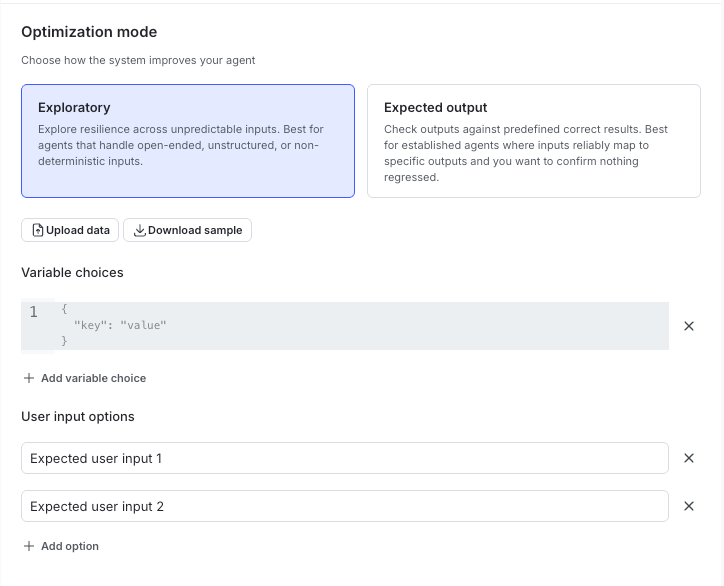
The mode selection and input configuration screen in the LaunchDarkly UI, with options for exploratory and ground truth modes and fields for entering inputs and variable choices.
Acceptance statements
Acceptance statements are strongest way to create change in the prompts. To create an acceptance statement:- Click to select the Acceptance statement checkbox. A text box appears.
- Use natural language to describe the output that you want to get.
- Enter a number less than one or use the slider to adjust the passing threshold. A lower number is more lenient and a higher number is more strict.
Judges
Judges act as defensive mechanisms for your optimization. You can use them with acceptance statements.- Click to select the Judge checkbox. A dropdown appears.
- Choose a judge to use, or create a new judge. To learn more, read Judges.
- Enter a number less than one or use the slider to adjust the passing threshold. A lower number is more lenient and a higher number is more strict.
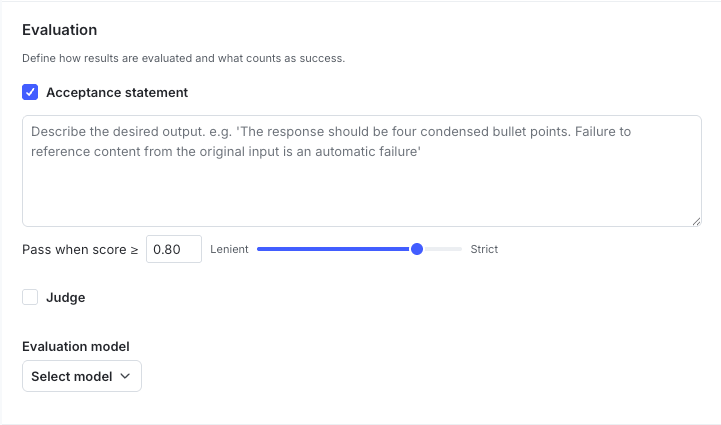
The optimization criteria configuration in the LaunchDarkly UI, showing fields for acceptance statements and judges, each with an adjustable threshold score.
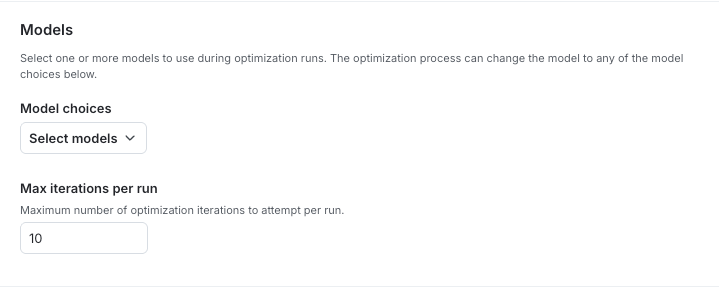
The model options configuration in the LaunchDarkly UI, showing a list of model choices available to the optimization process.
optimize_from_config to perform an optimization run referencing this config.
For other references in a specific framework, read Other framework examples for agent optimization.
Example optimization run with optimize_from_config
You can use optimize_from_config to perform an optimization run.
Here’s an example:
Handlers
Section (1) sets up the agent call for the provider to handle the actual LLM invocations. These methods are intended to be provider-agnostic, so you can use your own models as long as your agent orchestrator or framework can reach them. There are two different handlers. They are:handle_agent_callexecutes the actual agent and receives a response. In addition to that, this code path generates new variations when needed. Pass these calls through as generically as possible to allow for this.handle_judge_call(optional) executes the evaluation calls. It falls back tohandle_agent_callif not provided. Specify this as a discrete handler if you want to capture response information, log metrics, or otherwise run judge calls differently from agent calls.
Configuration
Section (2) initializes options. Unlikeoptimize_from_options, most parameters, including judges, model choices, and evaluation settings, are pulled automatically from your LaunchDarkly configuration object.
The options you provide here are:
project_key: The LaunchDarkly project housing your agent config.context_choices: (Optional) The list of LaunchDarkly contexts to automatically choose from from when running a completion.handle_agent_call: Handler for executing the agent calls.handle_judge_call: (Optional) Handler for executing evaluation (judge) calls. It falls back tohandle_agent_callif not provided.
Output
Section (3) initializes the client and makes the optimization call. The result is anOptimizationContext containing scores, the winning model, usage data, and iteration history. To learn more about what’s included, read the Optimization quickstart.