For AI agents: a documentation index is available at the root level at /llms.txt and /llms-full.txt. Append /llms.txt to any URL for a page-level index, or .md for the markdown version of any page.
Sign inTry it free
DocsGuidesSDKsIntegrationsAPI docsTutorialsFlagship blog
  • Get started
    • Overview
    • Onboarding
    • Get started
      • Developer tools
        • LaunchDarkly CLI
        • LaunchDarkly MCP server
        • LaunchDarkly developer toolbar
        • LaunchDarkly agent skills
        • Vega
        • IDE connectors and agents
          • IntelliJ IDEA
          • LaunchDarkly extension for GitHub Copilot
          • Visual Studio Code (VSCode)
          • Flag cleanup custom agent for GitHub Copilot
      • Setting up an SDK
      • Joining an account
      • Using feature management
      • Getting started in different roles
    • Launch Insights
    • LaunchDarkly architecture
    • LaunchDarkly vocabulary
  • AgentControl
    • AgentControl
    • Manage AgentControl
  • Feature flags
    • Create flags
    • Target with flags
    • Flag templates
    • Manage flags
    • Code references
    • Contexts
    • Segments
  • Releases
    • Releasing features with LaunchDarkly
    • Release policies
    • Percentage rollouts
    • Progressive rollouts
    • Guarded rollouts
    • Feature monitoring
    • Release pipelines
    • Engineering insights
    • Release management tools
    • Applications and app versions
    • Change history
    • Restoring previous flag versions
  • Observability
    • Observability
    • Session replay
    • Error monitoring
    • Logs
    • Traces
    • Observability metrics
    • Product analytics events
    • LLM observability
    • Alerts
    • Dashboards
    • Service map
    • Vega for auto-remediation
    • Observability MCP server
    • Search specification
    • Observability settings
    • Observability integrations
  • Experimentation
    • Experimentation
    • Experiment metric types
    • Experiment configuration
    • Managing experiments
    • Analyzing experiments
    • Multi-armed bandits
    • Holdouts
  • Metrics and events
    • Metrics in LaunchDarkly
    • Creating metrics
    • Metric groups
    • Events
    • Autogenerated metrics
  • Warehouse native
    • Warehouse native metrics
    • Setting up external warehouses
    • Creating experiments using warehouse native metrics
  • Infrastructure
    • Connect apps and services to LaunchDarkly
    • LaunchDarkly in China and Pakistan
    • LaunchDarkly in the European Union (EU)
    • LaunchDarkly in federal environments
    • Public IP list
  • Your account
    • Projects
    • Views
    • Environments
    • Tags
    • Teams
    • Members
    • Roles
    • Account security
    • Feature previews
    • Billing and usage
    • Changelog
Sign inTry it free
LogoLogo
On this page
  • Prerequisites
  • Set up the VSCode extension
  • Create a role and add it to an API access token
  • Add the Writer role to your personal access token
  • Configure the VSCode extension
  • LaunchDarkly extension for GitHub Copilot
Get startedGet startedDeveloper toolsIDE connectors and agents

Visual Studio Code (VSCode)

Was this page helpful?
Previous

Flag cleanup custom agent for GitHub Copilot

Next
Built with

This topic explains how to use the LaunchDarkly VSCode extension to interact with feature flags from within Visual Studio Code (VSCode).

With the extension, you have the ability to:

  • Use a set of @LaunchDarkly commands in GitHub Copilot to interact with your flags
  • Display a tooltip with feature flag details when you hover over a feature flag key in your source code
  • Autocomplete feature flag keys
  • Open feature flags in LaunchDarkly (default keybinding: ctrl+alt+g/⌘+alt+g)
  • View a list of feature flags and their settings in the Explorer view
  • Flag actions: Toggle flags on or off, add flag targeting rules, update a flag’s state, set default on and default off variations, and more
  • Enable codelens for flags in your source code
  • Click links to go directly into the LaunchDarkly UI
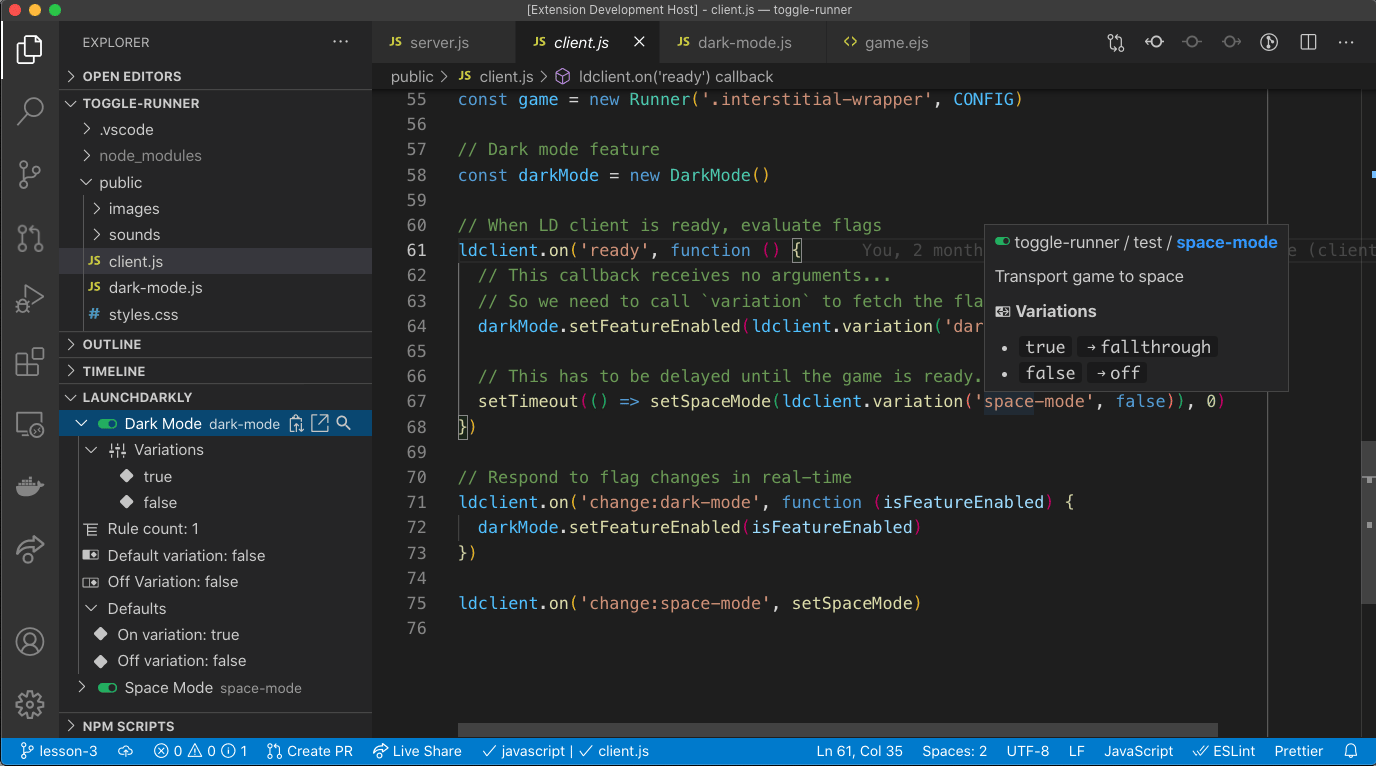
The LaunchDarkly VSCode extension

The LaunchDarkly VSCode extension

Prerequisites

To complete this procedure, you must have the following prerequisites:

  • The VSCode extension from the Visual Studio Marketplace.
  • A personal API access token. To learn more, read API access tokens.

Set up the VSCode extension

To set up the VSCode extension, you must complete the following steps:

  1. Give your API access token the required permissions:
  • You can create a role with appropriate permissions, then add the role to a personal access token, or
  • you can add the Writer base role to your personal access token.
  1. Configure the VSCode extension with the API access token.

Create a role and add it to an API access token

To give your API access token the required permissions, one option is to create a custom role and add that role to the API access token.

Expand Create a role and add it to an API access token
Creating your own roles is available to customers on select plans

Creating your own roles is only available to customers on select plans. To learn more, read about our pricing. To upgrade your plan, contact Sales.

To configure the VSCode extension, you must have an access token that targets version 20210729 or later of the LaunchDarkly REST API.

The following role allows Reader access to all projects and Writer access to the minimal set of fields the extension is able to update.

To create a role for the API access token:

  1. Click the gear icon in the left sidebar to view Organization settings. The General settings page appears.

  2. Click Roles.

  3. Click New role. The “New role” page appears.

  4. Enter a human-readable Name for the role.

  5. Enter a Key for the role.

  6. (Optional) Enter a Description to explain what the role does.

  7. In the “Edit policy” panel, click View JSON to open the advanced editor.

  8. Enter this policy in the “Editor” field:

    Example policy
    1[
    2 {
    3 "effect": "allow",
    4 "actions": ["viewProject"],
    5 "resources": ["proj/*"]
    6 },
    7 {
    8 "effect": "allow",
    9 "actions": ["updateOn", "updateFallthrough", "updateOffVariation", "createFlag", "updateTargets", "updateRules"],
    10 "resources": ["proj/*:env/*:flag/*"]
    11 }
    12]
  9. Click Create role.

Add the Writer role to your personal access token

To give your API access token the required permissions, another option is to add the Writer base role to your access token.

Expand Add the Writer role to your personal access token

To configure the VSCode extension, you must have an access token that targets version 20210729 or later of the LaunchDarkly REST API.

To add the Writer base role to a personal access token:

  1. Click the gear icon in the left sidebar to view Organization settings. The General settings page appears.
  2. Click Authorization.
  3. Find the personal access token you want to add permissions to and select “Edit token” from its overflow menu. The “Edit” dialog appears.
  4. In the Role menu, select “Writer.”
  5. Click Save token.

Your personal token now has the Writer base role.

Configure the VSCode extension

After you install the LaunchDarkly extension, VSCode prompts you to sign in to your LaunchDarkly account:

  1. Select the LaunchDarkly instance. Most members should select Commercial, but FedRAMP members should select Federal.
  2. Provide an access token for your LaunchDarkly account. This access token must have sufficient permission as described above.

After you complete step 2, continue configuring the extension. If the configuration menu does not appear, run the command: LaunchDarkly: Configure settings.

  1. Select your corresponding LaunchDarkly project.
  2. Select your corresponding LaunchDarkly environment.
  3. Select whether you want the extension to work with all VSCode workspaces or just the current workspace.

You can reconfigure the extension at any time by running the “LaunchDarkly: Configure settings” command from the command palette (ctrl+shift+p/⌘+shift+p).

LaunchDarkly extension for GitHub Copilot

If you use GitHub Copilot and install the LaunchDarkly VSCode extension, you can use a set of @LaunchDarkly commands in GitHub Copilot to interact with your flags.

To learn how to install and use LaunchDarkly’s GitHub Copilot commands, read LaunchDarkly extension for GitHub Copilot.