

- Default environments
- View a project’s environments
- Critical environments
- Migrate content between environments
- Create environments
- Edit environment settings
- Delete environments
- Clone environments
- SDK credentials

You can also use the REST API: Environments
Default environments
Your first project has two environments,Test and Production, by default. Each environment has its own SDK key, client-side ID, and mobile key.
Each feature flag that you create has its own set of targeting rules for each environment. This means that you can change your flag targeting rules in a development or staging environment for QA testing before rolling out to production.
By default, LaunchDarkly marks your Production environment as “critical” to indicate that it affects your customers or the health of your systems.
View a project’s environments
To view a project’s environments:- Click the gear icon in the left sidebar. The settings page opens.
- Select All environments. The environments list appears.
Open environments
You can open environments from the Flags list, or while on a flag’s Targeting tab:- On the Flags list, opening an environment adds that environment’s flag status to the list
- On the flag’s Targeting tab, opening an environment adds a new section with that environment’s flag targeting rules
- Click the + next to the list of environment sections.
- Search for the environment you want, and select it from the list.
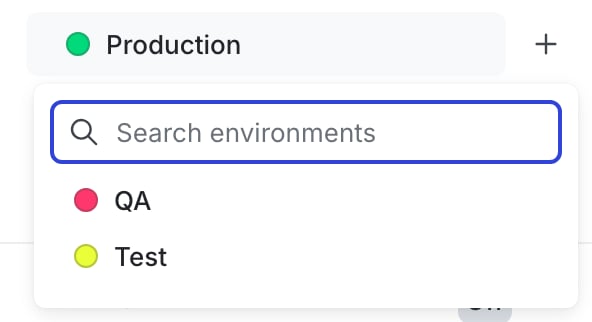
The environment selection menu.
Critical environments
Critical environments, such asProduction, affect your customers or the health of your systems.
When you create a new environment, we strongly recommend enabling the following safeguards for your critical environments:
- Require comments for flag and segment changes
- Require confirmation for flag and segment changes
- Click the gear icon in the left sidebar. The settings page opens.
- Select All environments. The environments list appears.
- Click the three-dot overflow menu next to the environment.
- Select Mark as critical. The “Mark environment as critical” dialog appears.
- Review the recommended safeguards:
- (Optional) Select the Require comments for flag and segment changes checkbox to force members who modify flags and segments to leave a comment to explain their changes.
- (Optional) Select the Require confirmation for flag and segment changes checkbox to force members who modify flags and segments to verify they wish to make these changes.
- Click Mark as critical.
Environment and SDK credentials
Each environment has its own SDK key, client-side ID, and mobile key, which are used to connect your applications to a specific LaunchDarkly environment. You can view these credentials from the Environments list.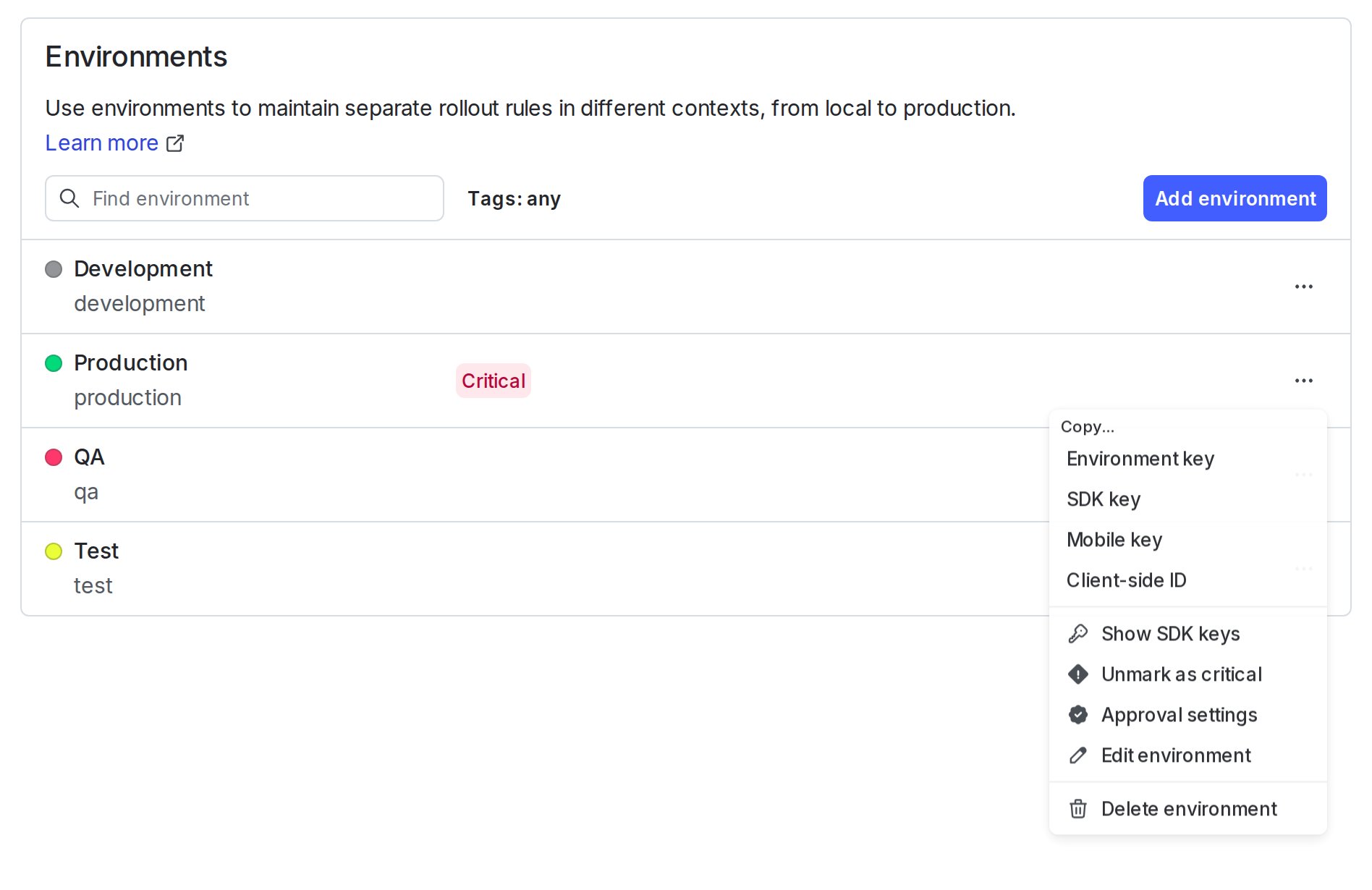
The Environments list with the overflow menu open and the SDK credential options displayed.
Favorite environments
To pin environments for quick access, add them to your Favorites list. Favorites appear at the top of the Environments list. To add an environment to your favorites list:- From the Flags list, hover over the environment you want to add to your favorites, and click the three-dot overflow menu that appears.
- Click Add to favorites.
Migrate content between environments
You can migrate some, but not all, content between environments from the Flags list. To learn more, read Compare and copy flag settings between two environments. Alternatively, you can use the REST API to migrate flags from one environment to another. First,GET the feature flag you wish to import, then PATCH to update the flag configuration in production.
You can also use the REST API: Get feature flag, Update feature flag