For AI agents: a documentation index is available at the root level at /llms.txt and /llms-full.txt. Append /llms.txt to any URL for a page-level index, or .md for the markdown version of any page.
Sign inTry it free
DocsGuidesSDKsIntegrationsAPI docsTutorialsFlagship blog
  • Get started
    • Overview
    • Onboarding
    • Get started
    • Launch Insights
    • LaunchDarkly architecture
    • LaunchDarkly vocabulary
  • AgentControl
    • AgentControl
    • Manage AgentControl
  • Feature flags
    • Create flags
    • Target with flags
    • Flag templates
    • Manage flags
    • Code references
    • Contexts
    • Segments
  • Releases
    • Releasing features with LaunchDarkly
    • Release policies
    • Percentage rollouts
    • Progressive rollouts
    • Guarded rollouts
    • Feature monitoring
    • Release pipelines
    • Engineering insights
    • Release management tools
    • Applications and app versions
    • Change history
    • Restoring previous flag versions
  • Observability
    • Observability
    • Session replay
    • Error monitoring
    • Logs
    • Traces
    • Observability metrics
    • Product analytics events
    • LLM observability
    • Alerts
    • Dashboards
    • Service map
    • Vega for auto-remediation
    • Observability MCP server
    • Search specification
    • Observability settings
    • Observability integrations
  • Experimentation
    • Experimentation
    • Experiment metric types
    • Experiment configuration
    • Managing experiments
    • Analyzing experiments
    • Multi-armed bandits
    • Holdouts
  • Metrics and events
    • Metrics in LaunchDarkly
    • Creating metrics
    • Metric groups
    • Events
    • Autogenerated metrics
  • Warehouse native
    • Warehouse native metrics
    • Setting up external warehouses
    • Creating experiments using warehouse native metrics
  • Infrastructure
    • Connect apps and services to LaunchDarkly
    • LaunchDarkly in China and Pakistan
    • LaunchDarkly in the European Union (EU)
    • LaunchDarkly in federal environments
    • Public IP list
  • Your account
    • Projects
    • Views
    • Environments
      • Create environments
      • Edit environment settings
      • Delete environments
      • Clone environments
      • SDK credentials
    • Tags
    • Teams
    • Members
    • Roles
    • Account security
    • Feature previews
    • Billing and usage
    • Changelog
Sign inTry it free
LogoLogo
On this page
  • Create environments
Your accountEnvironments

Create environments

Was this page helpful?
Previous

Edit environment settings

Next
Built with

This topic explains how to create environments in LaunchDarkly.

Create environments

You can manage your environments from a project’s Environments page. Here, you can add new environments to a project, for example, to give each developer on your team their own environment for local testing.

To add a new environment:

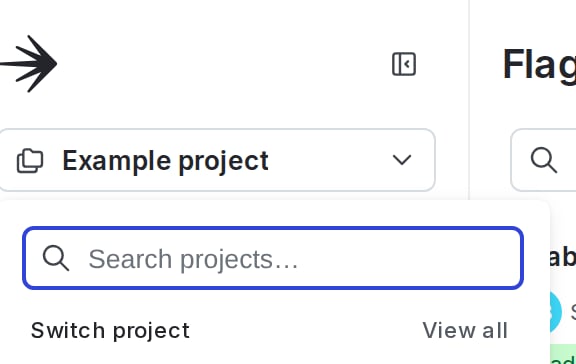
  1. Click the project dropdown. The project menu appears:

The project menu.

The project menu.
  1. Select Project settings.
  2. Select Environments. The Environments list appears.
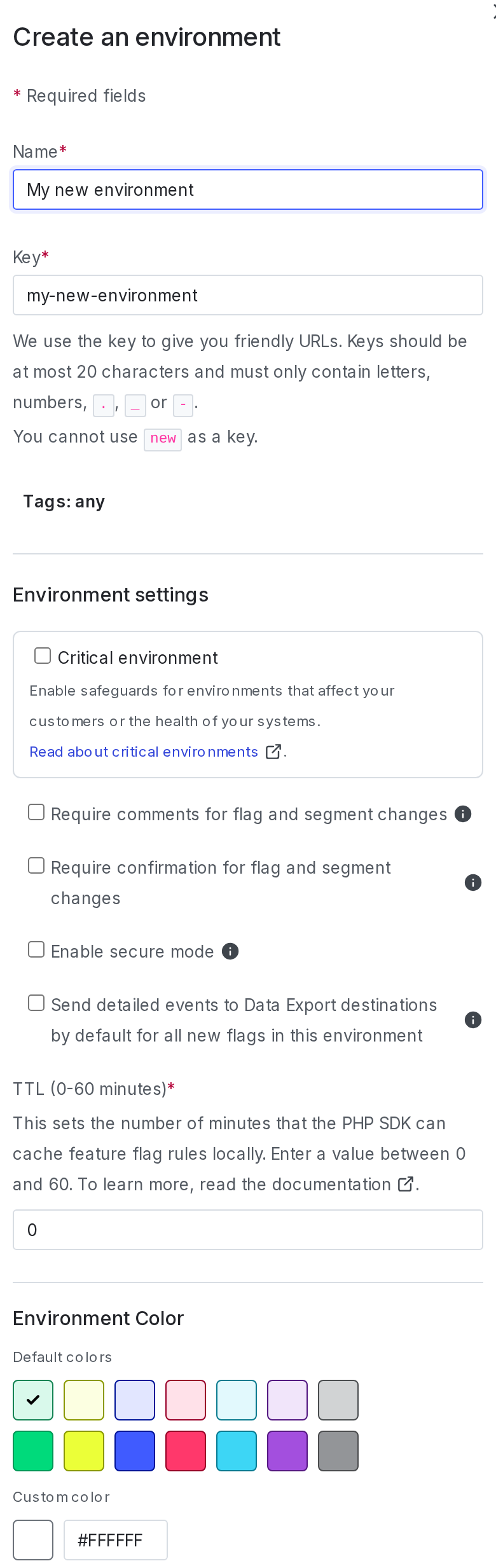
  3. Click Add environment. The “Create an environment” panel appears.
Make sure you're in the right project

Confirm you’re creating the environment in the project where you want it to live. You cannot move an environment from one project to another.

  1. Give your environment a human-readable Name.
  2. (Optional) Give your environment a unique Key. This field populates automatically based on your name, but you can change it now if you wish.
Environment keys are permanent

Environment keys are unique to a specific project and environment. You may need the environment key when configuring certain integrations. Environment keys are permanent and you cannot reset them.

  1. (Optional) Add Tags.
  2. (Optional) Select the Critical environment checkbox to indicate this environment affects your customers or the health of your systems.
  3. (Optional) Select the Require comments for flag and segment changes checkbox to force members who modify flags and segments to leave a comment to explain their changes.
Comments help establish a change history

Requiring members to leave comments when they change flags or segments helps your organization understand why flags or segments look and behave certain ways.

Required comments are only enforced from the Flags list

When Require comments is enabled, members must leave a comment to explain their changes when they make changes from the Flags list in the LaunchDarkly user interface (UI). Comments are not required for changes made with the LaunchDarkly API.

Required comments are only available to customers on select plans. To learn more, read Required comments.

  1. (Optional) Select the Require confirmation for flag and segment changes checkbox to force members who modify flags and segments to verify they wish to make these changes.
Confirm changes helps prevent mistakes

Requiring members to confirm that they wish to make changes may help prevent them from changing the wrong flag or segment inadvertently. To learn more, read Required confirmation.

  1. (Optional) Select the Enable secure mode checkbox to ensure an end user of a client-side SDK cannot impersonate another end user.
  2. (Optional) Select the Send detailed events to data export destinations checkbox to enable Data Export for every flag created in this environment after this checkbox is selected. To learn more, read Data Export.
  3. (Optional) Specify a TTL between 0 and 60 minutes. TTL, or Time to Live, is a setting in DNS records that dictates how long the record should be cached by nameservers and browsers.
Specify a TTL if you use the PHP SDK

The TTL setting checkbox only applies to environments using the PHP SDK. To learn more, read TTL settings.

  1. (Optional) Choose a Color to differentiate this environment from other environments.
  2. Click Create environment:

The "Create an environment" panel.

The "Create an environment" panel.

The new environment appears on the Account settings page.

Environment limits

Customers on a Foundation, Enterprise, or Guardian plan may create 300 environments per project, by default. If you are on one of these plans and need more environments, you can request an increase. To learn more, read How to right size when you are over LaunchDarkly system resource count limits.

If you are on a Developer plan, your account may be limited to three environments. If you are on a legacy Starter plan, your account may be limited to two environments. These limits cannot be increased.

You can also use the REST API: Create environment