

View access summaries
A member’s access depends on their roles, the teams they belong to, and the role attributes on each role. A member’s access summary combines all of these into a list of statements about what a member or team can do with the most commonly used resources, such as projects, flags, environments, and metrics.Access summaries are available to customers on select plansAccess summaries are only available to customers on select plans. To learn more, read about our pricing. To upgrade your plan, contact Sales.
- “View all projects”
- “Create all flags in all projects”
- “Update flag targeting for all flags in all projects, for certain environments”
- “Manage all segments in all projects, for certain environments”
View a member’s access summary
To view a member’s access summary:- Click the gear icon in the left sidebar to view Organization settings.
- Click Members. The Members list appears.
- Click the name of the member you want to view. The member’s Access summary tab opens.
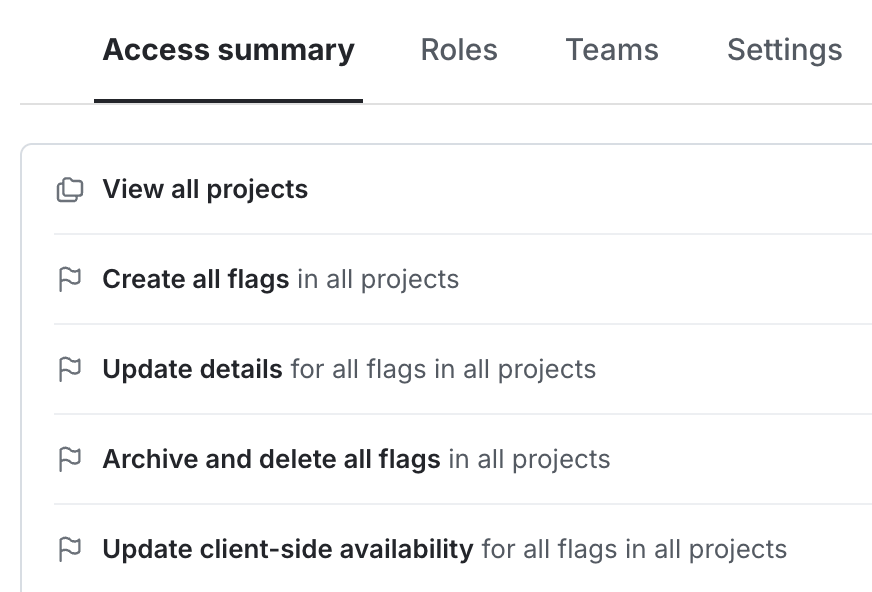
The access summary for a member.
View a team’s access summary
A team’s access summary lists what any member of the team can do because of the team’s roles. It does not include roles that are assigned to individual members of the team. To view a team’s access summary:- Click the gear icon in the left sidebar to view Organization settings.
- Click Teams.
- Click the name of the team. The Access summary tab opens.
View individual member roles
To view an individual member’s roles:- Click the gear icon in the left sidebar to view Organization settings.
- Click Members. The Members list appears.
- Click the name of the member you want to view. The member’s Access summary tab opens.
- Click the Roles tab.
- Role name: The name of the role. Click the name to review the role’s details.
- Role attribute key: The role attribute the role uses, if any.
- Resources: The resources the role attribute grants access to, if any.
- Assigned by: The team that assigned the role, if the member has the role through a team.

You can also use the REST API: Account members