

Bulk targeting is available to customers on select plansBulk targeting is only available to customers on select plans. To learn more, read about our pricing. To upgrade your plan, contact Sales.
Bulk edit targets
If you have a long list of contexts you want to add, remove, or replace within a individual targeting rule, you can bulk edit these contexts from a flag’s Targeting tab. To add, edit, or remove contexts in bulk:- In the left sidebar, click Code. The CodeControl menu appears.
- Click Flags.
- Choose the flag you wish to modify. The flag’s Targeting tab opens.
- If the flag is off and the rules are hidden, click View targeting rules.
-
Click Edit in the individual targeting section.
- If the flag does not yet have an individual targeting section, click the + button beneath the toggle section and select Target individuals.
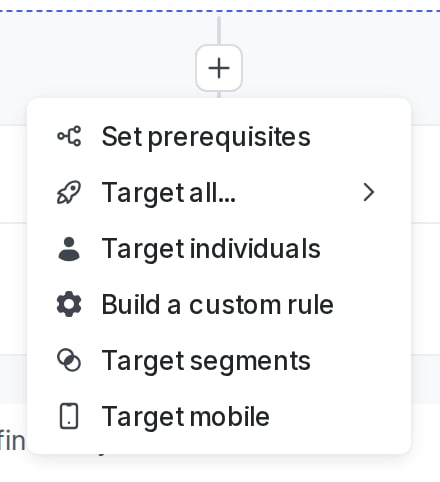
The "+" menu, with targeting options.
-
Click the three-dot overflow menu:
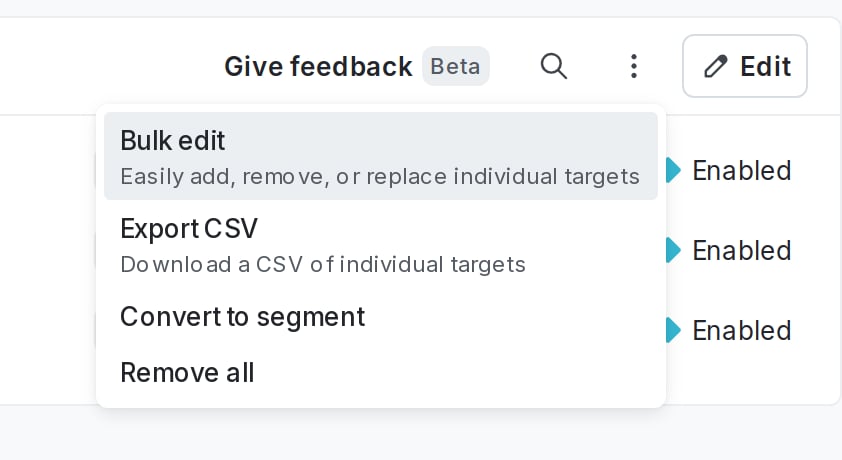
The overflow menu in the individual targets section.
- Select Bulk edit. A “Bulk editing” dialog appears.
- Choose Add, Remove, or Replace from the menu.
-
Use the menu to do one of the following actions:
- Add adds the selected contexts as targets to the variation
- Remove removes the selected contexts from the target variation
- Replace replaces all currently targeted contexts with the selected contexts
-
Enter a list of context keys in the these users field, separated by a comma or new line. LaunchDarkly looks up contexts with a “user” context kind by key and displays them by name in the list on the right. If you want to target a context that has not yet been encountered by LaunchDarkly, you must enter the key.
You can update the list on the right before you perform the selected action. The options for updating the list include the following:
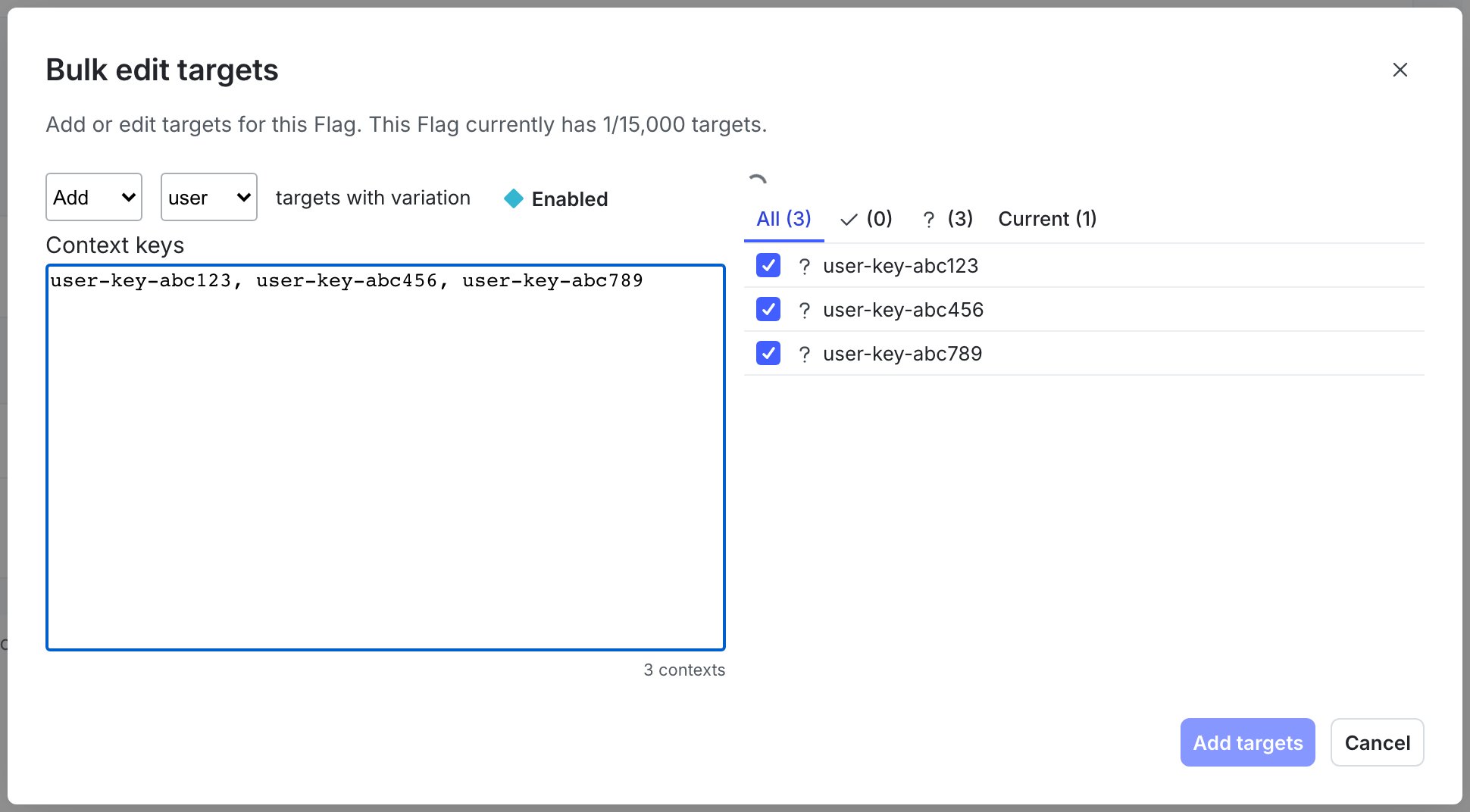
The "Bulk editing" dialog.
- All represents all of the contexts that may be impacted by the action, whether they are added or removed. Check the checkbox for the action to apply.
- The checkmark represents inputted context keys that currently match contexts in the system. For example, if you enter the key
user-key-123-abc, and a user context with that key already exists in LaunchDarkly, it will show up by name in this list. - The question mark represents contexts with no matching records in LaunchDarkly. If you are adding contexts and the contexts do not currently exist in LaunchDarkly, they will be added to the targeting list.
- Current lists all of the currently targeted contexts for the variation.
- Click Add N targets, Remove N targets, or Replace N targets to perform the selected action.
Export a list of contexts to CSV
You can download a list of all the contexts a flag variation is targeted to from the flag’s Targeting tab. To export a list of contexts to a CSV file:- In the left sidebar, click Code. The CodeControl menu appears.
- Click Flags.
- Choose the flag you wish to export contexts for.
- If the flag is off and the rules are hidden, click View targeting rules.
- Find the individual targeting rule and click Edit.
-
Click the three-dot overflow menu:
The overflow menu in the individual targets section.
- Click Export CSV. A CSV file including the list of contexts keys a flag variation is targeted to downloads to your machine.