

Evaluation order
Evaluation order determines which variation a context receives when multiple targeting rules or targets could apply. Flags evaluate flag prerequisites and rules from top to bottom. This diagram represents rule matching behavior: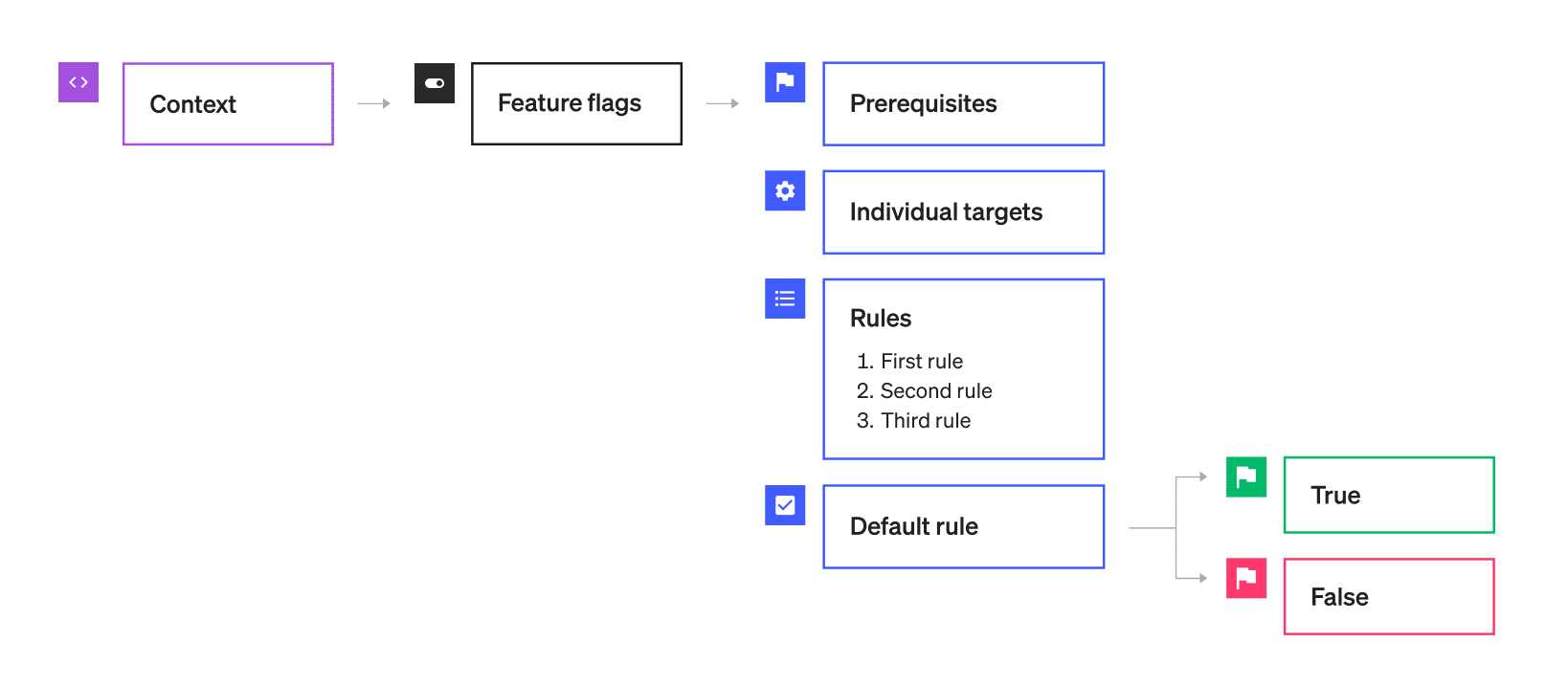
A tree diagram showing rule matching behavior.
Configure your SDK: Flag variation evaluation
- If your app cannot connect to LaunchDarkly, the context receives the fallback value. Otherwise, it moves to the next step.
- If targeting is off, the context receives the default off variation. Otherwise, it moves to the next step.
- If the flag has prerequisites, and the context doesn’t meet the prerequisites, it receives the default off variation. Otherwise, it moves to the next step.
- If the context matches one individual targeting rule, it is served the variation in that rule. If it doesn’t match an individual targeting rule, it moves to the next step.
- If the context is a multi-context, and the multi-context matches multiple individual targeting rules, then it is served the variation with the lowest index number. If it doesn’t match any individual targeting rules, it moves to the next step.
- For boolean flags, the index of
trueis always0and the index offalseis always1. This means that if a multi-context is individually targeted multiple times with different variations, the multi-context will always receivetrue. - For multivariate flags, the index of the variation matches the order that you created the variations in. For example, if you create the variation
redfirst, it will have an index of0, and if you create the variationbluesecond, it will have an index of1.
- For boolean flags, the index of
- If the context meets a flag rule, it receives the chosen variation. Otherwise, it moves to the next step. If there are multiple flag rules, the context moves through the rules from top to bottom.
- If the context doesn’t meet any of the previous criteria, it receives the default on variation. To learn more, read Set default values.
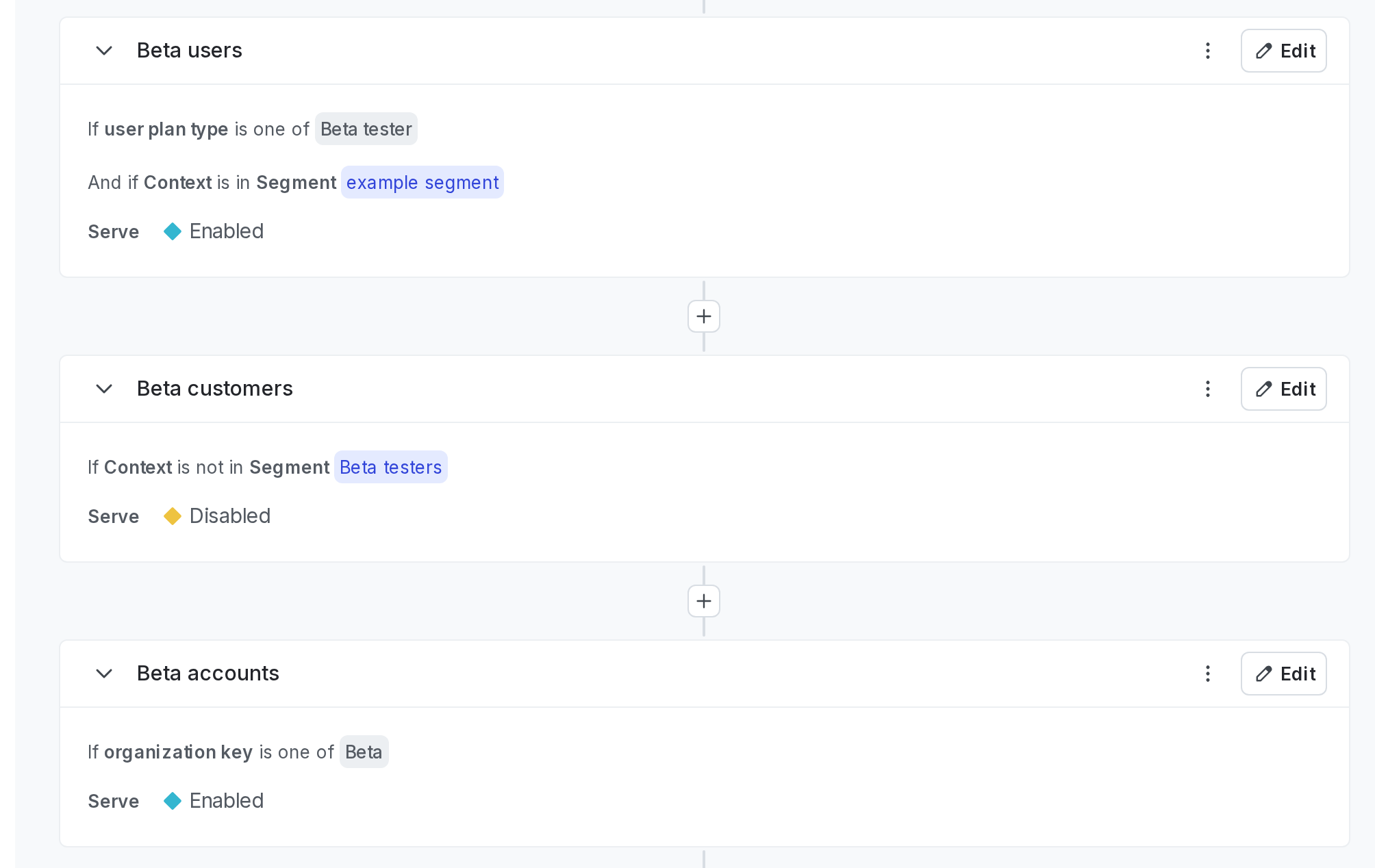
Two rules, targeting a segment and an organization context.
Beta users) is evaluated before the second rule (if the organization key is Beta).
Reorder targeting rules
You can reorder mobile targeting, segment targeting, and custom rules by clicking and dragging them into different positions. Alternatively, you can click the overflow menu of the flag targeting rule you want to move. Then, select Move rule up or Move rule down. You cannot reorder prerequisites or individual targets. Only mobile targeting, segment targeting, and custom rules can be reordered.Duplicate targeting rules
You can create new targeting rules by duplicating a flag’s existing targeting rule and modifying the new rule. To duplicate an existing targeting rule:- Navigate to the Targeting tab for the flag.
- If the flag is off and the rules are hidden, click View targeting rules.
- Click on the flag rule’s three-dot overflow menu and choose “Duplicate rule.” A new rule appears.
- Make at least one change to the existing rule or the new rule.
- Click Review and save.
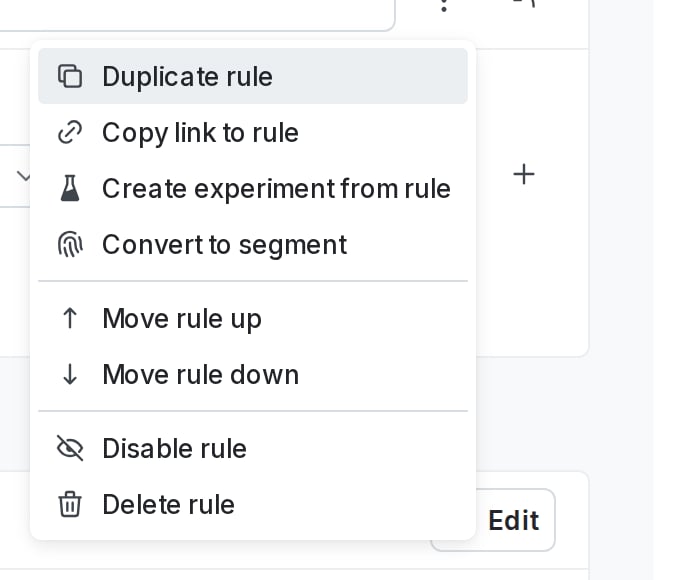
A feature flag's "Duplicate rule" option.
Disable targeting rules
You can disable a targeting rule without deleting it. This lets you maintain the rule for later use. LaunchDarkly skips disabled rules during flag evaluation. To disable a targeting rule:- Navigate to the Targeting tab for the flag.
- If the flag is off and the rules are hidden, click View targeting rules.
- Click on the flag rule’s three-dot overflow menu.
- Select Disable rule.
- Click Review and save.