For AI agents: a documentation index is available at the root level at /llms.txt and /llms-full.txt. Append /llms.txt to any URL for a page-level index, or .md for the markdown version of any page.
Sign inTry it free
DocsGuidesSDKsIntegrationsAPI docsTutorialsFlagship blog
  • Get started
    • Overview
    • Onboarding
    • Get started
    • Launch Insights
    • LaunchDarkly architecture
    • LaunchDarkly vocabulary
  • AgentControl
    • AgentControl
    • Manage AgentControl
  • Feature flags
    • Create flags
    • Target with flags
    • Flag templates
    • Manage flags
    • Code references
    • Contexts
      • An introduction to contexts
      • The Contexts list
        • Filtering the Contexts list
        • The context details page
        • Context instances
      • Context kinds
      • Context attributes
      • Multi-contexts
      • Anonymous contexts
    • Segments
  • Releases
    • Releasing features with LaunchDarkly
    • Release policies
    • Percentage rollouts
    • Progressive rollouts
    • Guarded rollouts
    • Feature monitoring
    • Release pipelines
    • Engineering insights
    • Release management tools
    • Applications and app versions
    • Change history
    • Restoring previous flag versions
  • Observability
    • Observability
    • Session replay
    • Error monitoring
    • Logs
    • Traces
    • Observability metrics
    • Product analytics events
    • LLM observability
    • Alerts
    • Dashboards
    • Service map
    • Vega for auto-remediation
    • Observability MCP server
    • Search specification
    • Observability settings
    • Observability integrations
  • Experimentation
    • Experimentation
    • Experiment metric types
    • Experiment configuration
    • Managing experiments
    • Analyzing experiments
    • Multi-armed bandits
    • Holdouts
  • Metrics and events
    • Metrics in LaunchDarkly
    • Creating metrics
    • Metric groups
    • Events
    • Autogenerated metrics
  • Warehouse native
    • Warehouse native metrics
    • Setting up external warehouses
    • Creating experiments using warehouse native metrics
  • Infrastructure
    • Connect apps and services to LaunchDarkly
    • LaunchDarkly in China and Pakistan
    • LaunchDarkly in the European Union (EU)
    • LaunchDarkly in federal environments
    • Public IP list
  • Your account
    • Projects
    • Views
    • Environments
    • Tags
    • Teams
    • Members
    • Roles
    • Account security
    • Feature previews
    • Billing and usage
    • Changelog
Sign inTry it free
LogoLogo
On this page
  • Attributes
  • Segments
  • Instances
  • Delete context instances
  • Expected variations
  • Modify variations for a context
Feature flagsContextsThe Contexts list

The context details page

Was this page helpful?
Previous

Context instances

Next
Built with

This topic explains what the context details page is. The context details page gives you a detailed view of a context and lets you customize its experience from one screen.

To open the details page for a context, click on the context name from the Contexts list.

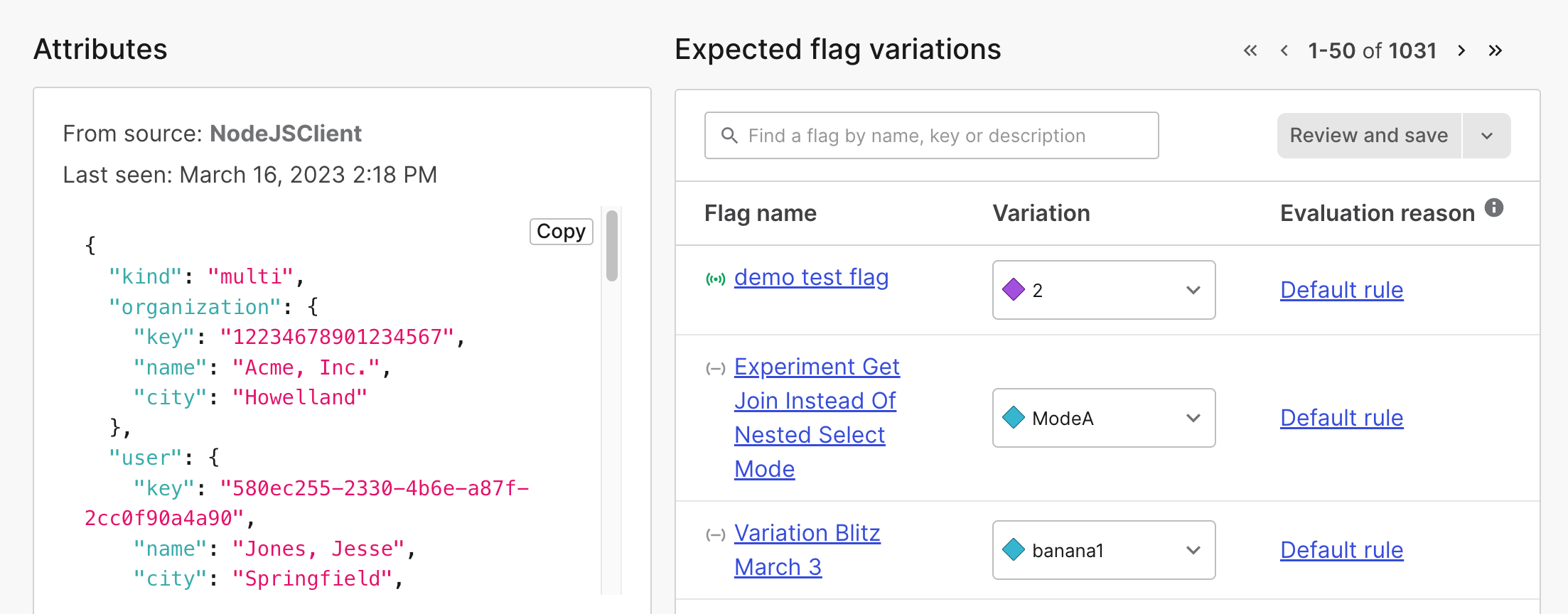
This is an example of a multi-context details page:

The details page for a multi-context.

The details page for a multi-context.

Attributes

The “Attributes” section displays all of the context attributes associated with the selected context instance version. A context instance version is a context instance that’s recorded from a unique source application or LaunchDarkly SDK. It includes only the context attributes you provide in the evaluation call. To learn more, read Context instances.

This illustration shows a flag evaluating two instance versions of the same context:
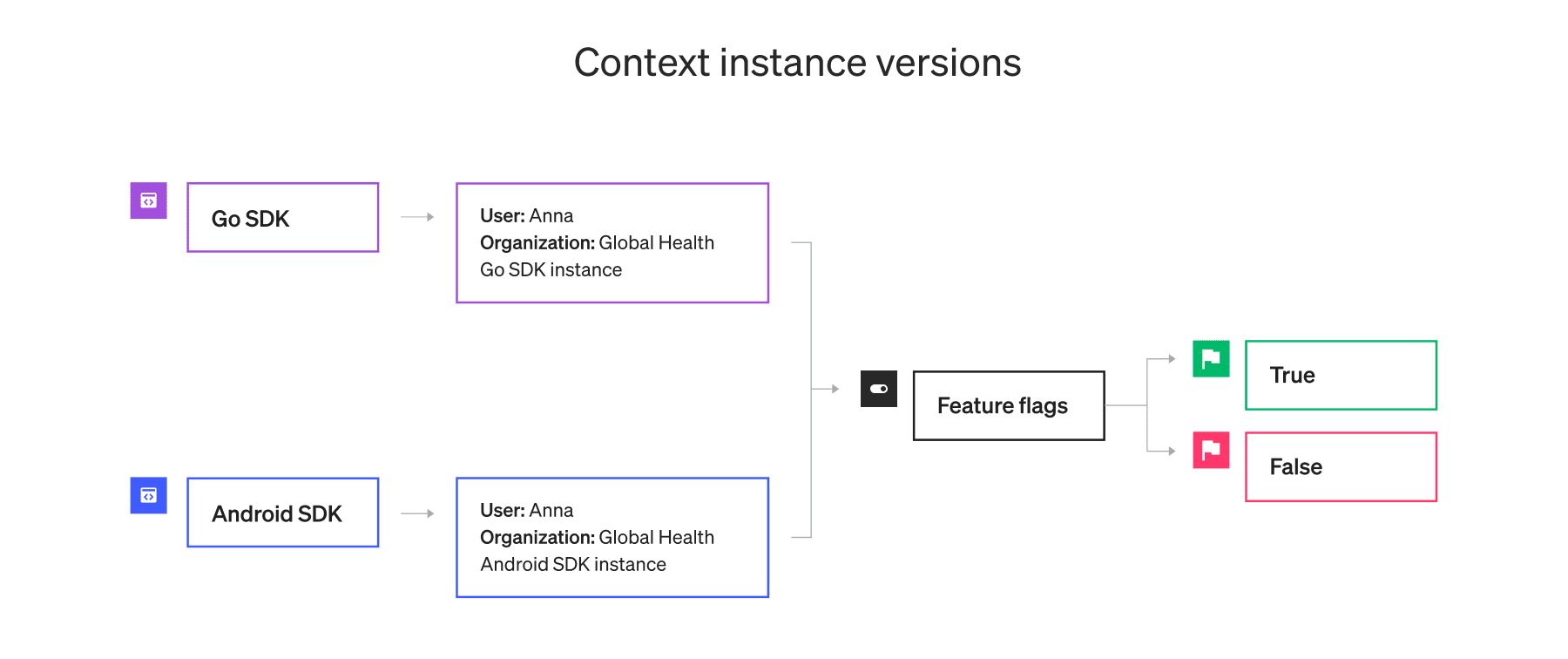
Two instance versions of the same context.
Two instance versions of the same context.

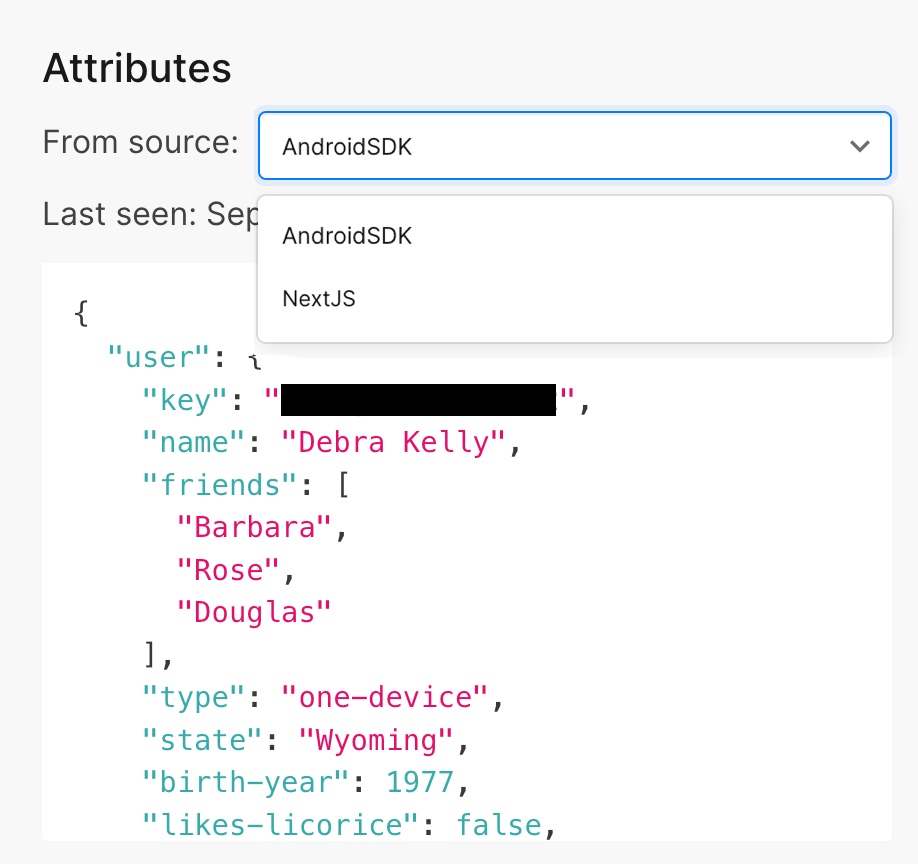
To view attributes from a different context instance version, choose a different version from the “From source” menu:

The "From source" menu with two context instance versions displayed.

The "From source" menu with two context instance versions displayed.

To learn more, read Context attributes.

You can also use the REST API: Get context attribute names, Get context attribute values

Segments

The “Segments” section lists any segments the context is a part of. Click on the segment name to open the segment’s details page. To learn more, read Segments.

Instances

The “Instances” section lists the instances in which the context has appeared, and when LaunchDarkly last encountered each instance:
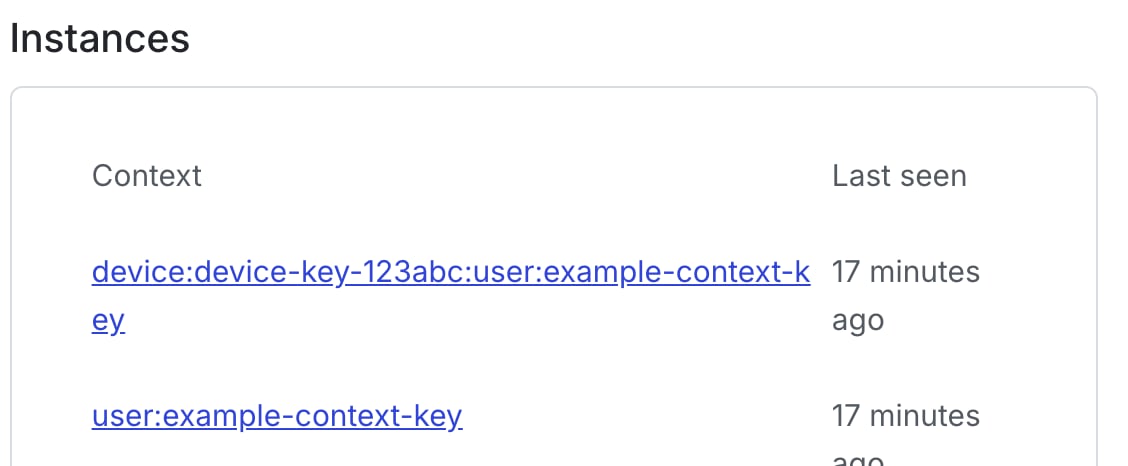
The "Instances" section with two instances.

The "Instances" section with two instances.

If a context has an instance count higher than one, that means it is part of a multi-context.

Click on an individual instance name to open the instance details page. The instance details page lists the context kinds, attributes, segments, and expected flag variations for that particular context instance. To learn more, read Context instances.

You can also use the REST API: Get context instances

Delete context instances

To delete a context instance:

  1. In the left sidebar, click Code. The CodeControl menu appears.
  2. Click Contexts.
  3. From the Contexts list, click on the name of the context with an instance you want to delete. The context details page opens.
  4. In the “Instances” section, click on an instance. The instance details page opens.
  5. Click Delete:

A context instance detail page with the "Delete" button called out.

A context instance detail page with the "Delete" button called out.

Deleting a context instance deletes all versions of that instance. Deleting context instances from the Contexts list does not decrease your account usage.

You can also use the REST API: Delete context instances

Expected variations

The “Expected variations” section lists the variation you can expect that context instance to receive for each flag or AgentControl config within your current project and environment.
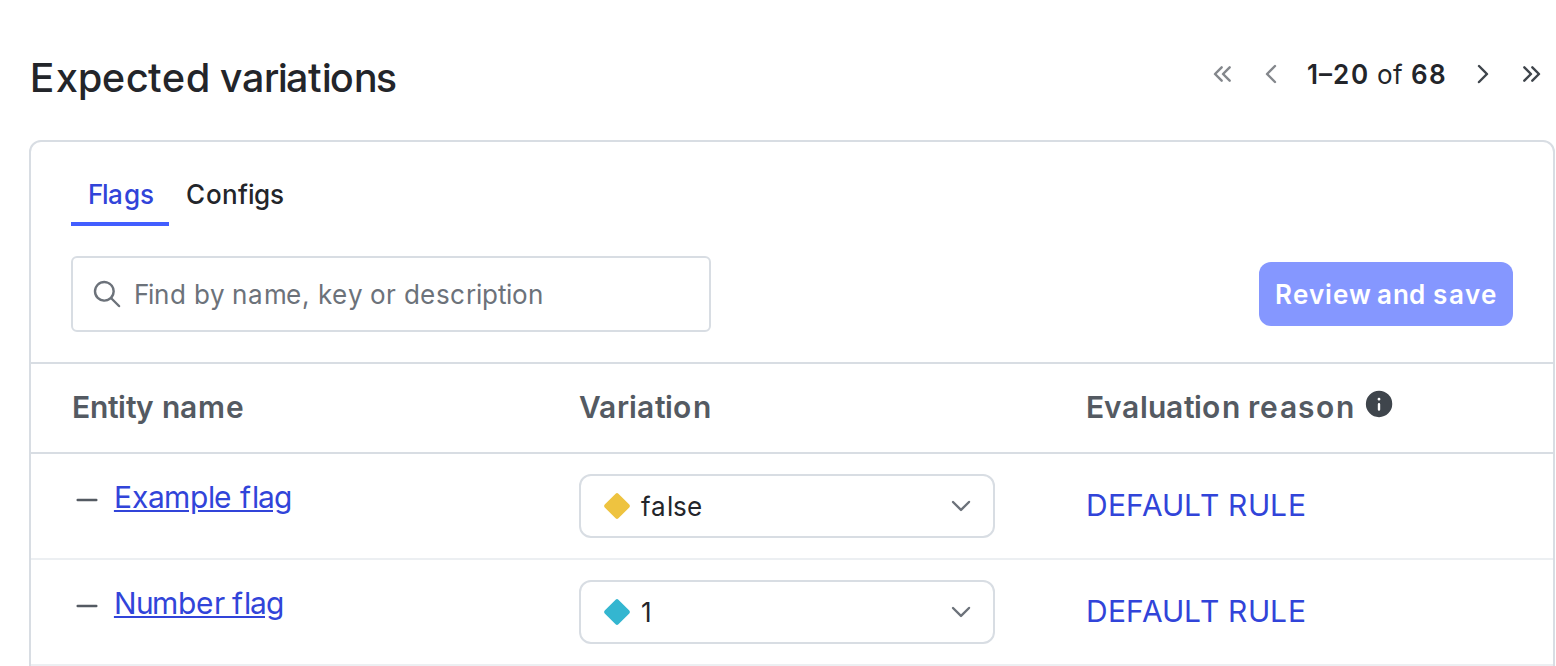
The "Expected variations" on the details page for a context.

The "Expected variations" on the details page for a context.

For each flag, you can use your SDK’s flag evaluation reason feature to get more information about the flag variations LaunchDarkly serves.

Try it in your SDK: Flag evaluation reasons

Modify variations for a context

You can modify the variation a context receives for a feature flag or an AgentControl config. To do this:

  1. Find the “Entity name” you want to modify in the “Expected variations” section.
  2. Select a new variation from the Variation menu next to the flag:
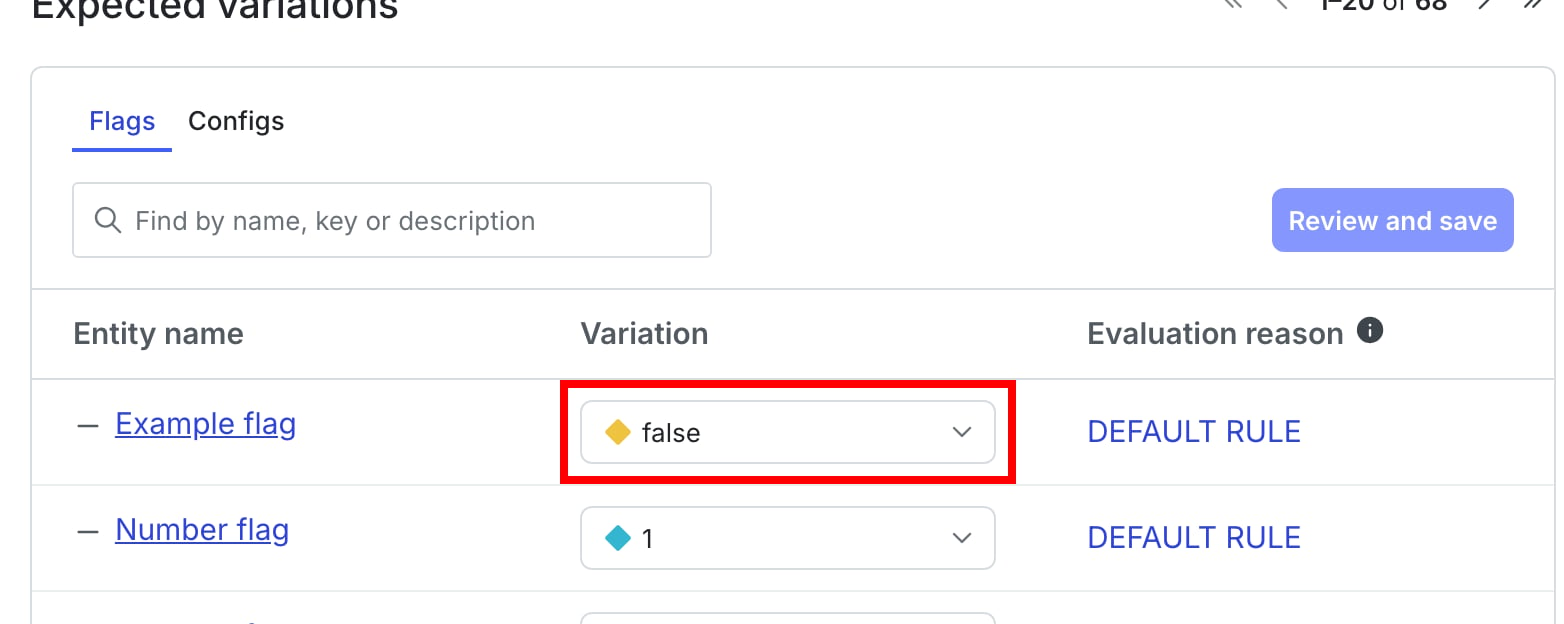
The "Expected flag variations" section with a variation called out.

The "Expected variations" section with a variation called out.
  1. (Optional) To remove individual targeting, either:
  • change to the variation from the Variation dropdown, or
  • click the “Evaluation reason” link to remove the individual target from the flag’s Targeting tab.
  1. Click Save changes.
Targeting changes are only available for individual contexts.

You cannot make targeting changes to context instances with multiple contexts. That option is not available on the instance details page with multiple contexts.
