

About experiment flags
Experiment flags are temporary flags. In the most common use case, you wrap an experiment flag around code for a new or improved feature that impacts end users. Experiment flags can be either boolean or multivariate, so that the experiment can test multiple values. You can pair flags with metrics to compare context or system behavior between two or more flag variations. To learn more, read Experimentation.Create experiment flags
To create an experiment flag:- Click Create and choose Flag. The “Create flag” dialog appears.
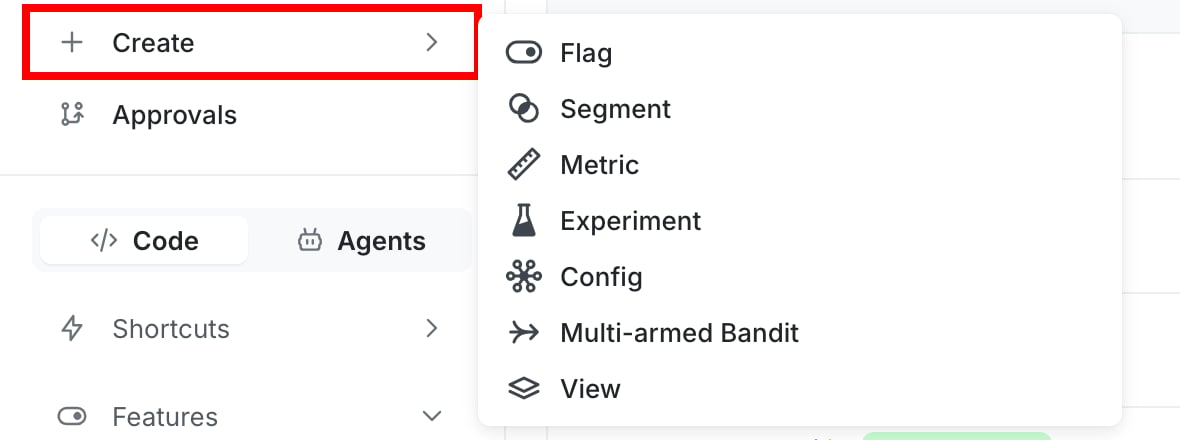
The "Create" menu options.
- Enter a unique, human-readable Name. A suggested key auto-populates from the name you enter, but you can customize it if you wish.
- (Optional) Click Edit key to update the flag key. You’ll use this key to reference the flag in your code.
- (Optional) Enter a Description of the flag. A brief, human-readable description helps your account members understand what the flag is for.
- (Optional) Click Custom and select Experiment. The flag type updates to String.
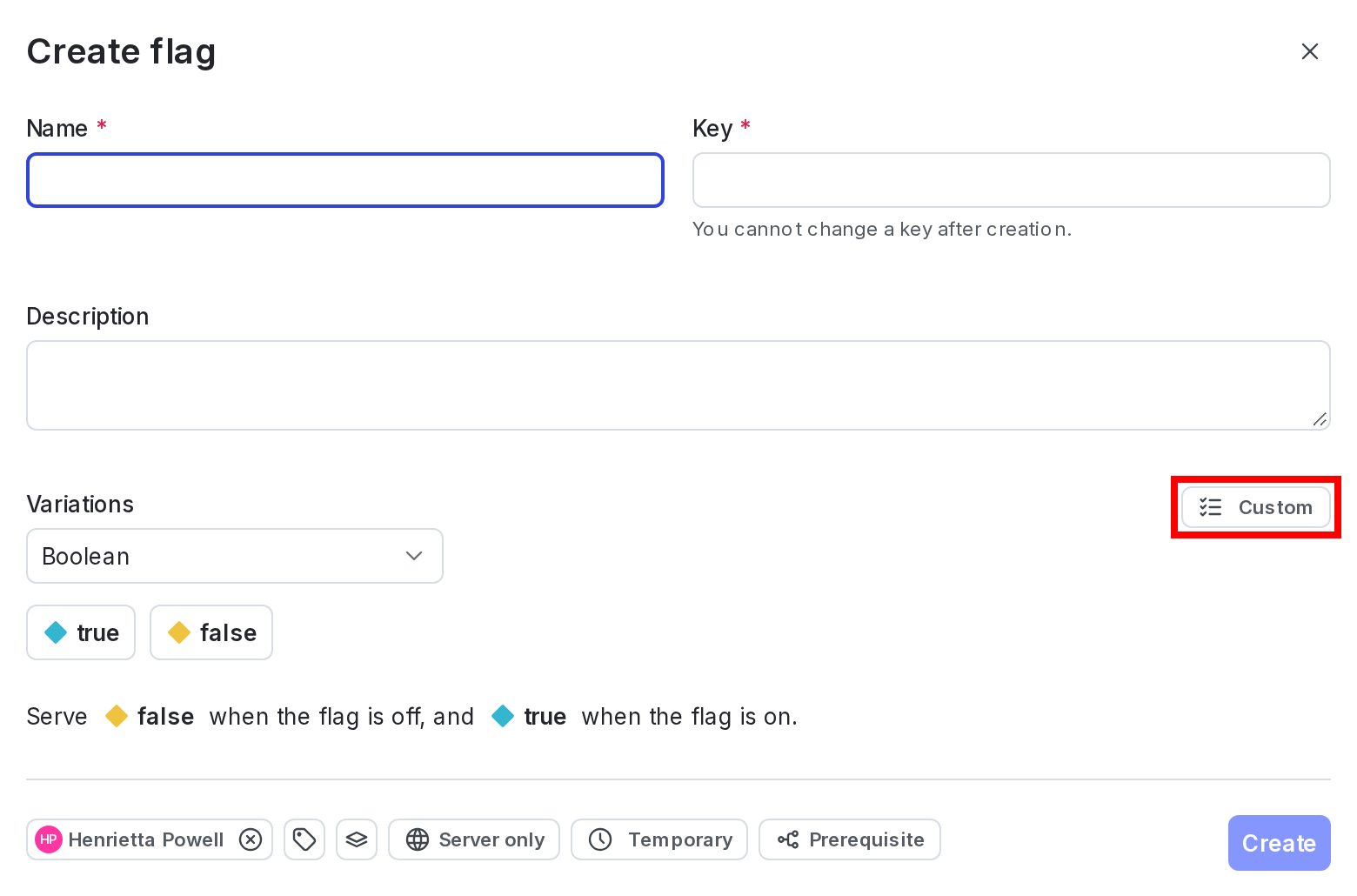
The template menu in the flag creation dialog.
- (Optional) Click + to add additional variations.
- (Optional) Click a variation name to edit its name and value.
-
(Optional) Click Schema to validate the variations using a JSON schema.
- Click the magic wand icon to suggest a JSON schema based on your existing variation values.
- Click the broom icon to format the JSON schema.
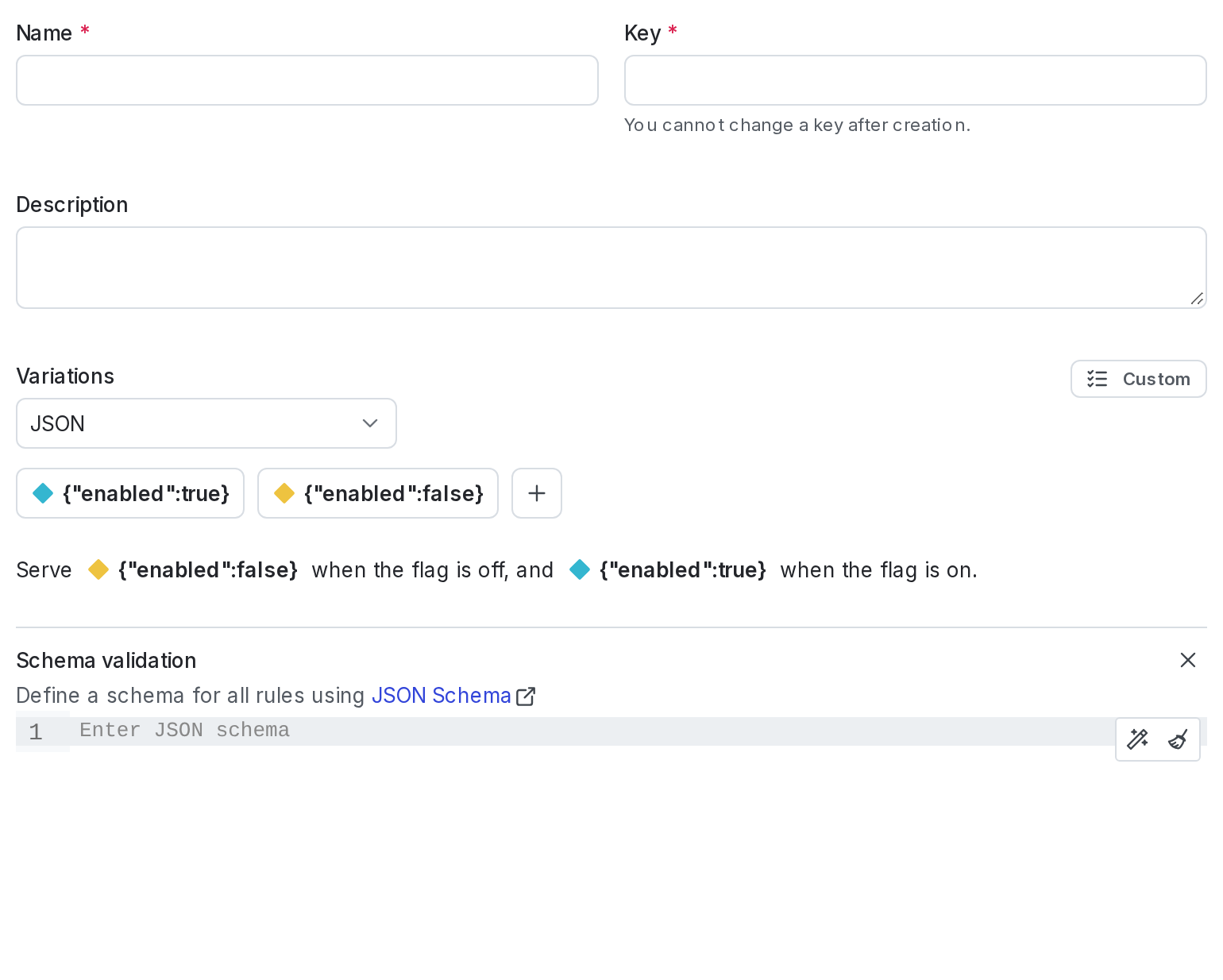
The schema option in the flag creation dialog.
- (Optional) Change the default on and default off variations if needed.
- (Optional) Click on your member name to change the flag maintainer.
- (Optional) Click the tag icon to add one or more tags.
- (Optional) Click the views icon to add the flag to a view.
- (Optional) Click All SDKs to make the flag unavailable to client-side or mobile SDKs. Flags are available to all SDKs by default.
- (Optional) Click Prerequisite to add a prerequisite flag.
- Click Create flag.
Modify the experiment flag template
To modify your experiment flag template:- Click the gear icon in the left sidebar. The settings page opens.
- Click Flag settings. The flags settings page appears.
- In the “Flag templates” section, click the pencil icon next to “Experiment.”
- In the “Tags” section, type to add tags to each new flag by default.
- Click Save.