

Create approval requests
You can request approval from any member or team within your LaunchDarkly organization for the following types of changes:- Changes to a flag, segment, or AgentControl config’s targeting
- Changes to a flag or AgentControl config’s variations
- Starting, stopping, or editing an experiment
Approvals on release phases work differentlyIf you use approvals to gate a phase in release assistant, the phase must have an associated flag action. If the phase has no flag action, LaunchDarkly does not generate an approval request and the release phase completes automatically.
Create approval requests for flags, AgentControl configs, and segments
To request an approval:- Make a change to any flag, AgentControl config, or segment.
- Click Review and save. The “Save changes” dialog appears.
- Review the changes displayed in the dialog.
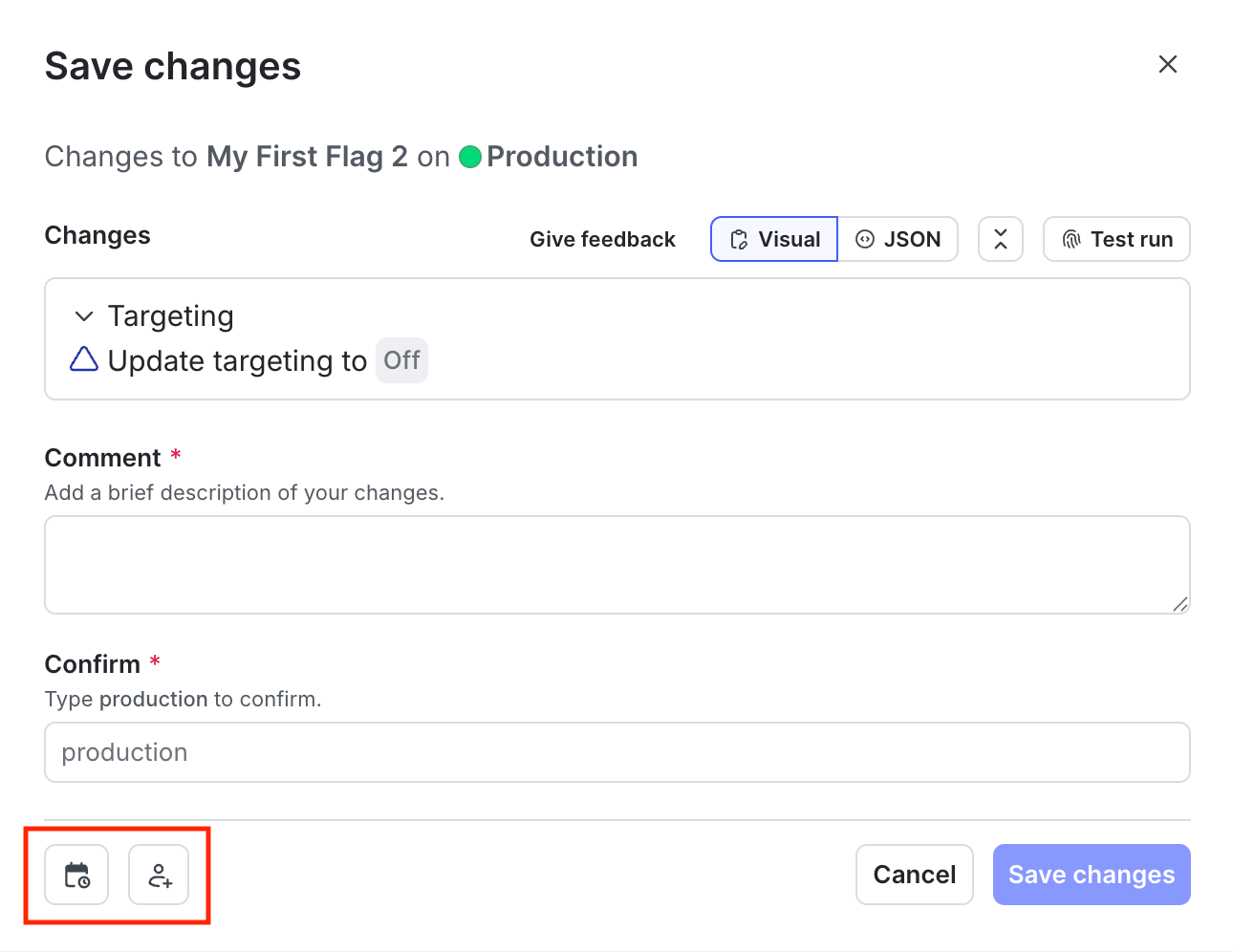
The "Save changes" dialog with the "Schedule changes" and "Add reviewers" icons called out.
-
(Optional) Click the calendar icon to schedule the change.
- Select a date, time, and timezone.
- Click Update.
- Click the person icon to open the Save changes menu.
- Choose one or more reviewers from the Reviewer(s) menu.
-
Enter a Comment to add details that help your reviewers understand the changes you made. If your organization uses a third-party workflow management system for approvals, you may need to complete additional fields. To learn more, read Configuring approvals for an environment.
Your environment may require approvalsIf your environment requires approvals, Review and request approval is the default option. To learn more, read Configuring approvals for an environment.
- Confirm your changes by entering the name of your environment.
- Click Request approval.
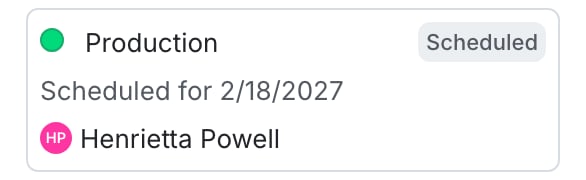
The "Pending changes" section of a flag.

You can also use the REST API: Create approval request for a flag
Create approval requests for experiments
You can create approval requests when you make a change to an experiment’s design, or when you want to start or stop an experiment.Create approval requests for changes to experiments
To request an approval when you make a change to an experiment’s design:- Navigate to an experiment’s Design tab, and make any changes needed.
- Click Save & request approval for new iteration. A “Request approval to start new iteration” dialog appears.
- Enter a Reason for changes.
- Click Continue.
- Choose one or more reviewers from the Reviewer(s) menu.
- Enter a Comment.
- Click Request to start new iteration.
Create approval requests for starting or stopping an experiment
To request an approval when you want to start or stop an experiment:- Navigate to an experiment’s Design tab.
- Click Request approval to start or Request approval to stop. A “Request approval to start/stop experiment” dialog appears.
- Choose one or more reviewers from the Reviewer(s) menu.
- Enter a Comment.
- Click Request to start/stop experiment.
Required approvals
Enterprise customers can require approval requests for specific environments. If your environment requires approvals, Review and request approval is the default option when you make a flag, AgentControl config, experiment, or segment change. If a team member has thebypassRequiredApproval custom role action, they are not required to request approval. Instead, they have the option to Save changes. The bypassRequiredApproval custom role action applies to flag approvals. To bypass required approvals for segments, use the bypassRequiredSegmentApproval custom role action. You cannot bypass required approvals for AgentControl configs.
When you copy flag settings between environments, if the environment you’re copying changes to requires approval, then Review and request approval is the default option. To learn more, read Compare and copy flag settings between two environments and Configuring approvals for an environment.
You can also use the REST API: Create approval request to copy flag configurations across environments