

Required confirmation is available to customers on select plansRequired confirmation is only available to customers on select plans. To learn more, read about our pricing. To upgrade your plan, contact Sales.
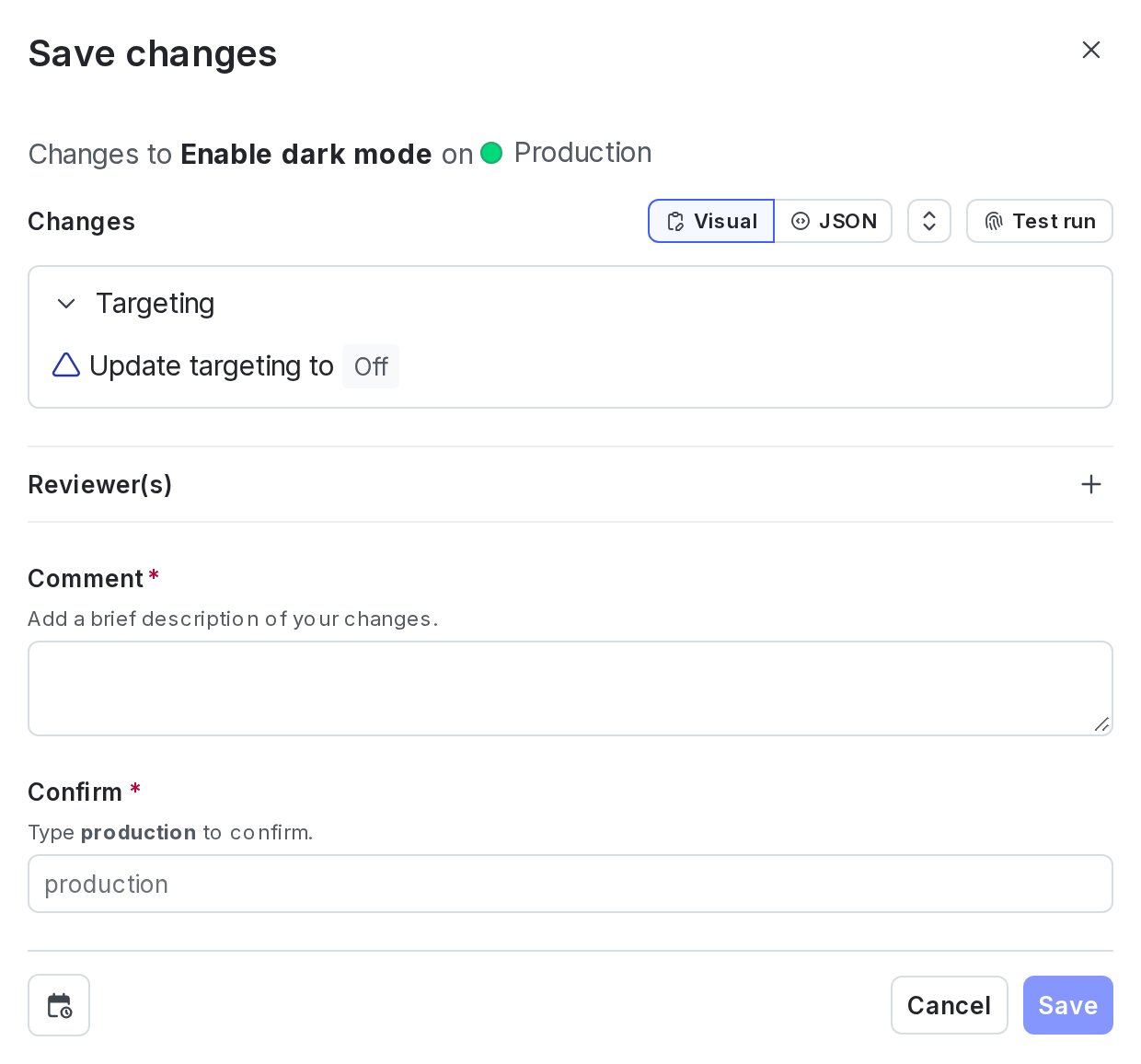
The "Save changes" dialog.
Requiring confirmation
To require confirmation on changes in a new environment:- Click the gear icon in the left sidebar. The settings page opens.
- Select All environments. The environments list appears.
- Click Add environment. The “Create an environment” panel appears.
- Give your environment a human-readable Name.
- Select the Require confirmation for flag and segment changes checkbox:
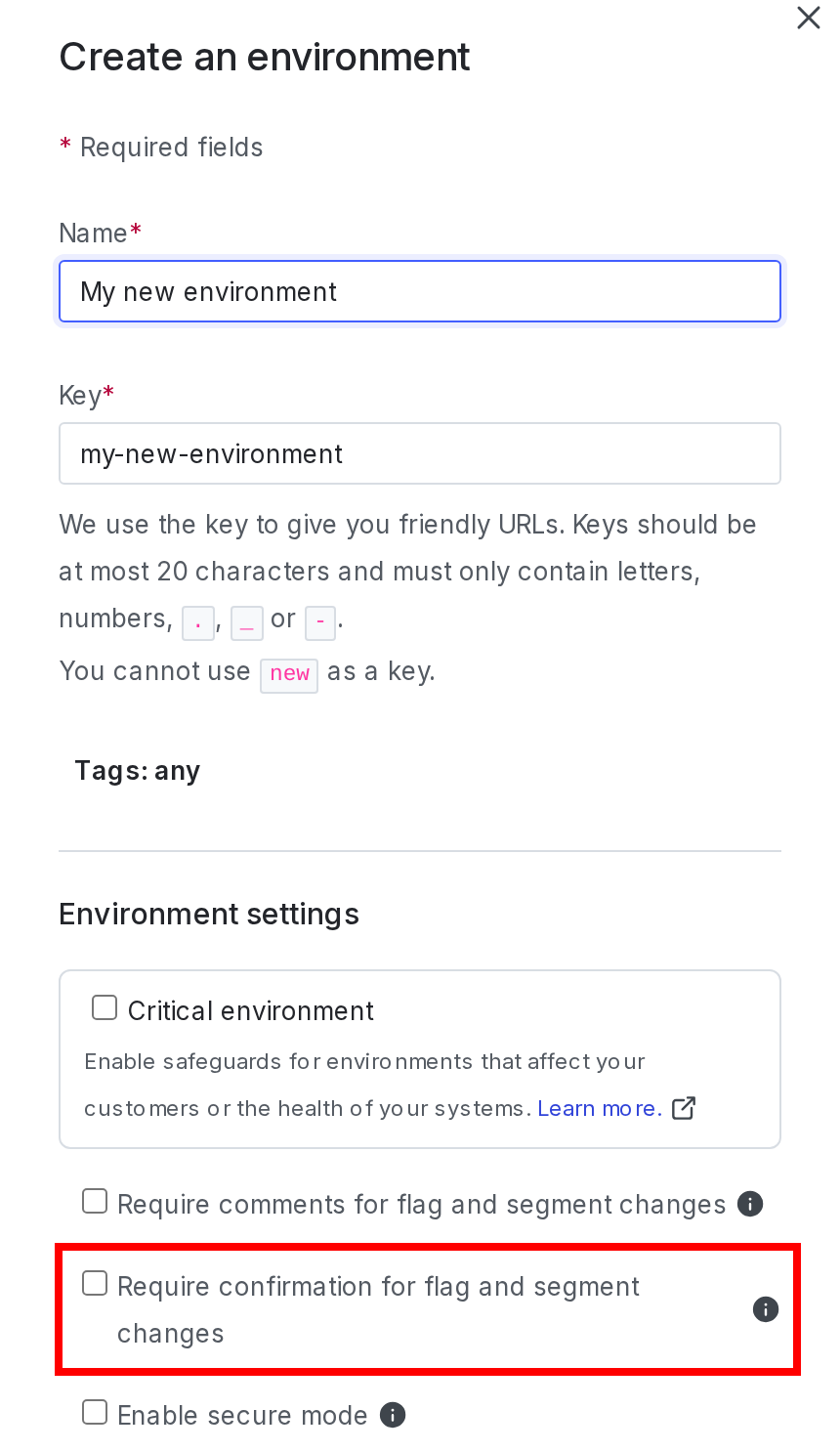
The "Create an environment" panel with the "Require confirmation" checkbox called out.
- Click Create environment.
- Click the gear icon in the left sidebar. The settings page opens.
- Select All environments. The environments list appears.
- Next to the environment you want to edit, click the overflow menu and choose Edit environment. The Edit environment panel appears.
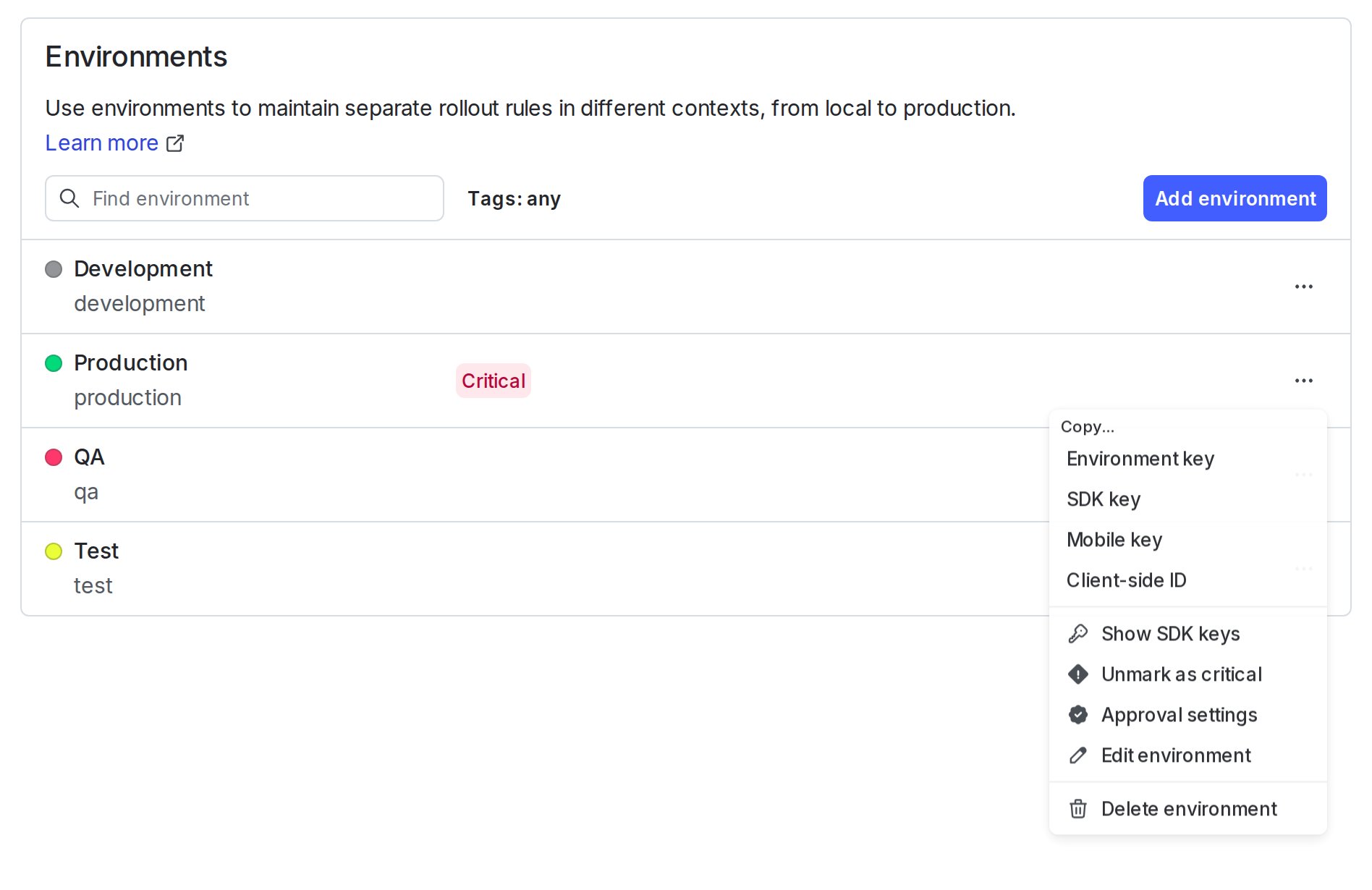
The environment overflow menu, including the "Edit environment" option.
- Select the Require confirmation for flag and segment changes checkbox.
- Click Save environment.