

About flag evaluations
The flag evaluations graph on a flag’s Monitoring tab gives your engineering and product teams insight into how many times different contexts are receiving each variation of a flag over time, as well as any changes to the flag that could have affected how many times each flag was evaluated. To view a flag’s evaluations chart:- In the left sidebar, click Code. The CodeControl menu appears.
- Click Flags.
- Click the name of the flag you want to view evaluations over time for. The flag’s Targeting tab appears.
- Click the Monitoring tab.
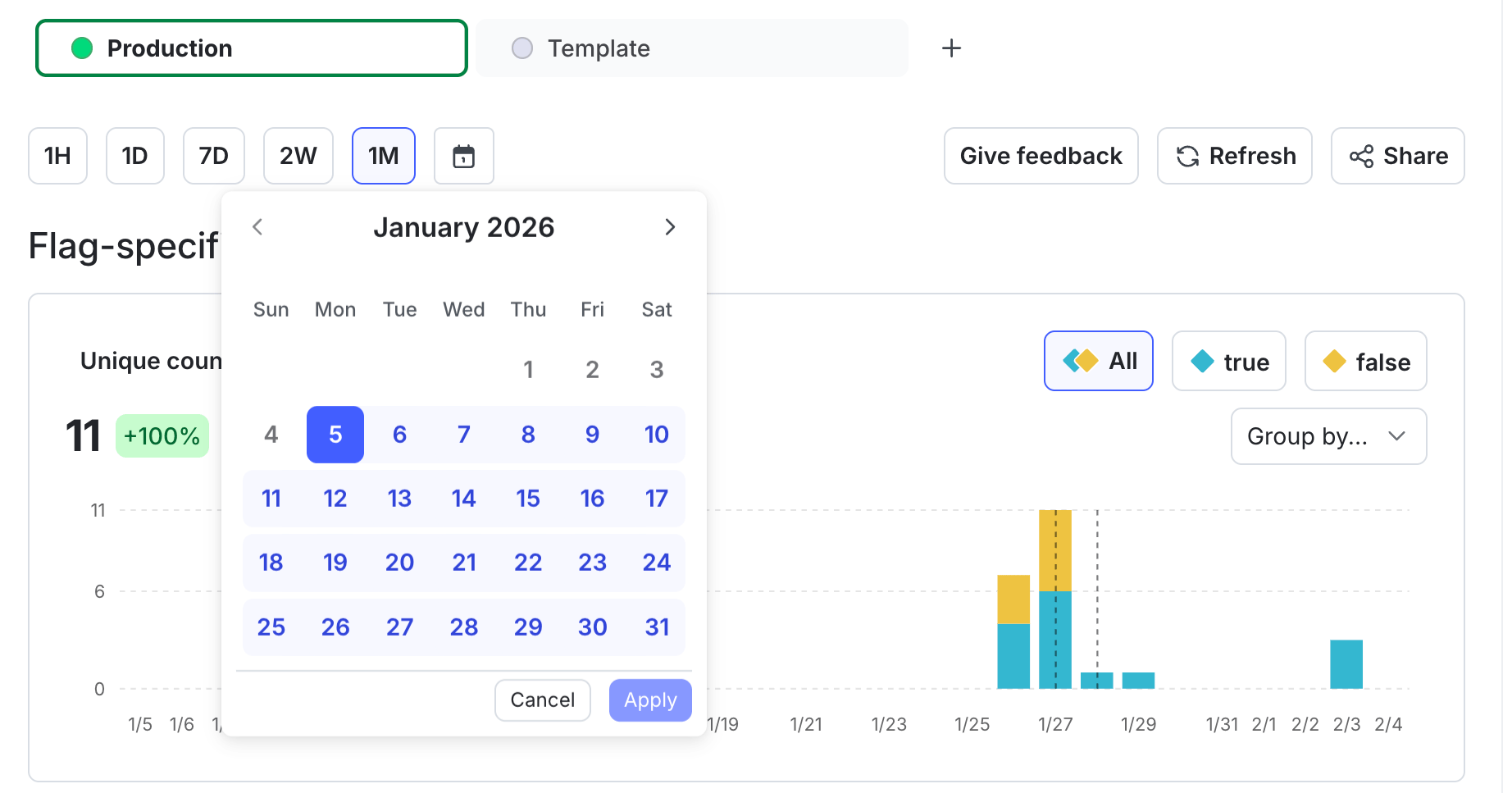
The flag evaluations chart on a flag's monitoring tab.
Only flag evaluations are recordedLaunchDarkly generates the flag evaluations graph based on analytics events, which are sent from
variation calls from the LaunchDarkly SDKs. To learn more, read Flag variation evaluation.Other SDK methods, such as getting all flags, typically do not populate the flag evaluations graph. To learn more and review the exceptions to this, read About the all flags feature.Evaluation display
LaunchDarkly generates the flag evaluations graph on a per-flag evaluation basis, not a per-context instance basis. This means that if the same context instance is evaluated 20 times, the flag evaluations graph records and displays all 20 evaluations. New evaluations appear on the flag evaluations graph within one to two minutes. If a flag you have removed from your codebase is still showing evaluations, read these related LaunchDarkly help center articles:- Flag removed from code is still showing evaluations
- Troubleshooting unexpected variations on the evaluations graph
View unique client-side context evaluations
You can view flag evaluations by the number of unique client-side contexts, by context kind, that encountered the flag within your chosen time range. For example, if you are viewinguser contexts, each individual user is counted only once, even if it encounters the flag multiple times.
To view flag evaluation by unique client-side contexts per context kind:
- In the evaluations chart, click Unique count of. The context kind selection menu opens.
- Select the context kind you want to view.
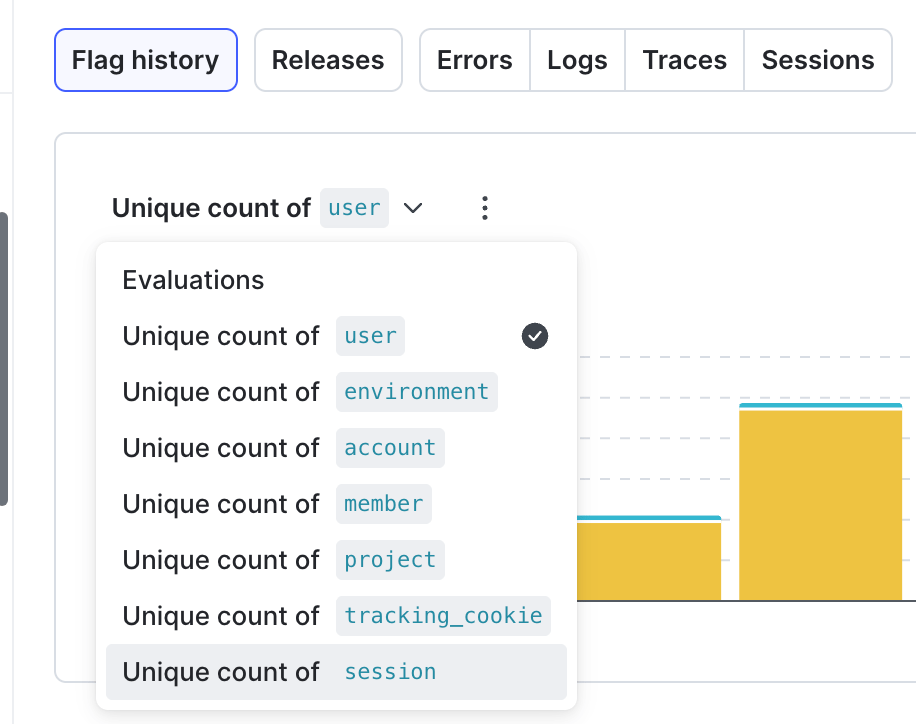
The context kind selection menu on the enhanced flag evaluations chart.
- no contexts of that context kind have ever encountered the flag
- no contexts of that context kind have encountered the flag within your selected time range
- the only contexts of that context kind that have encountered the flag are from server-side SDKs
- you’re using an older version of a client-side SDK that doesn’t support displaying unique evaluations
V3 of the JavaScript SDK does not send all events automaticallyThe evaluations chart counts a context only when LaunchDarkly receives an evaluation event for it. Version 3.x of the JavaScript SDK queues analytics events and sends them at intervals. If the page navigates away or the browser tab is hidden or closed before the SDK sends the queue, those events are lost. This can affect variations unevenly. For example, if one variation redirects and another doesn’t, unique counts won’t match your rollout percentages. To avoid this, call
flush() after evaluating the flag and before navigating, or upgrade to the latest version of the JavaScript SDK. To learn more, read Flushing events.View evaluations by application or SDK
Depending on your SDK and its configuration, you can view flag evaluations by specific applications or specific SDKs. To do this:- In the evaluations chart, click Breakdown.
- Select Application or SDK.
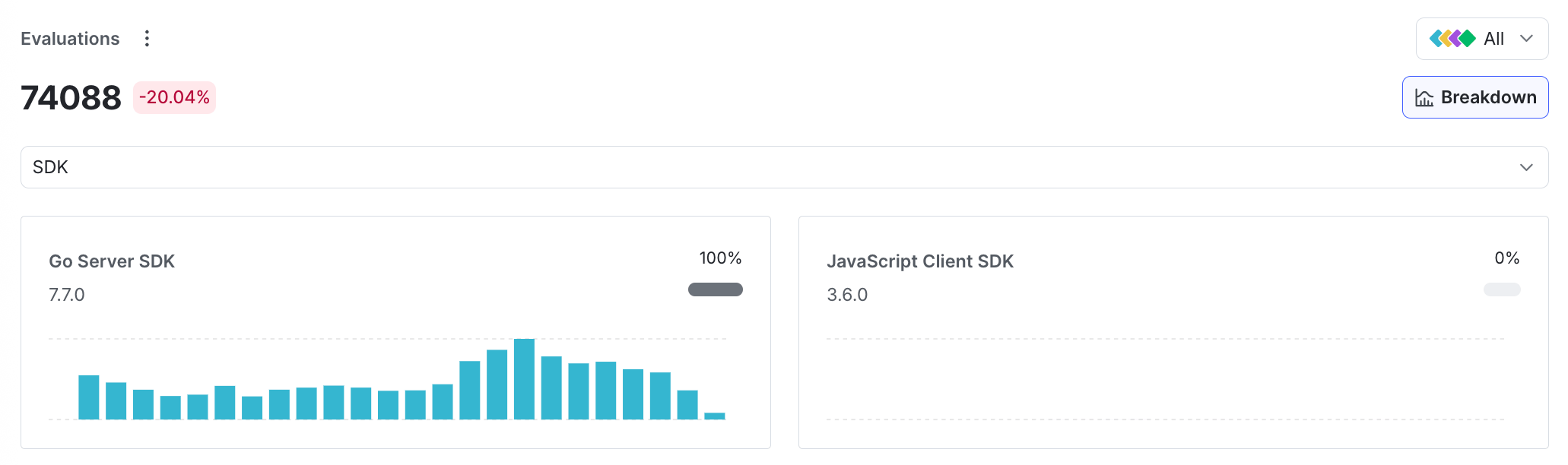
Flag evaluations broken down by SDK.