

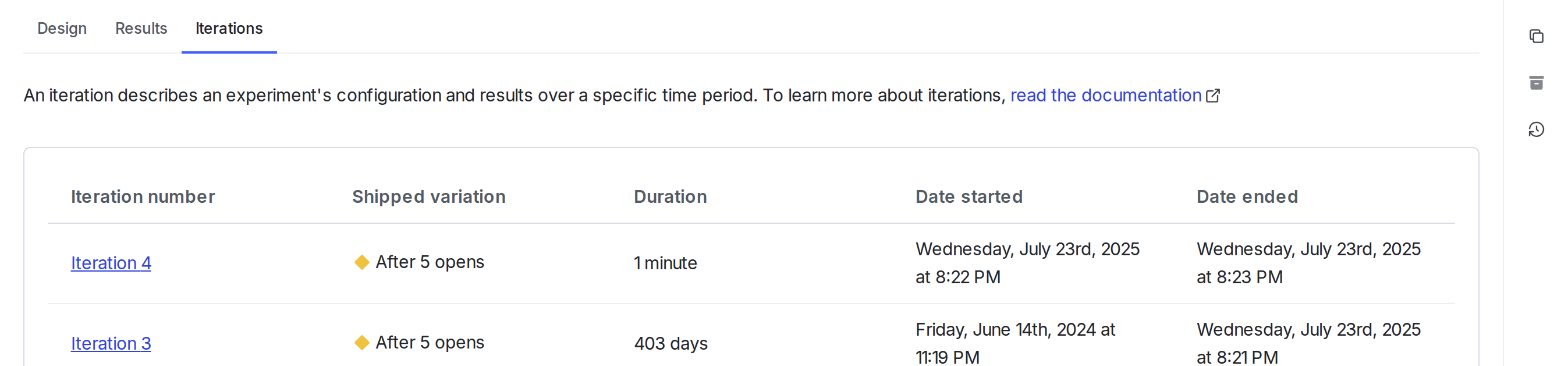
An experiment's "Iterations" tab.
Start experiment iterations
After you create an experiment you can start an iteration in one or more environments. To start an experiment iteration:- Navigate to the Experiments list.
- Click on the environment section containing the experiment you want to start.
- If the environment you need isn’t visible, click the + next to the list of environment sections. Search for the environment you want, and select it from the list.
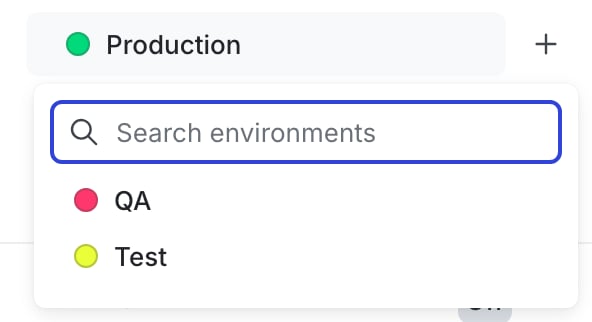
The environment selection menu.
- Click on the name of the experiment you want to start an iteration for. The Design tab appears.
- Click Start, or, if your environment requires approvals, click Request approval to start. A “Start experiment” dialog appears.
- If your environment does not require approvals, but you want to request approval anyway, click the down arrow next to the Start button and click Request approval to start.
- (Optional) If the flag is off, click Toggle on flag.
- Click Start experiment.
- Repeat steps 1-5 for each environment you want to start an iteration in.

An experiment with the "Start" button called out.

You can also use the REST API: Create iteration
Stop experiment iterations
If you need to make changes to your experiment, you can stop your experiment iteration.Restarting an experiment reshuffles trafficIf you stop an experiment iteration, and then later start a new iteration, LaunchDarkly reshuffles traffic into new variations. To learn more, read Traffic reshuffling.
- Navigate to the experiment’s Results tab.
- Click Stop, or if your environment requires approvals, click Request approval to stop. The “Ship” menu appears.

An experiment with the "Stop" button called out.
- Select the winning variation to ship to all contexts that match the flag’s targeting rule. A “Stop experiment” dialog appears.
- Enter a Reason for stopping.
- Click Stop experiment, or if your environment requires approvals, click Request approval to stop.
You can also use the REST API: Patch experiment