For AI agents: a documentation index is available at the root level at /llms.txt and /llms-full.txt. Append /llms.txt to any URL for a page-level index, or .md for the markdown version of any page.
Sign inTry it free
DocsGuidesSDKsIntegrationsAPI docsTutorialsFlagship blog
  • Get started
    • Overview
    • Onboarding
    • Get started
    • Launch Insights
    • LaunchDarkly architecture
    • LaunchDarkly vocabulary
  • AgentControl
    • AgentControl
    • Manage AgentControl
  • Feature flags
    • Create flags
    • Target with flags
    • Flag templates
    • Manage flags
    • Code references
    • Contexts
    • Segments
  • Releases
    • Releasing features with LaunchDarkly
    • Release policies
    • Percentage rollouts
    • Progressive rollouts
    • Guarded rollouts
    • Feature monitoring
    • Release pipelines
    • Engineering insights
    • Release management tools
      • Approvals
      • Flag triggers
      • Required comments
      • Required confirmation
      • Scheduled flag changes
        • Creating scheduled flag changes
        • Managing scheduled flag changes
      • Workflows
    • Applications and app versions
    • Change history
    • Restoring previous flag versions
  • Observability
    • Observability
    • Session replay
    • Error monitoring
    • Logs
    • Traces
    • Observability metrics
    • Product analytics events
    • LLM observability
    • Alerts
    • Dashboards
    • Service map
    • Vega for auto-remediation
    • Observability MCP server
    • Search specification
    • Observability settings
    • Observability integrations
  • Experimentation
    • Experimentation
    • Experiment metric types
    • Experiment configuration
    • Managing experiments
    • Analyzing experiments
    • Multi-armed bandits
    • Holdouts
  • Metrics and events
    • Metrics in LaunchDarkly
    • Creating metrics
    • Metric groups
    • Events
    • Autogenerated metrics
  • Warehouse native
    • Warehouse native metrics
    • Setting up external warehouses
    • Creating experiments using warehouse native metrics
  • Infrastructure
    • Connect apps and services to LaunchDarkly
    • LaunchDarkly in China and Pakistan
    • LaunchDarkly in the European Union (EU)
    • LaunchDarkly in federal environments
    • Public IP list
  • Your account
    • Projects
    • Views
    • Environments
    • Tags
    • Teams
    • Members
    • Roles
    • Account security
    • Feature previews
    • Billing and usage
    • Changelog
Sign inTry it free
LogoLogo
On this page
  • Create scheduled flag changes
  • Create scheduled flag changes that require approvals
ReleasesRelease management toolsScheduled flag changes

Creating scheduled flag changes

Was this page helpful?
Previous

Managing scheduled flag changes

Next
Built with

This topic explains how to create scheduled flag changes to take effect at a date in the future.

Create scheduled flag changes

To schedule a set of flag changes:

  1. In the left sidebar, click Code. The CodeControl menu appears.
  2. Click Flags.
  3. Select the flag for which you want to schedule targeting changes. The flag’s Targeting tab appears.
  4. Make the changes you want to the flag’s targeting.
  5. Click Review and save. The “Save changes” dialog appears.
  6. Click the calendar icon.
  7. Select a Date and Time.
  8. Click Update.
  9. If your environment requires approvals for flag changes, choose one or more reviewers from the Reviewer(s) menu.
  10. (Optional) Add a Comment describing the changes.
  11. Click Schedule changes.

Your changes have now been scheduled.

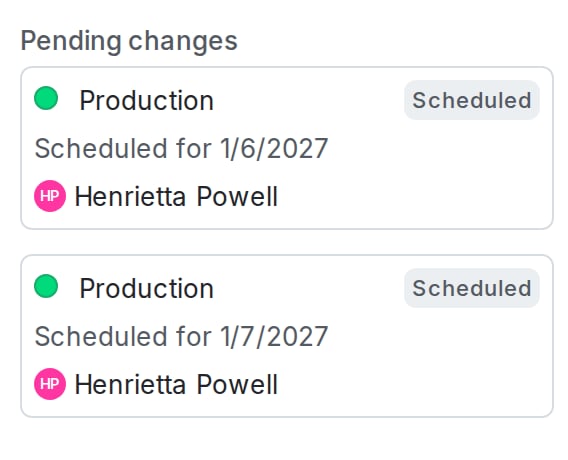
You can schedule multiple changes for different dates and times for a single flag. For example, you can implement a progressive rollout strategy by scheduling multiple sequential changes to targeting rules.

Here is an image of a flag with multiple changes scheduled:

A flag with multiple changes scheduled.

A flag with multiple changes scheduled.

If you use scheduled flag changes to schedule context removal dates, but an approver approves the request after the scheduled date and time of the context removal, LaunchDarkly prevents you from applying the change. To learn more about scheduling, read Schedule context removal from segments.

You can also use the REST API: Create scheduled changes workflow.

Create scheduled flag changes that require approvals

Enterprise customers can require approvals for scheduled flag changes. If approvals are required, the change is marked “Pending Review” in the “Pending changes” panel.

If there are conflicts between changed flags and requested changes, approved and applied changes take precedence over pending or requested changes. To learn more, read Manage conflicts with scheduled changes.