

Create URL flag links
You can create URL flag links by associating an external URL with a feature flag. To create a URL flag link:- From the Flags list, click on the name of the flag you want to follow. The flag’s Targeting tab opens.
- Click the + icon in the “Links” section of the right sidebar. The “Add link to flag” dialog appears.
- Enter the URL for the external resource you’re linking the flag to.
- (Optional) Enter a title and description for the link.
- Click Save. The linked resource appears in the “links” section.

You can also use the REST API: Flag links
Create Slack flag links
Slack flag links require the LaunchDarkly Slack app integrationThe LaunchDarkly Slack app integration is required to use Slack flag links. To learn how to set up the integration, read Slack.
- In Slack, locate the conversation you want to reference.
- Click more actions:
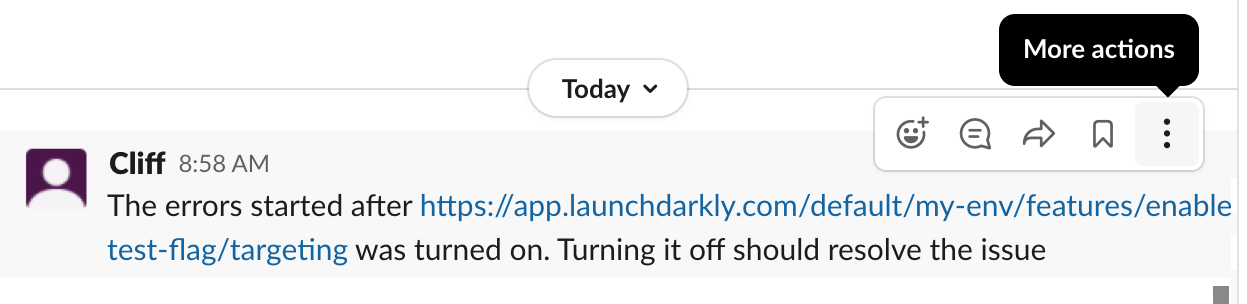
The "More actions" menu for a Slack conversation.
- Click More message shortcuts… The “Use a shortcut” screen opens.
- Enter “Create flag link” into the search field.
- Click Create flag link. The “Create flag link” screen opens.
- Select the project name and flag you would like to associate with the conversation:
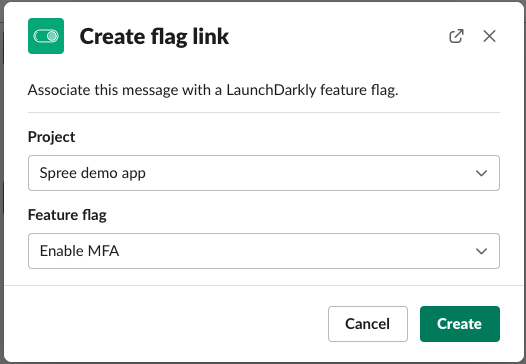
The Create flag link menu.
- Click Create.
Create Jira flag links
Jira flag links require the LaunchDarkly Jira Cloud integrationThe LaunchDarkly Jira integration is required to use Jira issue flag links. To learn how to set up the integration, read Jira Cloud.
Create Trello flag links
Trello flag links require the LaunchDarkly Trello integrationThe LaunchDarkly Trello integration is required to use Trello flag links. To learn how to set up the integration, read Trello.
Create GitHub flag links
GitHub flag links require the LaunchDarkly Find Code References in Pull Request GitHub ActionThe LaunchDarkly Find Code References in Pull Request integration is required to use GitHub flag links. To learn how to set up the integration, read Find Code References in Pull Request.