For AI agents: a documentation index is available at the root level at /llms.txt and /llms-full.txt. Append /llms.txt to any URL for a page-level index, or .md for the markdown version of any page.
Sign inTry it free
DocsGuidesSDKsIntegrationsAPI docsTutorialsFlagship blog
  • Get started
    • Overview
    • Onboarding
    • Get started
    • Launch Insights
    • LaunchDarkly architecture
    • LaunchDarkly vocabulary
  • AgentControl
    • AgentControl
    • Manage AgentControl
  • Feature flags
    • Create flags
    • Target with flags
    • Flag templates
    • Manage flags
    • Code references
    • Contexts
    • Segments
  • Releases
    • Releasing features with LaunchDarkly
    • Release policies
    • Percentage rollouts
    • Progressive rollouts
    • Guarded rollouts
    • Feature monitoring
    • Release pipelines
    • Engineering insights
    • Release management tools
    • Applications and app versions
    • Change history
    • Restoring previous flag versions
  • Observability
    • Observability
    • Session replay
    • Error monitoring
    • Logs
    • Traces
    • Observability metrics
    • Product analytics events
    • LLM observability
    • Alerts
    • Dashboards
    • Service map
    • Vega for auto-remediation
    • Observability MCP server
    • Search specification
    • Observability settings
    • Observability integrations
  • Experimentation
    • Experimentation
    • Experiment metric types
    • Experiment configuration
    • Managing experiments
    • Analyzing experiments
    • Multi-armed bandits
    • Holdouts
  • Metrics and events
    • Metrics in LaunchDarkly
    • Creating metrics
    • Metric groups
    • Events
    • Autogenerated metrics
  • Warehouse native
    • Warehouse native metrics
    • Setting up external warehouses
    • Creating experiments using warehouse native metrics
  • Infrastructure
    • Connect apps and services to LaunchDarkly
    • LaunchDarkly in China and Pakistan
    • LaunchDarkly in the European Union (EU)
    • LaunchDarkly in federal environments
    • Public IP list
  • Your account
    • Projects
    • Views
    • Environments
    • Tags
    • Teams
    • Members
    • Roles
    • Account security
      • Single sign-on
        • Configure SAML SSO
        • Enable SCIM provisioning
        • Enable SSO
        • Disable SSO
        • Change SSO providers
        • Google OAuth
        • GitHub OAuth
      • API access tokens
      • Multi-factor authentication
      • Domain verification
      • IP allowlist
      • Managing sessions
      • Organization access settings
      • Organization announcements
      • Support options
      • Resetting your password
    • Feature previews
    • Billing and usage
    • Changelog
Sign inTry it free
LogoLogo
Your accountAccount securitySingle sign-on

Google OAuth

Was this page helpful?
Previous

GitHub OAuth

Next
Built with

This topic explains how to configure Google OAuth for LaunchDarkly.

Google OAuth is different from Google Workspace SSO

This topic explains how to use Google OAuth. To learn how to configure single sign-on (SSO) for Google Workspace instead, read Google Workspace.

If a member signs in to LaunchDarkly using Google OAuth, they cannot also sign in to the same account using Google Workspace SSO. Similarly, if you invite a member to join a LaunchDarkly account using Google Workspace SSO, they cannot also sign in using Google OAuth.

LaunchDarkly OAuth also does not support multiple accounts with the same email address. You will not be able to use Google OAuth to sign if you belong to multiple accounts with the same email address.

To learn how to switch from logging in with a username and password to logging in with Google OAuth, read our instructions in the LaunchDarkly help center.

To sign in using Google OAuth, account members can use their Google account matching their LaunchDarkly login with the Continue with Google button on the LaunchDarkly sign in page:
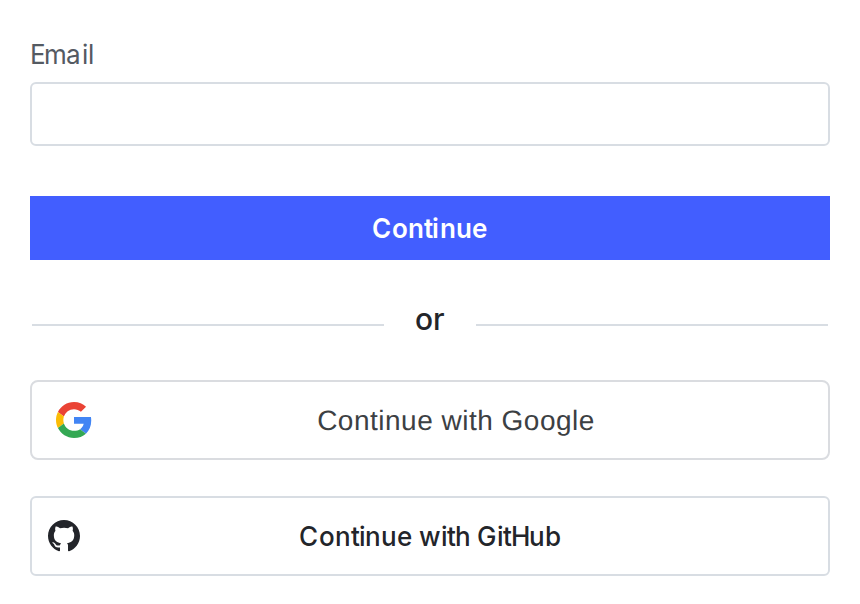
The "Continue with Google" button on the LaunchDarkly sign in page.

The "Continue with Google" button on the LaunchDarkly sign in page.

If your organization uses Gmail and you have enabled domain matching, account members can also sign into LaunchDarkly using Google OAuth. To learn how to enable domain matching, read Enable domain matching.

After they create their account, LaunchDarkly will add them to the correct LaunchDarkly organization using domain matching. If your organization does not have domain matching enabled, completing the sign up form will create a new account with a 14-day trial.