For AI agents: a documentation index is available at the root level at /llms.txt and /llms-full.txt. Append /llms.txt to any URL for a page-level index, or .md for the markdown version of any page.
Sign inTry it free
DocsGuidesSDKsIntegrationsAPI docsTutorialsFlagship blog
  • Get started
    • Overview
    • Onboarding
    • Get started
      • Developer tools
        • LaunchDarkly CLI
        • LaunchDarkly MCP server
        • LaunchDarkly developer toolbar
        • LaunchDarkly agent skills
        • Vega
          • Connecting Vega to GitHub
          • Using Vega in Slack
        • IDE connectors and agents
      • Setting up an SDK
      • Joining an account
      • Using feature management
      • Getting started in different roles
    • Launch Insights
    • LaunchDarkly architecture
    • LaunchDarkly vocabulary
  • AgentControl
    • AgentControl
    • Manage AgentControl
  • Feature flags
    • Create flags
    • Target with flags
    • Flag templates
    • Manage flags
    • Code references
    • Contexts
    • Segments
  • Releases
    • Releasing features with LaunchDarkly
    • Release policies
    • Percentage rollouts
    • Progressive rollouts
    • Guarded rollouts
    • Feature monitoring
    • Release pipelines
    • Engineering insights
    • Release management tools
    • Applications and app versions
    • Change history
    • Restoring previous flag versions
  • Observability
    • Observability
    • Session replay
    • Error monitoring
    • Logs
    • Traces
    • Observability metrics
    • Product analytics events
    • LLM observability
    • Alerts
    • Dashboards
    • Service map
    • Vega for auto-remediation
    • Observability MCP server
    • Search specification
    • Observability settings
    • Observability integrations
  • Experimentation
    • Experimentation
    • Experiment metric types
    • Experiment configuration
    • Managing experiments
    • Analyzing experiments
    • Multi-armed bandits
    • Holdouts
  • Metrics and events
    • Metrics in LaunchDarkly
    • Creating metrics
    • Metric groups
    • Events
    • Autogenerated metrics
  • Warehouse native
    • Warehouse native metrics
    • Setting up external warehouses
    • Creating experiments using warehouse native metrics
  • Infrastructure
    • Connect apps and services to LaunchDarkly
    • LaunchDarkly in China and Pakistan
    • LaunchDarkly in the European Union (EU)
    • LaunchDarkly in federal environments
    • Public IP list
  • Your account
    • Projects
    • Views
    • Environments
    • Tags
    • Teams
    • Members
    • Roles
    • Account security
    • Feature previews
    • Billing and usage
    • Changelog
Sign inTry it free
LogoLogo
On this page
  • Prerequisites
  • Interacting with Vega in Slack
  • Default Slack settings
  • Changing your defaults
  • Thread behavior
  • Related resources
Get startedGet startedDeveloper toolsVega

Using Vega in Slack

Was this page helpful?
Previous

IDE connectors and agents

Next
Built with

This topic explains how to use Vega directly in Slack to investigate issues, clean up flags, and interact with LaunchDarkly’s AI agent from your team’s workspace.

Vega is LaunchDarkly’s AI-powered agent. You can interact with Vega using the LaunchDarkly UI or using Slack. Using Vega in Slack lets your entire team ask questions, investigate issues, and trigger Vega workflows without leaving your Slack workspace.

To learn more about Vega, including eligibility and pricing, read Vega.

Prerequisites

Before you can use Vega in Slack, you must:

  1. Install the LaunchDarkly Slack app in your Slack workspace. To learn more, read Setting up Slack accounts and permissions.
  2. Associate your LaunchDarkly account with the Slack app by typing /launchdarkly account in your Slack client and following the authorization flow.

Interacting with Vega in Slack

After you set up the LaunchDarkly Slack app, you can send messages to Vega by mentioning @LaunchDarkly in any channel where the app has been added, or by sending a direct message to the LaunchDarkly app. In both cases, your message must include an @LaunchDarkly mention for Vega to see it.

When Vega receives your message, it reacts with an 👀 emoji to indicate that it has seen your message and is working on a response.
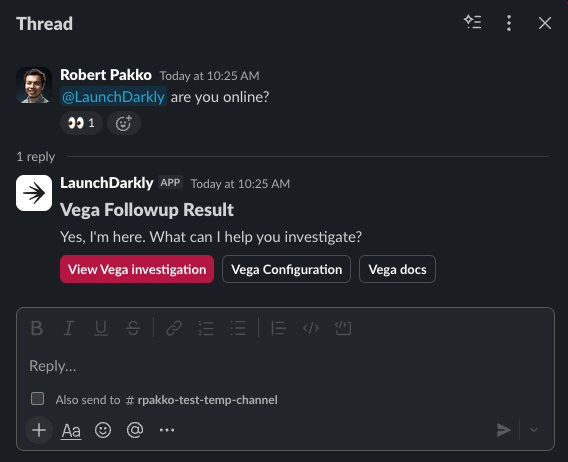
An example of a Vega conversation in Slack.

An example of a Vega conversation in Slack.
Vega only sees @mentions

Vega does not have permission to read all messages in a channel or direct message. It can only see and respond to messages that include an @LaunchDarkly mention. In channels, Vega can only see @mentions in channels where the LaunchDarkly app was added.

Default Slack settings

When you trigger Vega from Slack, it uses the following defaults:

  • Agent mode: Investigate
  • Project: Your default project
  • Repository access: None

These defaults mean Vega will analyze your observability data to find the underlying issue, but will not access any code repositories unless you configure it to do so.

Changing your defaults

You can change your Vega Slack defaults in two ways:

  • From Slack: Click the Vega Configuration button that appears in Vega’s Slack responses.
  • From the LaunchDarkly UI: Open the Vega panel and click the settings button to access Vega Slack Settings.
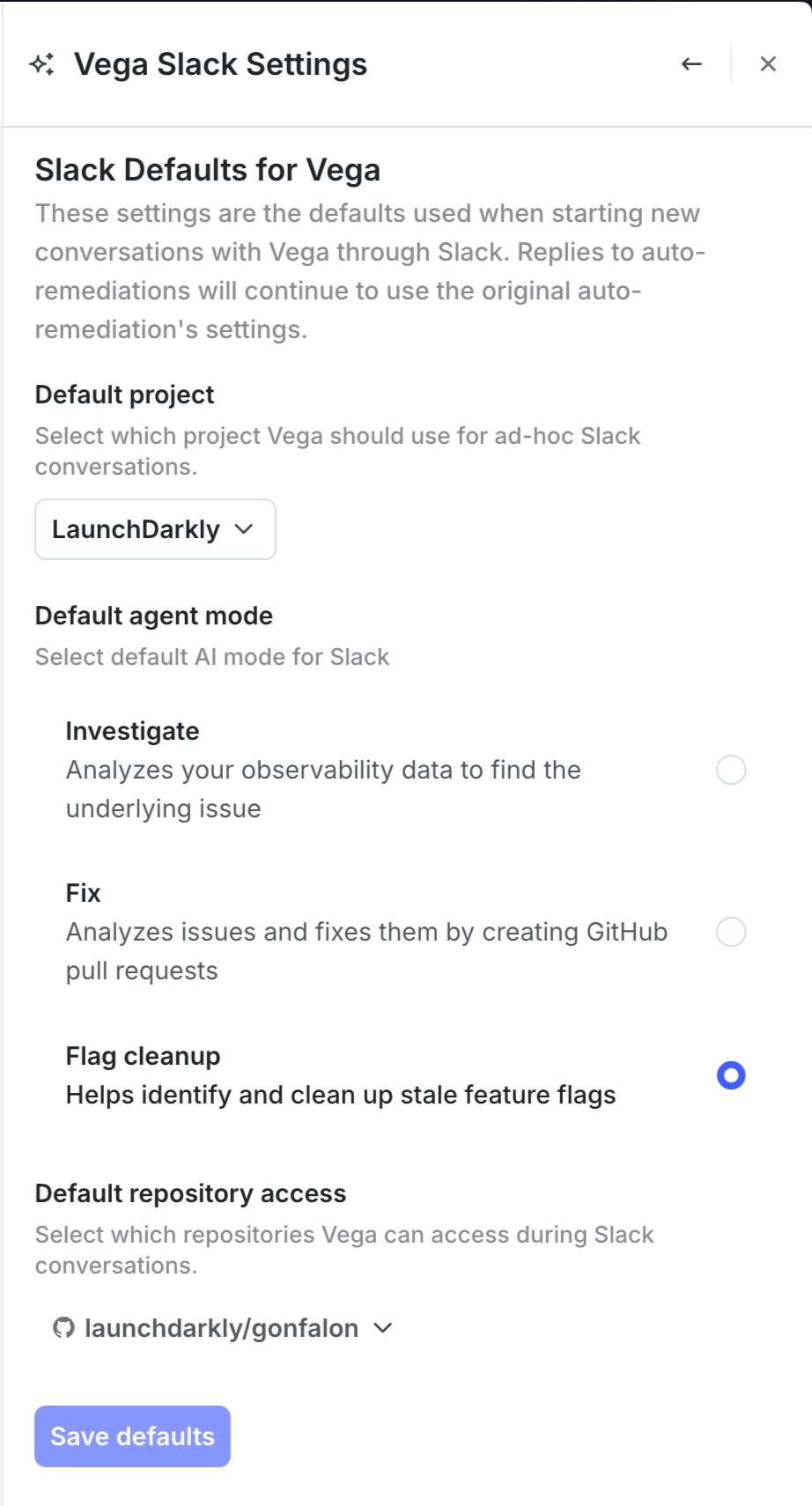
From either location, you can change the default project, agent mode (Investigate, Fix, or Flag cleanup), and default repository access for Slack conversations.

The Vega Slack Settings panel, where you can configure your default project, agent mode, and repository access.

The Vega Slack Settings panel, where you can configure your default project, agent mode, and repository access.

Thread behavior

When you reply to a Vega message in a Slack thread, Vega continues to use the same configuration as the original message. This applies to:

  • Ad-hoc conversations: If you start a conversation in investigate mode, all replies in that thread remain in investigate mode.
  • Auto-remediation: If an auto-remediation was triggered in fix mode, replies to that thread continue in fix mode.

If you want to use a different agent mode for a follow-up, click the View Vega investigation button in a Vega response to open the conversation in the LaunchDarkly UI, where you can follow-up with different settings or start a new investigation with different settings.

Related resources

  • Vega for general information about Vega, including eligibility and pricing.
  • Setting up Slack accounts and permissions for instructions on installing and authorizing the LaunchDarkly Slack app.
  • Connecting Vega to GitHub to enable fix mode and flag cleanup, both of which require GitHub access.
  • Vega for auto-remediation for details on investigate and fix modes.